Elden Ring is one of the most visually impressive open-world RPGs ever made, but it can be surprisingly demanding on PC hardware. If you’re struggling with stuttering, low frame rates, or inconsistent performance, finding the best settings for Elden Ring on low end PC can make a huge difference.
Whether you’re using a GTX 1060, RX 580, integrated graphics, or even a newer RTX 3060 or RTX 4060, this guide covers optimized settings, realistic FPS expectations, performance mods, and practical tweaks to help you achieve smoother gameplay.
Players looking to optimize performance in other demanding titles like Cyberpunk 2077 Settings for Low End PC (Best FPS Guide), Can My PC Run GTA 6? System Requirements & FPS, and DOOM PS4 Review: Is It Still Worth Playing in 2025? will find similar FPS-boosting strategies useful across modern AAA games.
Elden Ring PC Performance Overview — What Low-End Users Face
When Elden Ring launched on PC, many players experienced shader compilation stutter, inconsistent frame pacing, and CPU bottlenecks. While patches have improved performance, low-end systems still face challenges.
Common causes of poor performance include:
- CPU bottlenecks in large open-world areas
- Limited VRAM on older graphics cards
- Shader compilation stutters
- Background processes consuming system resources
For many low-end PCs, a stable 30–45 FPS experience is often more realistic than chasing a locked 60 FPS.
This guide is designed for:
- Integrated graphics users
- GTX 1060 and RX 580 owners
- GTX 1660 Super users
- RTX 3060, RTX 3060 Ti, and RTX 4060 owners targeting higher frame rates
Elden Ring System Requirements — Can Your PC Run It?
Elden Ring Minimum Requirements (Official)
| Component | Minimum Spec | Recommended Spec |
| OS | Windows 10/11 64-bit | Windows 10/11 64-bit |
| CPU | Intel Core i5-8400 / Ryzen 3 3300X | Intel Core i7-8700K / Ryzen 5 3600X |
| GPU | GTX 1060 3GB / RX 580 4GB | GTX 1070 8GB / RX 5700 8GB |
| RAM | 12 GB | 16 GB |
| Storage | 60 GB SSD | 60 GB SSD |
| DirectX | Version 12 | Version 12 |
What FPS to Expect at Minimum Specs
| GPU | Expected FPS |
| GTX 1060 3GB | 25–40 FPS |
| RX 580 4GB | 30–45 FPS |
| Intel UHD Graphics | Below playable |
| Vega Integrated Graphics | Below playable |
Remember, minimum requirements simply mean the game launches. They do not guarantee smooth gameplay.
Can My PC Run Elden Ring? — Quick Checklist
Before adjusting settings, verify:
- At least 4GB VRAM available
- 6GB+ VRAM recommended
- 12GB RAM minimum
- SSD installed
- Modern quad-core CPU or better
Single-thread CPU performance matters more than total core count in Elden Ring.
Elden Ring FPS Benchmark — Low vs Medium vs Ultra Settings
FPS Benchmark Table — 1080p Performance by GPU
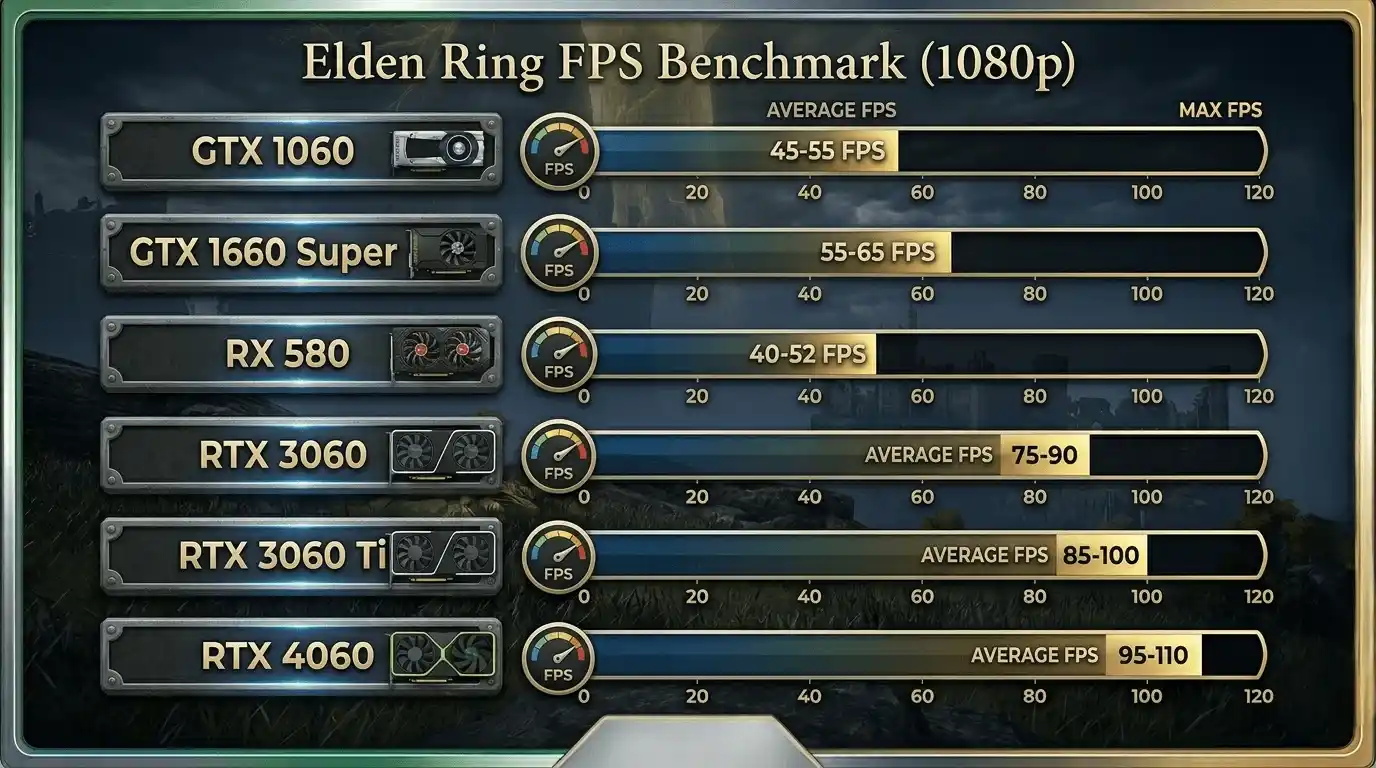
| GPU | Low | Medium | High | Ultra |
| GTX 1060 6GB | 45–55 FPS | 35–45 FPS | 25–35 FPS | 18–25 FPS |
| GTX 1660 Super | 55–65 FPS | 45–55 FPS | 38–45 FPS | 28–35 FPS |
| RTX 3060* | 75–90 FPS | 65–75 FPS | 50–65 FPS | 38–50 FPS |
| RTX 3060 Ti* | 85–100 FPS | 70–85 FPS | 60–72 FPS | 45–58 FPS |
| RTX 4060* | 95–110 FPS | 80–95 FPS | 68–80 FPS | 55–68 FPS |
| RX 580 8GB | 40–52 FPS | 32–42 FPS | 25–32 FPS | 18–24 FPS |
*FPS unlocked via FPS Unlocker mod.
Why Elden Ring Is Capped at 60fps by Default
Elden Ring uses a native 60 FPS frame-rate cap. Even powerful GPUs like the RTX 3060 Ti and RTX 4060 cannot fully utilize their performance potential without removing this limit.
An FPS unlocker can allow frame rates beyond 60 FPS, although some physics-related quirks may occur at very high frame rates.
Elden Ring PC Performance — CPU Bottleneck Reality
Elden Ring is moderately CPU-bound in open-world regions. This is a common characteristic of many modern open-world games that rely heavily on real-time asset streaming and physics simulation, which is a core feature of open-world game design Open world (video games)
Recommended CPUs:
- Intel Core i5-8400 or newer
- Ryzen 5 2600 or newer
- Ryzen 5 3600 preferred
- Intel Core i5-12400 excellent for stable high FPS
Closing unnecessary background applications can significantly improve consistency on older CPUs.
Best In-Game Settings for Elden Ring on Low End PC
Elden Ring Optimized Settings — Full Settings Table
| Setting | Recommended Value | FPS Impact |
| Resolution | 1080p / 900p | High |
| Texture Quality | Medium or Low | Medium |
| Antialiasing | Low or Off | High |
| SSAO | Off | High |
| Depth of Field | Off | Medium |
| Motion Blur | Off | Low-Medium |
| Volumetric Quality | Low | High |
| Reflection Quality | Low | Medium |
| Water Surface Quality | Low | Medium |
| Shader Quality | Low | High |
| Lighting Quality | Low | High |
| Grass Quality | Low | High |
| Shadow Quality | Low | Very High |
| Global Illumination | Low | High |
Elden Ring Optimized Settings for Low End PC — Priority Targets
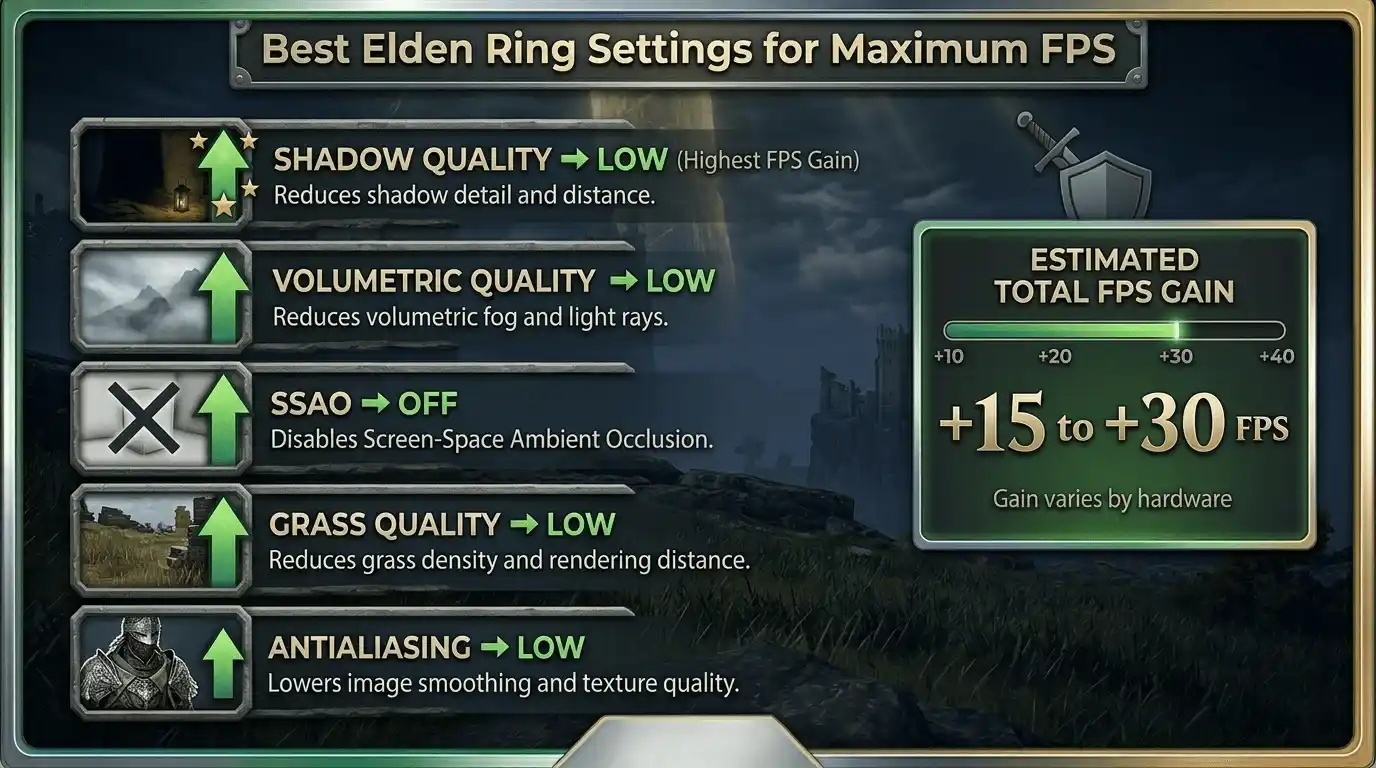
If you only change a few settings, prioritize these:
- Shadow Quality → Low
- Volumetric Quality → Low
- SSAO → Off
- Grass Quality → Low
- Antialiasing → Low
These settings typically provide the largest FPS gains.
Similar optimization principles are also covered in Optimize windows 11 for gaming fps boost settings (2025), What PC Parts Affect Gaming the Most? (Complete FPS Performance Guide), and Does RAM Affect FPS in Games?, which explain how system-level tuning can further improve gaming performance beyond in-game settings.
Elden Ring Optimized Settings for RTX 3060 / RTX 3060 Ti / RTX 4060
RTX 3060
- 1080p Medium-High
- Stable 60 FPS
- 75+ FPS with unlocker
RTX 3060 Ti
- 1080p High
- 75–90 FPS unlocked
RTX 4060
- 1080p High-Ultra
- 90–100+ FPS unlocked
DLSS Quality mode is recommended for all three GPUs and can provide an additional 15–25 FPS.
Resolution Scaling vs Native — Low End PC Tradeoff
Reducing internal resolution can dramatically improve performance.
- 1080p → 900p = 10–18 FPS gain
- 80% resolution scale often looks nearly identical on 24-inch displays
- Better than lowering desktop resolution
How to Check Your Expected FPS Before Adjusting Settings
The Problem with Guessing Your FPS Target
Every hardware combination performs differently.
A GTX 1060 paired with a Ryzen 5 3600 behaves very differently from the same GPU paired with an older CPU.
Because of this, generic FPS guides should be viewed as estimates rather than guarantees.
Use the FPS Calculator to Know Your Exact Numbers
Instead of manually estimating, you can use the FPS Calculator for Low End PC to calculate expected performance based on your exact CPU and GPU combination.
Input your hardware and instantly see estimated FPS results before spending hours testing settings:
https://primegamesarena.com/fps-calculator-for-low-end-pc/
Elden Ring FPS Unlocker — How to Remove the 60fps Cap
Why You Need an FPS Unlock Mod for Elden Ring
The native 60 FPS cap prevents powerful GPUs from reaching their full potential.
RTX 3060 Ti and RTX 4060 users can often gain 30–50 additional FPS by removing the limit.
Elden Ring FPS Unlocker and More — What It Does
Performance modding is also explored in detail in SSD vs HDD for Gaming: Which Is Better in 2025, What Emulator Is Best for PS3 Games on PC in 2025, and How to Fix DirectX Error in Games (Complete Fix Guide for 2025), which cover broader system optimization and compatibility improvements for smoother gameplay.
Popular features include:
- Removes 60 FPS cap
- Supports custom resolutions
- Borderless window mode
- Fog removal
- Vignette removal
- Adjustable FOV
How to Install Elden Ring FPS Unlock Mod — Step by Step
- Download the latest release.
- Extract files into the Elden Ring game folder.
- Launch ERFPSUnlocker.exe.
- Choose your desired FPS target.
- Start the game through Steam.
Monitor gameplay for any physics-related issues above 60 FPS.
Best Elden Ring Mods for Performance — Low End PC Specific
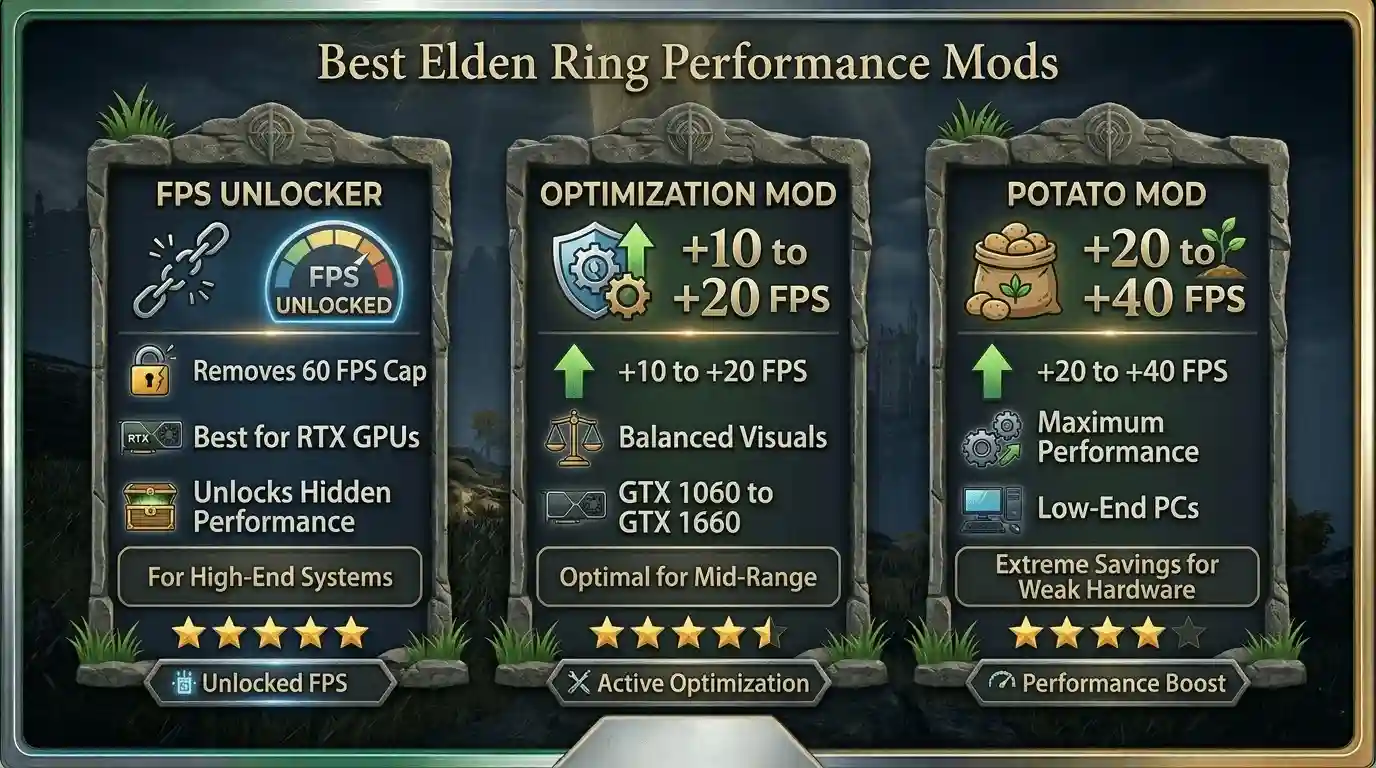
Elden Ring Potato Mod — Maximum FPS for Weak Hardware
Benefits:
- Removes grass
- Simplifies textures
- Reduces draw distance
Expected gain:
- +20–40 FPS
Best suited for systems below GTX 1060 level.
Elden Ring Optimization Mod — Balanced Performance Boost
Benefits:
- Reduced particle effects
- Lower shadow complexity
- Reduced ambient occlusion
Expected gain:
- +10–20 FPS
Ideal for GTX 1060 and GTX 1660 Super users.
Elden Ring Graphics Mods vs Performance Mods — Which to Use on Low End PC
| Mod Type | Goal | FPS Impact | Best For |
| Potato Mod | Maximum FPS | +20–40 FPS | Very weak PCs |
| Optimization Mod | Balanced | +10–20 FPS | GTX 1060–1660 |
| FPS Unlocker | Remove cap | Unlock potential | RTX GPUs |
| Graphics Mods | Better visuals | Negative FPS | High-end PCs |
Elden Ring PC Performance Mods — Where to Download Safely
Recommended sources:
- Nexus Mods
- GitHub
- Mod Engine 2
Always back up save files before installing mods.
How to Increase FPS in Elden Ring — Beyond Settings
Windows & Driver Optimization for Elden Ring
- Enable High Performance power plan
- Update GPU drivers
- Disable Xbox Game Bar
- Disable Game DVR
- Close startup applications
- Set Elden Ring process priority to High
GPU-Specific Tweaks — NVIDIA and AMD
NVIDIA
- Low Latency Mode: On
- Maximum Performance Mode
- Shader Cache: Enabled
- Texture Filtering: Performance
AMD
- Radeon Anti-Lag
- Surface Format Optimization
- Performance Texture Filtering
VRAM Management for 4GB GPU Users
At Medium settings, VRAM usage can exceed 4GB.
Recommendations:
- Use Low textures
- Lower resolution scale
- Monitor usage with MSI Afterburner
Common FPS Issues in Elden Ring and Fixes
| Issue | Cause | Fix |
| Open-world stutter | CPU bottleneck | Lower grass and shadows |
| Boss-room drops | Particle effects | Lower lighting |
| Low FPS despite strong GPU | FPS cap | Install unlocker |
| Constant 30 FPS | VSync | Disable VSync |
| VRAM stutters | High textures | Lower textures |
| Frame pacing issues | Borderless mode | Use fullscreen |
Elden Ring Language Settings PC — Quick Note
Language settings have no impact on FPS.
To change language:
Main Menu → System → Language
This affects localization and voice preferences only.
Calculate Your Exact FPS for Elden Ring — Know Before You Play
Stop Guessing Your Elden Ring PC Performance
The FPS Calculator for Low End PC helps estimate real-world FPS based on your exact CPU and GPU combination.
It’s particularly useful for players trying to optimize Elden Ring on low-end hardware because every frame matters. Instead of relying on generalized benchmarks, you can get a personalized estimate and make smarter graphics-setting decisions.
👉 Try the FPS Calculator here: https://primegamesarena.com/fps-calculator-for-low-end-pc/
Final Verdict — Can You Play Elden Ring Smoothly on a Low End PC?
Summary — Best Settings Priorities for Low End PC
Priority order:
- Shadow Quality → Low
- Volumetric Quality → Low
- SSAO → Off
- Grass Quality → Low
- Everything else → Low or Medium
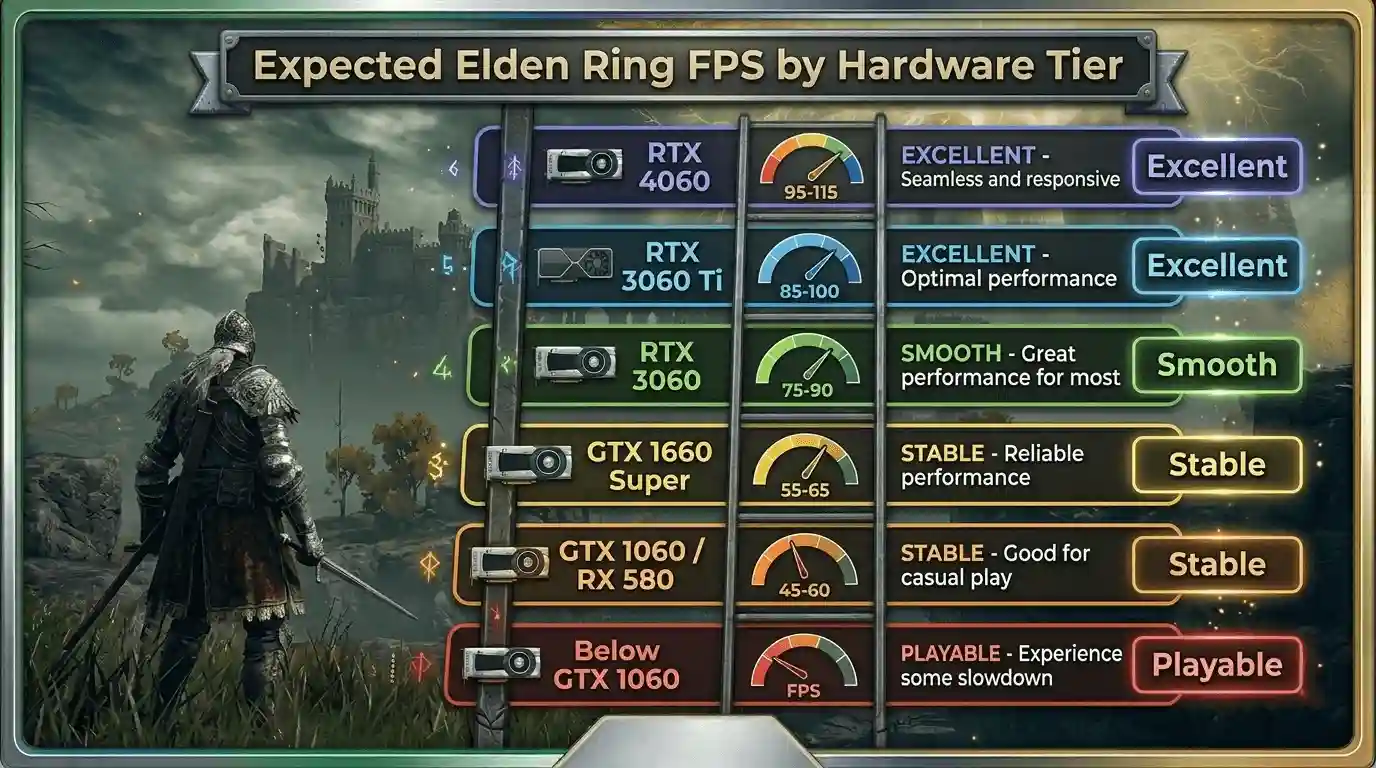
Realistic FPS Targets by Hardware Tier
| Hardware Tier | Expected FPS | Playable? |
| Below GTX 1060 (Potato Mod) | 30–45 FPS | Yes |
| GTX 1060 / RX 580 | 45–60 FPS | Yes |
| GTX 1660 Super | 55–65 FPS | Stable |
| RTX 3060 (Unlocked) | 75–90 FPS | Smooth |
| RTX 3060 Ti (Unlocked) | 85–100 FPS | Very Smooth |
| RTX 4060 (Unlocked) | 95–115 FPS | Excellent |
Key Takeaways
Elden Ring can run surprisingly well on older hardware when configured properly. Lowering shadows, volumetric effects, SSAO, and grass quality can recover 15–30 FPS on many systems. RTX 3060, RTX 3060 Ti, and RTX 4060 users should consider an FPS unlocker to fully utilize their hardware.
If you want more optimization guides like this Elden Ring settings breakdown, explore our The Ultimate Gaming Guide Hub, where we cover FPS boosts, system tuning, and performance guides for the latest AAA and indie games.
Before spending hours tweaking settings, use the FPS Calculator for Low End PC to estimate your expected performance and identify the upgrades or optimizations that will have the biggest impact.