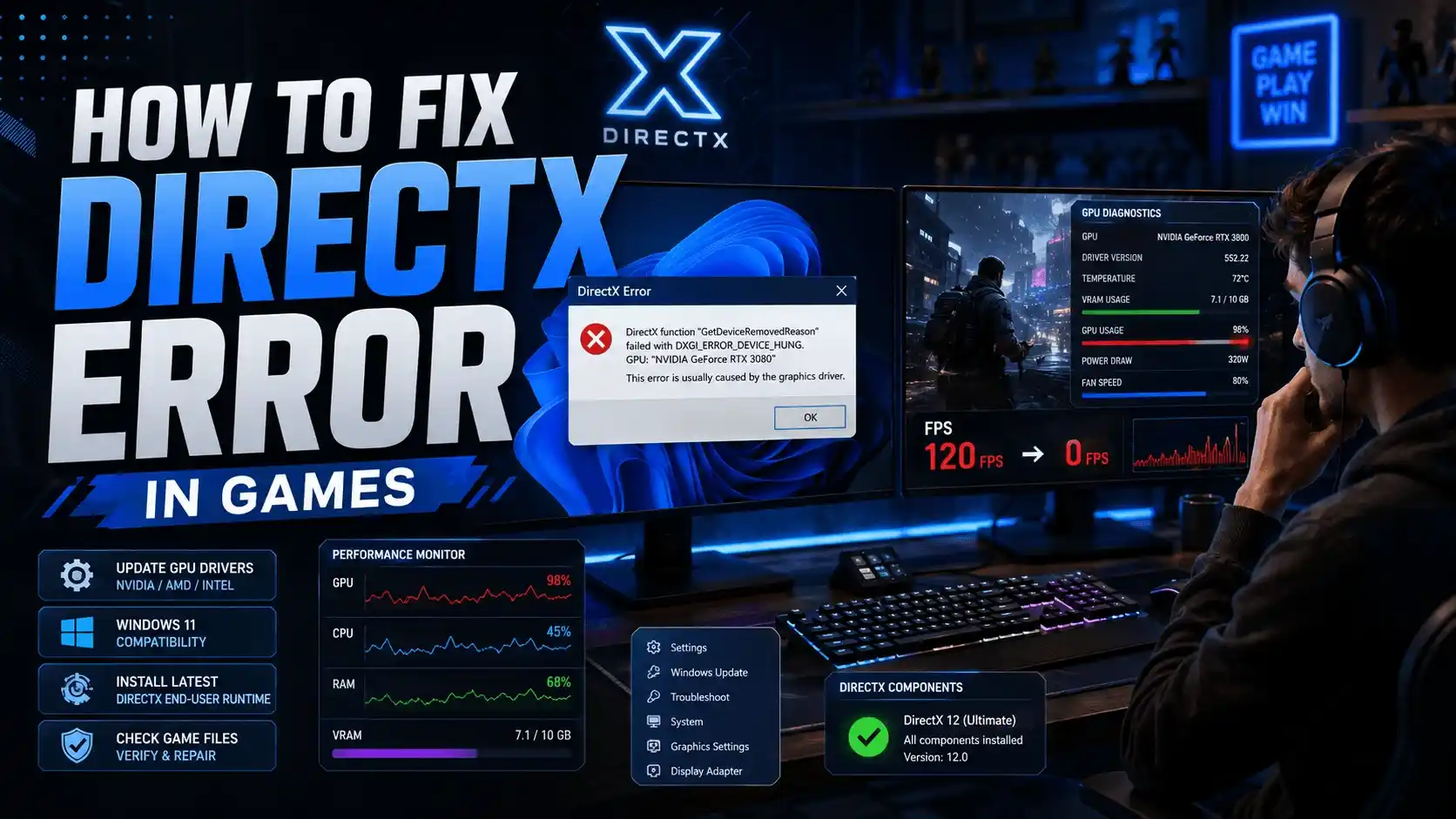
DirectX errors are among the most frustrating problems PC gamers face. Whether your game refuses to launch, crashes during gameplay, or suddenly drops from smooth frame rates to a frozen screen, a DirectX error can completely ruin the experience.
The good news is that most DirectX issues are software-related and can be fixed without replacing hardware. In this guide, you’ll learn how to fix DirectX errors in games, restore stable FPS performance, and get back to gaming as quickly as possible.
What Is a DirectX Error and Why Does It Affect Your Game’s FPS?
Understanding the DirectX Error
DirectX is Microsoft’s collection of graphics and multimedia APIs that allow games to communicate with your GPU. Modern games rely heavily on DirectX to render graphics, process effects, and maintain smooth frame rates.
When a DirectX component becomes corrupted, outdated, or incompatible, the game may:
- Fail to launch
- Crash during gameplay
- Experience severe FPS drops
- Freeze or stutter unexpectedly
A DirectX runtime error often prevents the game from loading entirely, resulting in 0 FPS. Other DirectX issues may allow the game to run but cause severe frame pacing problems and instability.
Most Common DirectX Error Types in PC Games
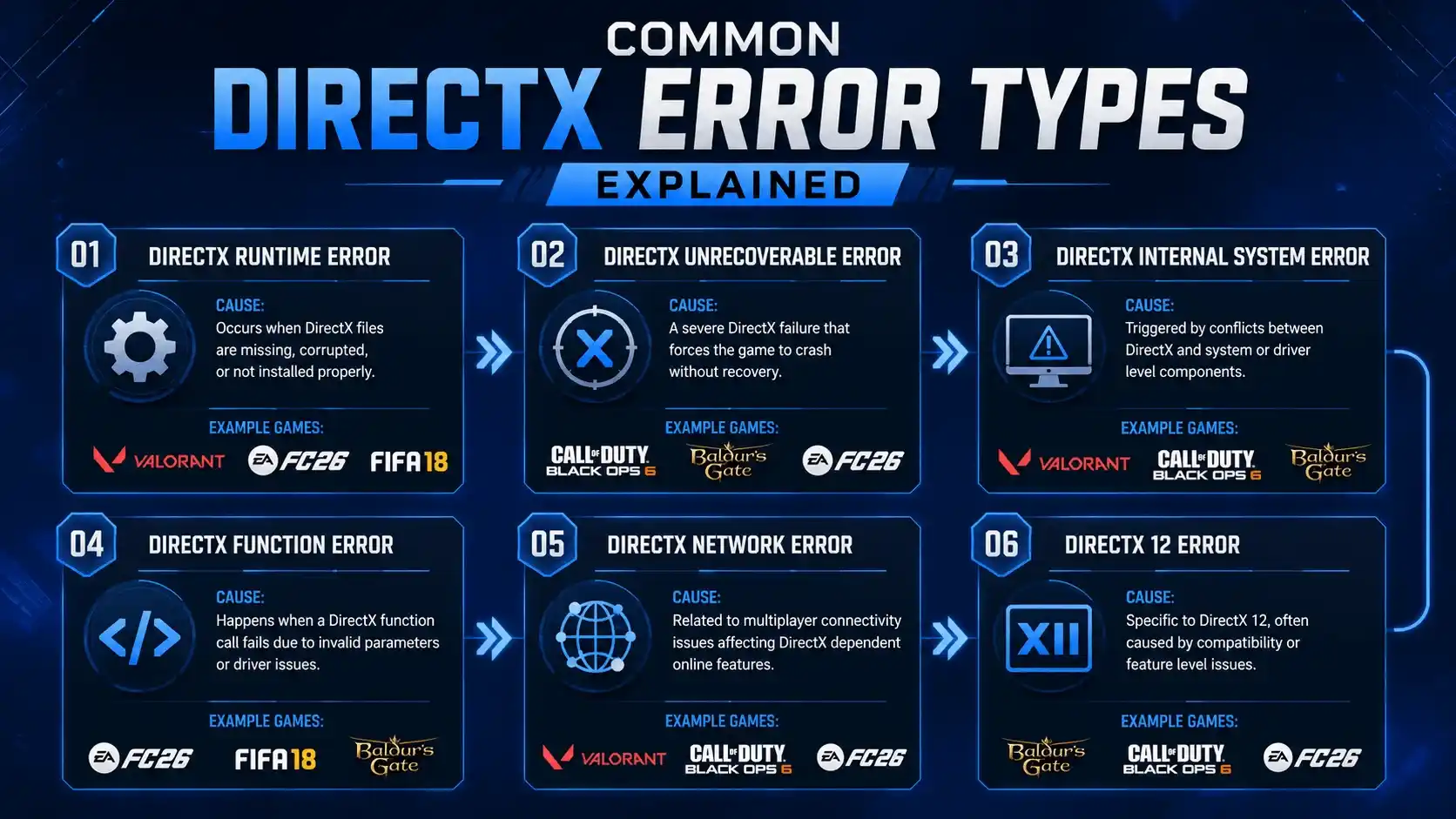
| Error Type | What It Means | Games Commonly Affected |
| DirectX Runtime Error | Missing or corrupted runtime files | Valorant, FIFA 18, EA FC 26 |
| DirectX Encountered an Unrecoverable Error | GPU or driver crash | Black Ops 6, Call of Duty |
| DirectX Internal System Error | Windows-level DirectX conflict | Various PC games |
| DirectX Function Error | Failed DirectX API call | FIFA 18, older EA titles |
| DirectX Network Error | Multiplayer initialization failure | Online games |
| DirectX 12 Error | DX12 compatibility issue | Baldur’s Gate 3, BO6, EA FC 26 |
What Causes a DirectX Error in PC Games?
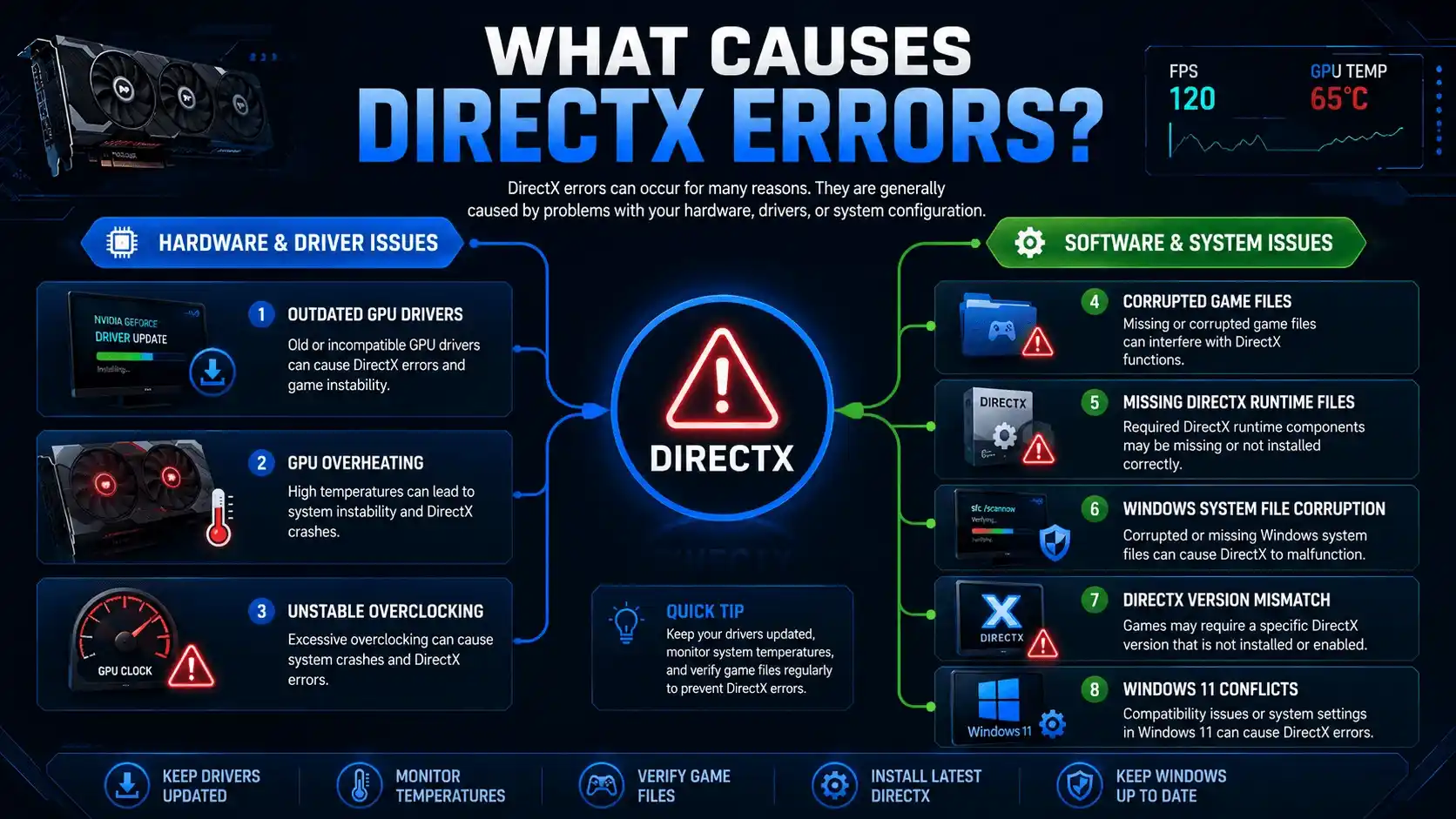
Hardware and Driver-Related Causes
Several hardware-related issues can trigger DirectX errors:
- Outdated graphics drivers
- Corrupted GPU driver installations
- GPU overheating
- Unstable GPU overclocks
- Unsupported DirectX feature levels
Many gamers discover that updating their NVIDIA, AMD, or Intel drivers immediately resolves the issue.
Software and System-Level Causes
DirectX errors can also originate from Windows itself.
Common causes include:
- Missing DirectX runtime files
- Corrupted game installations
- Damaged Windows system files
- Visual C++ dependency conflicts
- DirectX version mismatches
For example, if a game requires DirectX 12 but your system is configured incorrectly or missing required components, launch failures may occur.
Windows 11-Specific DirectX Error Triggers
Windows 11 introduces additional security and virtualization features that occasionally conflict with gaming applications.
Potential causes include:
- Virtualization-Based Security (VBS)
- Hypervisor-Protected Code Integrity (HVCI)
- Hardware Accelerated GPU Scheduling conflicts
- Driver signature compatibility issues
How to Fix DirectX Error in Games — Step-by-Step General Fixes
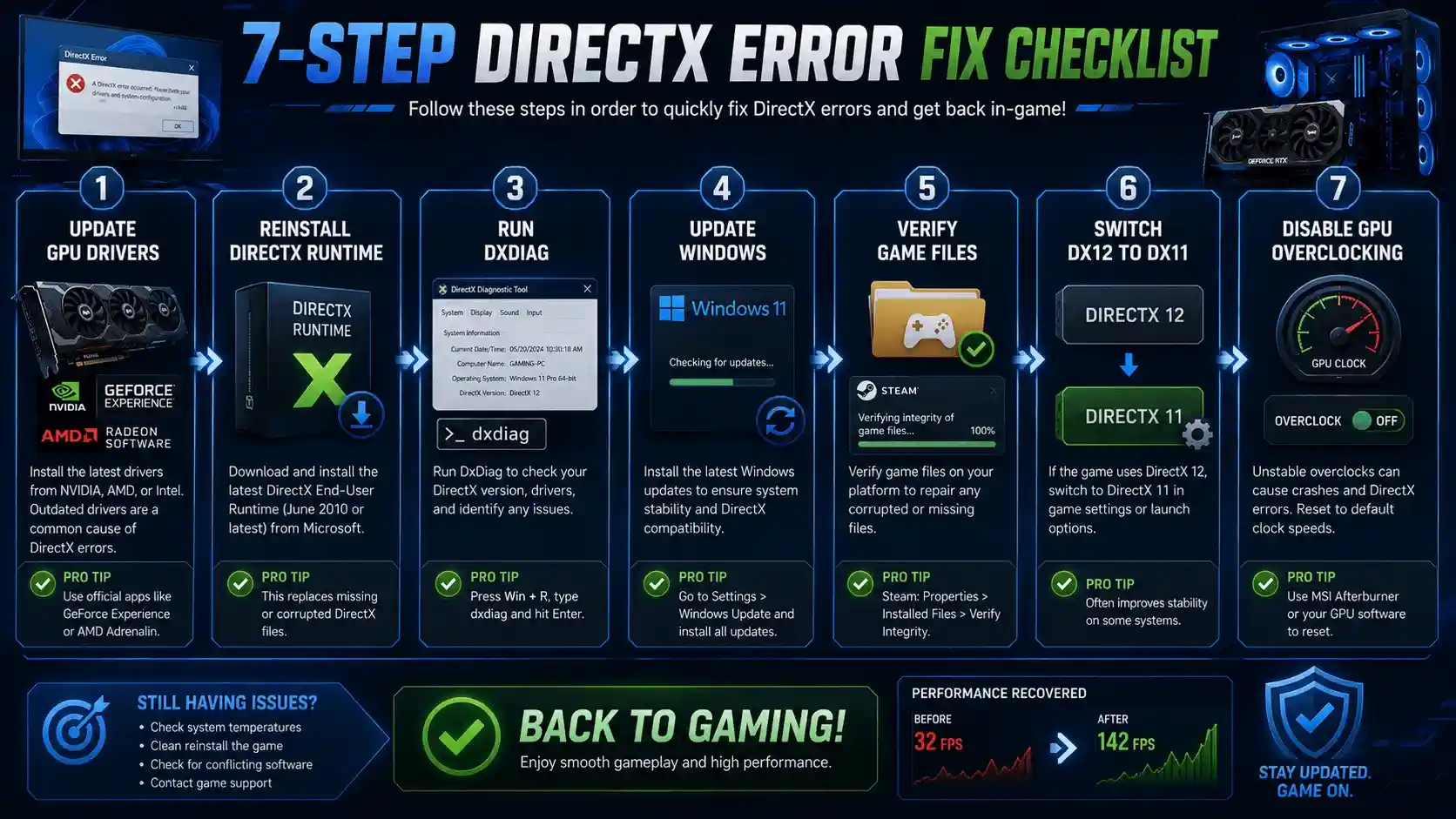
Fix 1 — Update Your GPU Drivers (Most Effective First Step)
Outdated graphics drivers are the most common reason behind DirectX runtime errors.
If performance problems continue after updating your graphics drivers, our guide on What PC Parts Affect Gaming the Most? (Complete FPS Performance Guide) explains which hardware components have the biggest impact on frame rates and overall gaming performance
Update your drivers through:
- NVIDIA App or GeForce Experience
- AMD Adrenalin Software
- Intel Arc Control
- Device Manager (less reliable)
If you’ve upgraded GPUs recently, perform a clean driver installation rather than a standard update.
Fix 2 — Reinstall DirectX Runtime Components
If you’re wondering how to repair DirectX, reinstalling runtime components is often the fastest solution.
Steps:
- Download Microsoft’s DirectX End-User Runtime Web Installer.
- Close all running games.
- Run the installer.
- Restart your PC.
- Launch the game again.
This process repairs missing or corrupted DirectX libraries used by thousands of PC games.
Fix 3 — Run the DirectX Diagnostic Tool (DxDiag)
DxDiag helps identify DirectX-related issues.
Steps:
- Press Windows + R
- Type dxdiag
- Press Enter
Check:
- DirectX Version
- Display Tab
- Driver Date
- Feature Levels
- Error messages
DxDiag is especially useful when diagnosing DirectX 12 compatibility problems.
Fix 4 — Update Windows and DirectX Version
Windows updates frequently include DirectX fixes and compatibility patches.
To update:
- Open Settings
- Navigate to Windows Update
- Check for updates
- Install all available updates
- Restart your system
Keeping Windows current improves compatibility with modern games and reduces DirectX crashes.
Fix 5 — Verify Game File Integrity
Corrupted game files often trigger DirectX errors.
Platform-specific repair methods:
Steam
- Library → Properties → Installed Files → Verify Integrity
EA App
- Manage → Repair
Battle.net
- Scan and Repair
Repairing corrupted files frequently resolves launch-related DirectX issues.
Fix 6 — Adjust In-Game Graphics API Settings
Many games support multiple graphics APIs.
If DirectX 12 causes crashes:
- Switch to DirectX 11
- Disable experimental rendering options
- Reduce VRAM-heavy settings
Games such as Black Ops 6, EA FC 26, Baldur’s Gate 3, and Valorant often become more stable under DX11.
Fix 7 — Disable Overclocking and GPU Stress
Aggressive overclocking can cause DirectX to crash under heavy load.
DirectX crashes can sometimes be caused by unstable hardware rather than software issues. If you’re unsure whether your graphics card is functioning correctly, check our guide on How to Check If Your GPU Is Performing Well FPS & Health for detailed troubleshooting steps.
Return:
- GPU Core Clock to stock settings
- Memory Clock to default values
- Voltage modifications to default
Many “DirectX Encountered an Unrecoverable Error” messages disappear after restoring factory GPU settings.
How to Fix DirectX Error on Windows 11 Specifically
For additional system-level optimizations, see our guide on Optimize Windows 11 for Gaming FPS Boost Settings (2025) to improve stability and reduce gaming-related software conflicts.
Windows 11 DirectX Compatibility Checklist
Before troubleshooting further, confirm:
- Your GPU supports DirectX 12
- Latest GPU drivers are installed
- Hardware Accelerated GPU Scheduling is disabled for testing
- VBS is not interfering with gaming performance
Fixing DirectX Error After Windows 11 Update
If the error appeared after a Windows update:
- Reinstall DirectX Runtime.
- Verify game files.
- Run System File Checker.
Open Command Prompt as Administrator and enter:
sfc /scannow
This repairs corrupted Windows system files that may affect DirectX functionality.
How to Fix DirectX 12 Error in Games
Why DirectX 12 Errors Are Different From DirectX 11 Errors
DirectX 12 gives developers lower-level hardware access and better CPU utilization.
However, this increased complexity means:
- More driver dependencies
- Greater VRAM pressure
- Increased sensitivity to unstable hardware
Unlike DX11, DX12 crashes often result in immediate game shutdowns rather than gradual FPS degradation.
DirectX 12 Error Fix Checklist
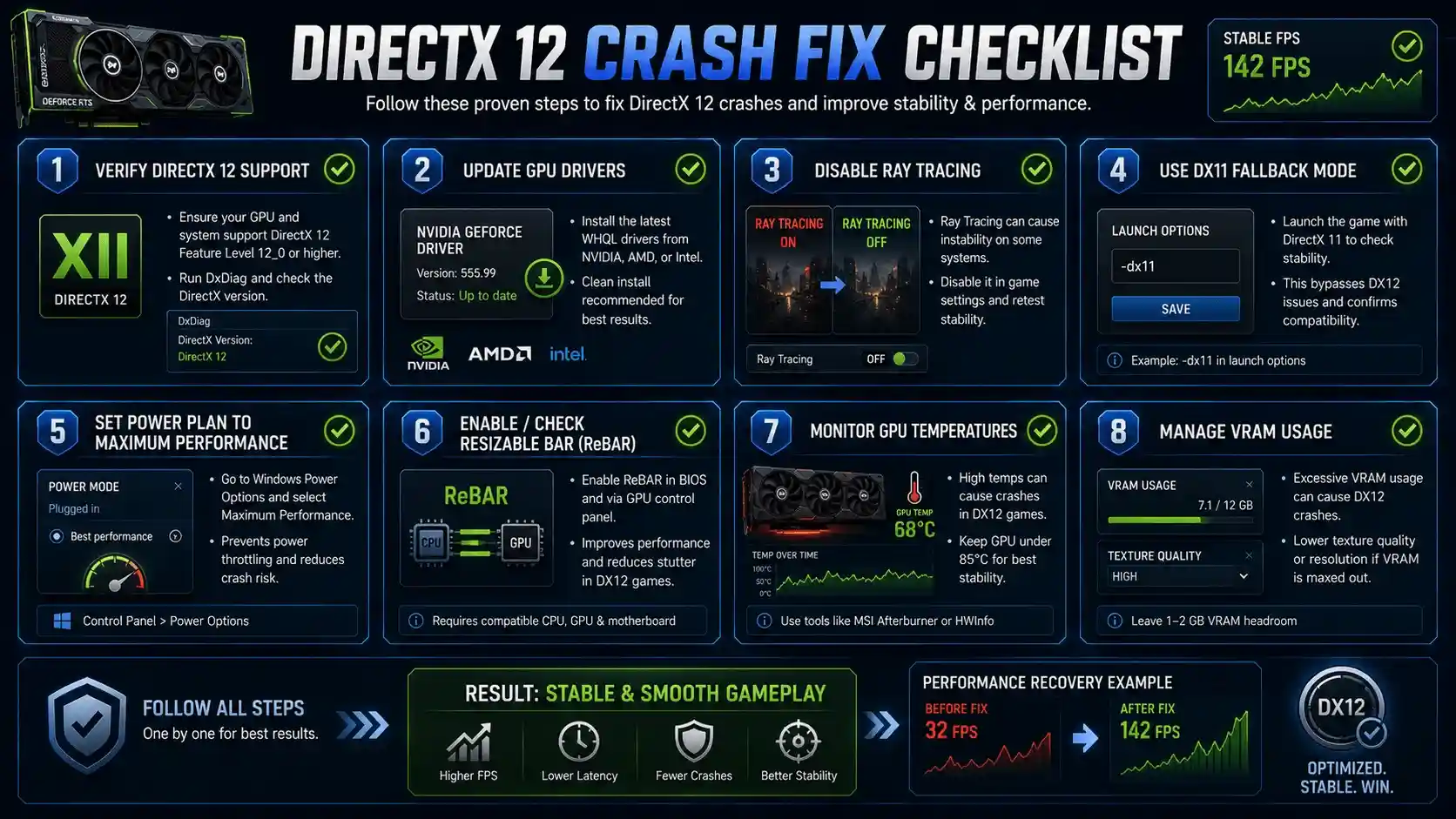
- Confirm DirectX 12 support
- Update GPU drivers
- Disable Ray Tracing
- Test DX11 mode
- Enable Maximum Performance power mode
- Disable Resizable BAR or Smart Access Memory temporarily
- Monitor GPU temperatures
👉 Check Your Expected FPS After Fixing the DirectX Error
Once your DirectX error is resolved, your game should return to normal performance levels. However, many players aren’t sure whether their FPS is actually where it should be.
Instead of manually estimating, you can use the FPS Calculator for Low-End PC at https://primegamesarena.com/fps-calculator-for-low-end-pc/. It calculates your expected FPS based on your exact GPU, CPU, resolution, and settings, helping you determine whether any remaining performance issues are caused by hardware limitations or lingering software problems.
Game-Specific DirectX Error Fixes
How to Fix DirectX Error in BO6 (Black Ops 6)
Common error:
“DirectX Encountered an Unrecoverable Error”
Solutions:
- Switch from DX12 to DX11
- Disable Ray Tracing
- Verify files via Battle.net
- Update GPU drivers
- Assign High Performance GPU mode in Windows
How to Fix DirectX Runtime Error in Valorant
Common fixes:
- Reinstall DirectX Runtime
- Update GPU drivers
- Repair Riot Vanguard
- Force DX11 rendering where possible
- Disable conflicting overlays
How to Fix DirectX Error in EA FC 26
Try:
- Repairing the game through EA App
- Switching to DX11
- Updating EA App
- Disabling DLSS or FSR temporarily
- Installing the latest graphics driver
How to Fix DirectX Error in Baldur’s Gate 3
Common solutions:
- Verify Steam files
- Launch with Vulkan
- Reduce texture quality
- Update graphics drivers
- Disable GPU overclocks
How to Fix DirectX Function Error in FIFA 18
Older FIFA titles often require legacy runtime files.
Fixes:
- Install DirectX End-User Runtime
- Use compatibility mode
- Update older GPU drivers if necessary
How to Fix DirectX Error in Command and Conquer Generals
Modern Windows systems frequently struggle with this classic game.
Solutions:
- Enable Windows XP SP3 Compatibility Mode
- Install DirectX 9.0c
- Edit options.ini resolution settings
- Apply community patches
How to Fix DirectX Encountered an Unrecoverable Error in Call of Duty 2
Recommended fixes:
- Use DirectX 7 compatibility mode
- Reduce shadows and resolution
- Apply dgVoodoo2 wrapper
- Update display settings manually
How to Fix DirectX Network Error
Potential solutions:
- Flush DNS
- Reset network settings
- Allow game through firewall
- Reinstall Visual C++ Redistributables
- Reinstall DirectX Runtime
FPS Impact of DirectX Errors — What to Expect After Fixing
Many players confuse DirectX-related stuttering with hardware bottlenecks. Our guide on What FPS Can I Get on My PC? — How to Check, Estimate & Boost Your Frame Rate can help determine whether remaining performance issues are hardware or software related.
How DirectX Errors Affect Frame Rate Before and After the Fix
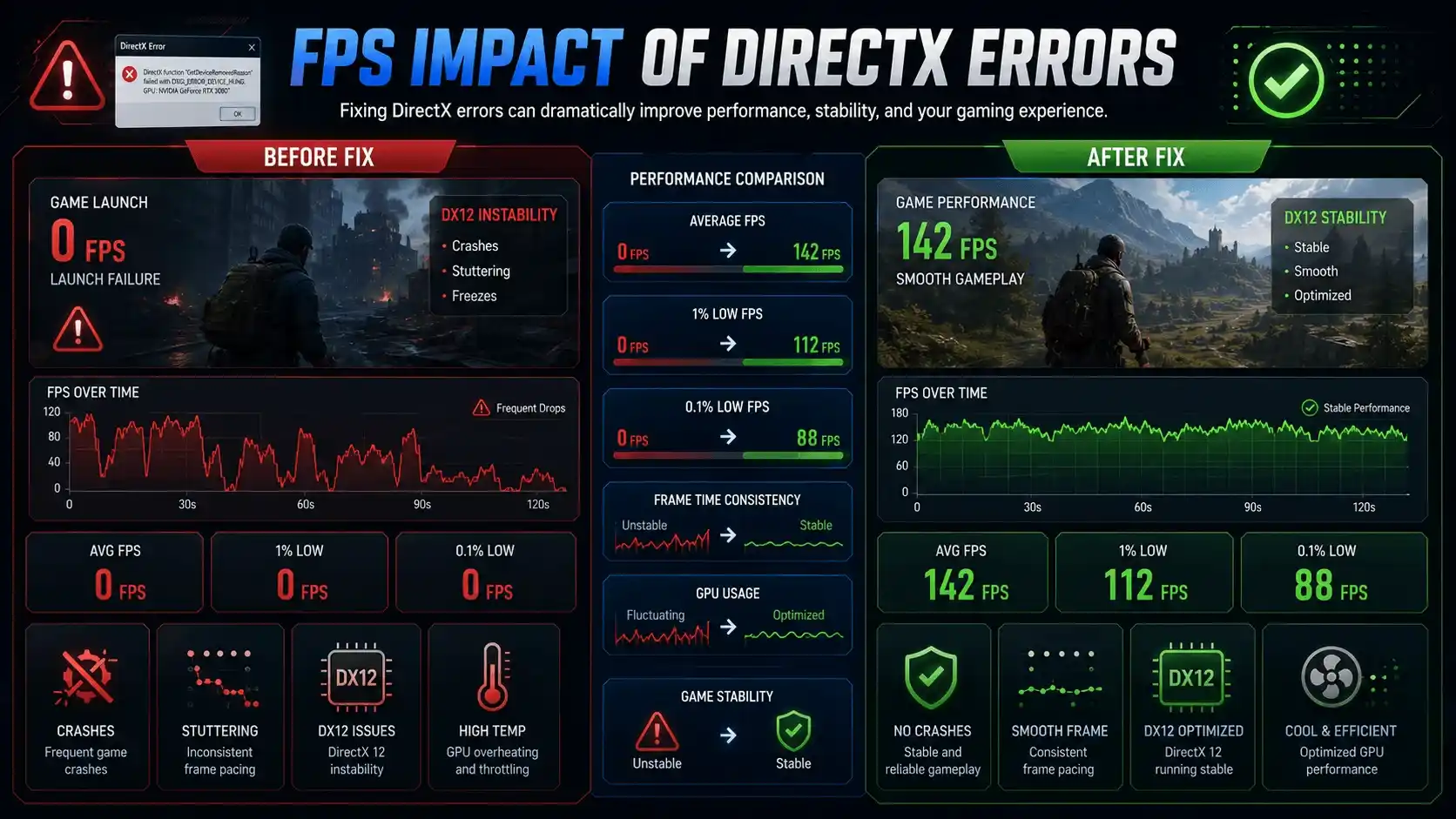
| Issue State | Typical FPS Impact | What Players Notice |
| DX Runtime Error | 0 FPS | Game won’t launch |
| DX Unrecoverable Error | Immediate crash | Gameplay interruption |
| DX Function Error | 1-5 FPS stutters | Heavy micro-freezes |
| DX12 Instability | FPS spikes and dips | Inconsistent performance |
| After Successful Fix | Normal FPS restored | Smooth gameplay |
Tips to Improve FPS After Resolving the DirectX Error
For many systems, fixing DirectX isn’t the final step. Learn more advanced optimization techniques in our Does RAM Affect FPS in Games? guide to understand how memory affects gaming performance.
Additional FPS optimization tips:
- Use DX11 if DX12 remains unstable
- Disable Ray Tracing for 20–40 FPS gains
- Enable NVIDIA Low Latency Mode
- Enable AMD Anti-Lag
- Close background applications
- Update GPU drivers regularly
- Monitor temperatures during gaming
Calculate Your Exact FPS with FPS Calculator for Low-End PC
After repairing DirectX, the next logical step is confirming your hardware is performing as expected. The FPS Calculator for Low-End PC helps estimate frame rates based on your CPU, GPU, game settings, and resolution.
This is especially useful for gamers troubleshooting performance issues after fixing DirectX errors. Instead of guessing whether 45 FPS or 90 FPS is normal for your system, you can compare your actual results against realistic estimates.
Whether you use entry-level hardware or a high-end gaming rig, the calculator can help identify whether remaining performance problems are caused by hardware limitations or software issues.
👉 Try the FPS Calculator for Low-End PC here: https://primegamesarena.com/fps-calculator-for-low-end-pc/
Final Verdict — How to Repair DirectX and Get Back to Full FPS
Quick DirectX Error Fix Priority Order
| Priority | Fix |
| 1 | Update GPU drivers |
| 2 | Reinstall DirectX Runtime |
| 3 | Verify game files |
| 4 | Switch DX12 to DX11 |
| 5 | Run sfc /scannow |
| 6 | Apply game-specific fixes |
When to Escalate the DirectX Error
If none of the fixes work:
- Test GPU stability with stress-testing tools
- Check for overheating issues
- Contact the game developer
- Review Windows update history
- Consider possible hardware failure
Most DirectX errors are resolved through driver updates, DirectX reinstallation, or game file repairs. Once fixed, your FPS should return to expected levels and gameplay should become stable again.
If you’re still unsure whether your system is performing correctly after the repair, use the FPS Calculator to compare your real-world performance against expected results and identify the next optimization opportunity.