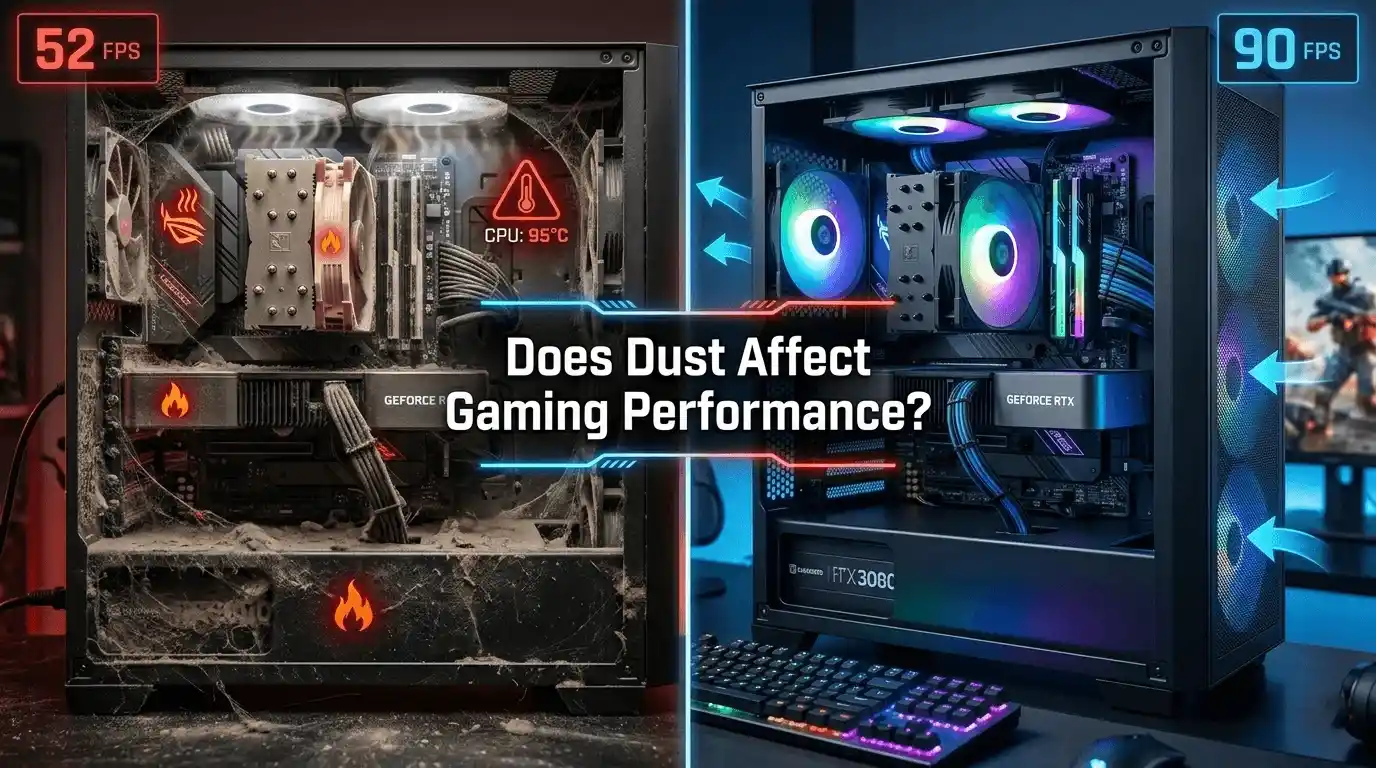
Have you noticed your favorite games running worse than they did a few months ago, even though your hardware hasn’t changed? If your FPS is dropping, your system is running hotter, or games are stuttering unexpectedly, dust buildup may be the hidden cause.
For more PC optimization advice, FPS improvement techniques, and gaming performance guides, visit our Ultimate Gaming Guide Hub: FPS Tips, Game Picks, Walkthroughs & More (2026).
The short answer is yes—dust can directly affect gaming performance. Excessive dust increases GPU and CPU temperatures, restricts airflow, and causes thermal throttling. When thermal throttling occurs, your hardware intentionally lowers clock speeds to prevent overheating, resulting in lower FPS, frame drops, and reduced gaming performance.
In this guide, you’ll learn exactly how dust impacts FPS, how much performance you could be losing, how to clean your PC safely, and how to determine whether thermal throttling is affecting your system.
How Does Dust Actually Affect PC Performance?
While overheating can reduce performance significantly, memory configuration also plays a role. Learn more in our Does RAM Affect FPS in Games? guide to understand how system memory impacts frame rates.
The Science: Dust as a Thermal Insulator
Dust doesn’t just make your PC look dirty. It acts as an insulating layer that traps heat around critical components.
When dust accumulates on:
- GPU heatsink fins
- CPU coolers
- Case intake filters
- Exhaust fans
- Power supply vents
it reduces airflow and prevents heat from dissipating efficiently.
As temperatures rise, both the CPU and GPU must work harder to maintain safe operating temperatures. Once temperatures reach critical thresholds, thermal throttling begins.
Key performance-related components affected include:
- Thermal throttling systems
- GPU coolers
- CPU heatsinks
- Airflow pathways
- Fan blades
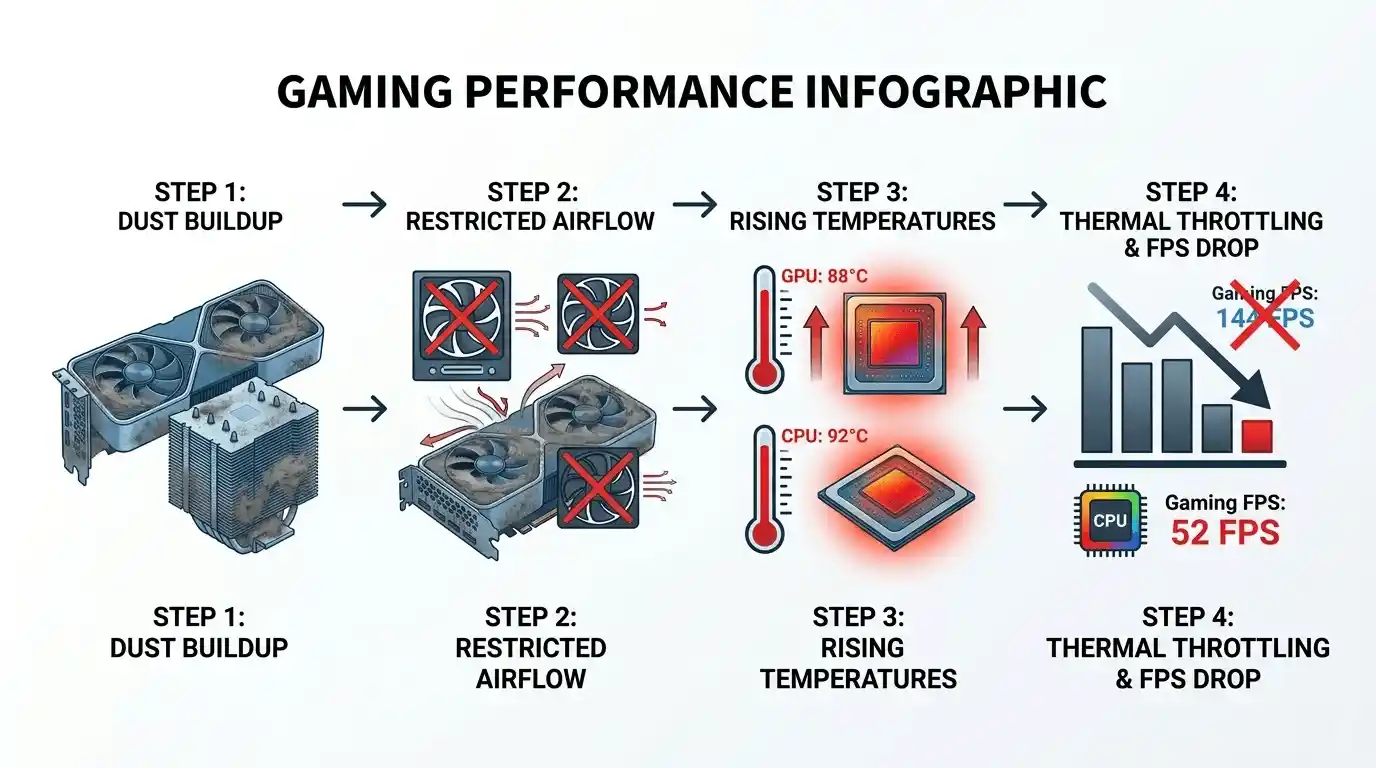
The Chain Reaction: Dust → Heat → Throttle → FPS Drop
If you’re troubleshooting low frame rates, it’s also helpful to understand What PC Parts Affect Gaming the Most? (Complete FPS Performance Guide) and how different components influence gaming performance.
Dust-related FPS loss typically follows this sequence:
- Dust accumulates on fans and heatsinks.
- Airflow becomes restricted.
- GPU and CPU temperatures rise under load.
- Components reach thermal limits.
- Clock speeds are reduced automatically.
- FPS decreases and stuttering becomes noticeable.
Depending on the severity of the dust buildup, performance losses can range from 10% to 40%.
This process is known as thermal throttling, a protective mechanism that automatically lowers processor and graphics card frequencies when temperatures become too high.
How Much Does Dust Affect FPS? Real Performance Numbers
FPS Before and After Cleaning: Benchmark Comparison
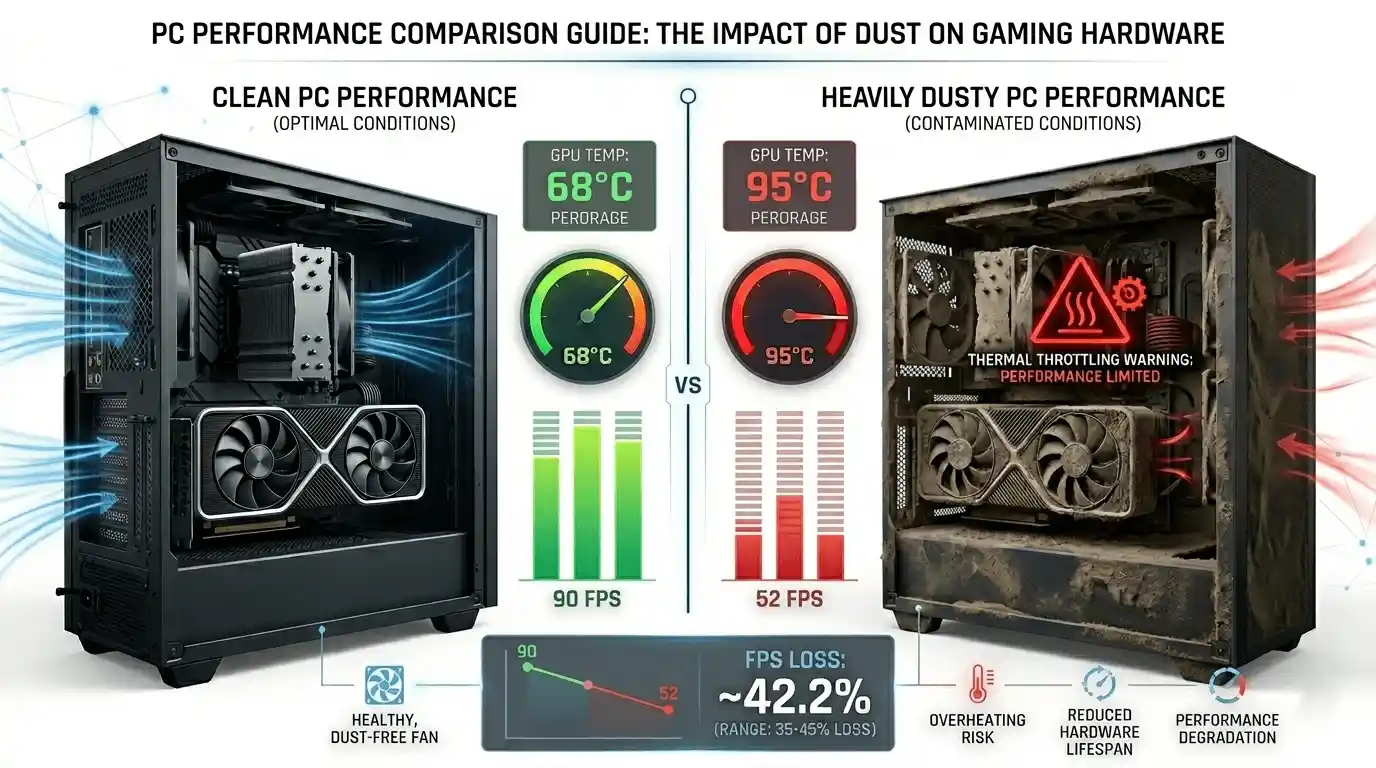
| Dust Level | Avg GPU Temp (Load) | FPS @ 1080p Medium | FPS Loss vs Clean PC | Thermal Throttling |
| Clean PC | 65°C–70°C | ~90 FPS | Baseline | No |
| Light Dust (6 Months) | 72°C–78°C | ~82 FPS | 8–10% | Unlikely |
| Moderate Dust (1 Year) | 80°C–88°C | ~68 FPS | 20–25% | Possible |
| Heavy Dust (2+ Years) | 90°C–100°C+ | ~50–55 FPS | 35–45% | Yes |
Actual results vary based on:
- GPU model
- CPU model
- Case airflow
- Ambient room temperature
- Fan configuration
Many gamers report recovering 15–30 FPS after thoroughly cleaning a neglected gaming PC.
How Much Does Dust Affect GPU Temperatures?
To verify whether overheating is affecting your graphics card, read How to Check If Your GPU Is Performing Well FPS & Health and compare your temperatures, utilization, and clock speeds against expected values.
A dusty GPU cooler can raise temperatures significantly.
Common effects include:
- 10°C–25°C higher load temperatures
- Reduced boost clock speeds
- Increased fan RPM
- Higher GPU hotspot temperatures
- Reduced long-term performance stability
For GPUs such as the RTX 3060, RTX 4060, RX 6700 XT, and RX 7700 XT, hotspot temperatures exceeding 90°C often trigger clock speed reductions.
How Much Does Dust Affect CPU Temperatures?
Dust can also dramatically impact CPU cooling efficiency.
Typical effects include:
- 8°C–20°C higher temperatures
- Reduced boost frequencies
- Lower sustained performance
- Micro-stuttering
- Poor 1% low FPS performance
When both the CPU and GPU are throttling simultaneously, overall gaming performance can drop substantially.
Can Dust Slow Down Your PC Beyond FPS?
Can Dust Make Your PC Crash?
Yes.
Overheating caused by dust buildup is one of the most common causes of gaming-related instability.
Although overheating is a common cause of crashes, power-related issues can produce similar symptoms. Our How to Know If My PSU Is Failing: Warning Signs guide explains what to look for.
Common symptoms include:
- Random shutdowns during gaming
- Black screens
- Game crashes
- Blue Screen of Death (BSOD)
- Unexpected restarts
Many GPUs have thermal shutdown thresholds between 100°C and 105°C. Once these limits are reached, the system may shut down to prevent hardware damage.
Does a Dusty GPU Reduce Performance Beyond FPS?
Absolutely.
Performance issues may include:
- Lower sustained boost clocks
- Longer shader compilation times
- Texture streaming stutters
- Voltage instability
- Increased frame-time spikes
In severe cases, GPUs may drop to base clock speeds, reducing performance by 30–50%.
Dust Impact Severity by Component
| Component | Dust Impact | FPS Risk | Crash Risk |
| GPU Cooler | Very High | High | High |
| CPU Cooler | High | Medium | Medium |
| Case Fans | Medium | Medium | Low |
| PSU Vents | Medium | Low-Medium | Medium |
| RAM & Motherboard | Low | Low | Low |
Is Dust the Reason You’re Getting Low FPS? Check It With a Calculator
Before assuming you need a new graphics card, it’s worth checking whether your current hardware is performing as expected.
Instead of manually estimating performance, you can use the FPS Calculator for Low-End PC. It calculates your expected FPS based on your exact GPU and CPU specifications, helping you determine whether thermal throttling may be causing lower-than-expected frame rates.
👉 Try it here: https://primegamesarena.com/fps-calculator-for-low-end-pc/
If your real-world FPS is 20–40% below the calculator’s estimate, excessive heat caused by dust buildup may be the culprit.
How Often Should You Clean Dust From Your PC?
Recommended Cleaning Frequency
| Environment | Recommended Cleaning Interval | FPS Risk |
| Carpeted Room / Pets | Every 1–2 Months | High |
| Standard Home Setup | Every 3–4 Months | Medium |
| Filtered Case on Desk | Every 5–6 Months | Low-Medium |
| Clean Office Environment | Every 6–12 Months | Low |
Signs It’s Time to Clean Your PC
Watch for these warning signs:
- Gradual FPS loss
- Increased fan noise
- Higher-than-normal temperatures
- Frequent crashes
- Visible dust buildup
- Hot air exhausting from the case
If several of these symptoms appear together, cleaning should be a priority.
How to Clean Dust From Your PC to Restore FPS
Tools You Need
For safe cleaning, gather:
- Compressed air can or electric air blower
- Anti-static brush
- Microfiber cloth
- 90%+ isopropyl alcohol
- Quality thermal paste
- Anti-static wrist strap (optional)
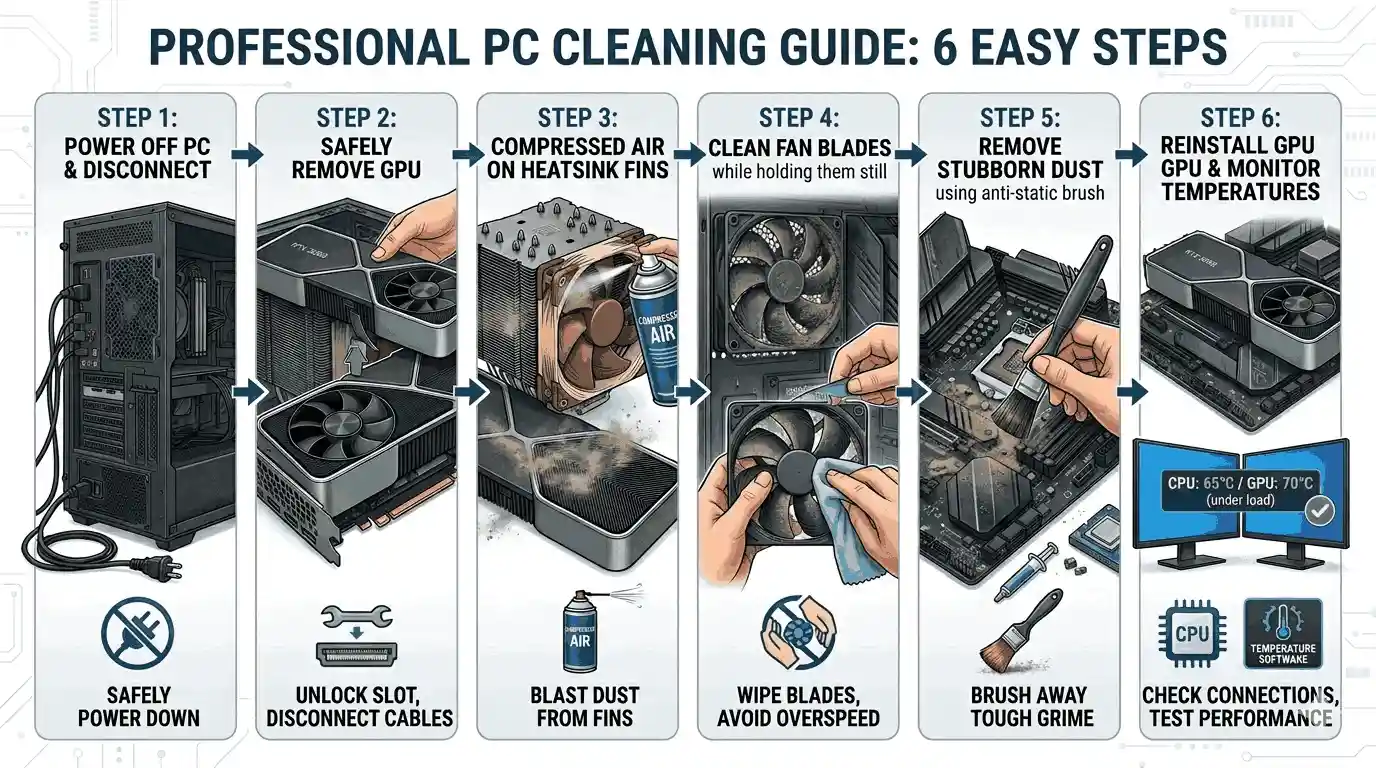
Step-by-Step: Cleaning Your GPU
Step 1: Shut down and unplug the PC.
Step 2: Remove the GPU carefully.
Step 3: Blow compressed air through the heatsink fins.
Step 4: Hold fan blades still while cleaning.
Step 5: Remove stubborn debris using a soft brush.
Step 6: Reinstall and monitor temperatures.
Expected results:
- 8°C–20°C lower GPU temperatures
- Improved boost clocks
- Restored FPS consistency
Step-by-Step: Cleaning Your CPU Cooler
Step 1: Remove the CPU cooler.
Step 2: Clean heatsink fins thoroughly.
Step 3: Remove old thermal paste.
Step 4: Apply fresh thermal paste.
Step 5: Reinstall the cooler evenly.
Step 6: Verify temperatures using monitoring software.
Typical temperature improvements range from 5°C–15°C under gaming loads.
Does Cleaning Dust From a PC Actually Make It Faster?
Yes—but only if thermal throttling was occurring.
If temperatures were causing clock speed reductions, cleaning can restore 15–40% of lost gaming performance.
However, cleaning does not increase performance beyond the hardware’s designed limits. It simply allows the CPU and GPU to operate at their intended speeds.
Tips to Prevent Dust Buildup and Protect Long-Term FPS
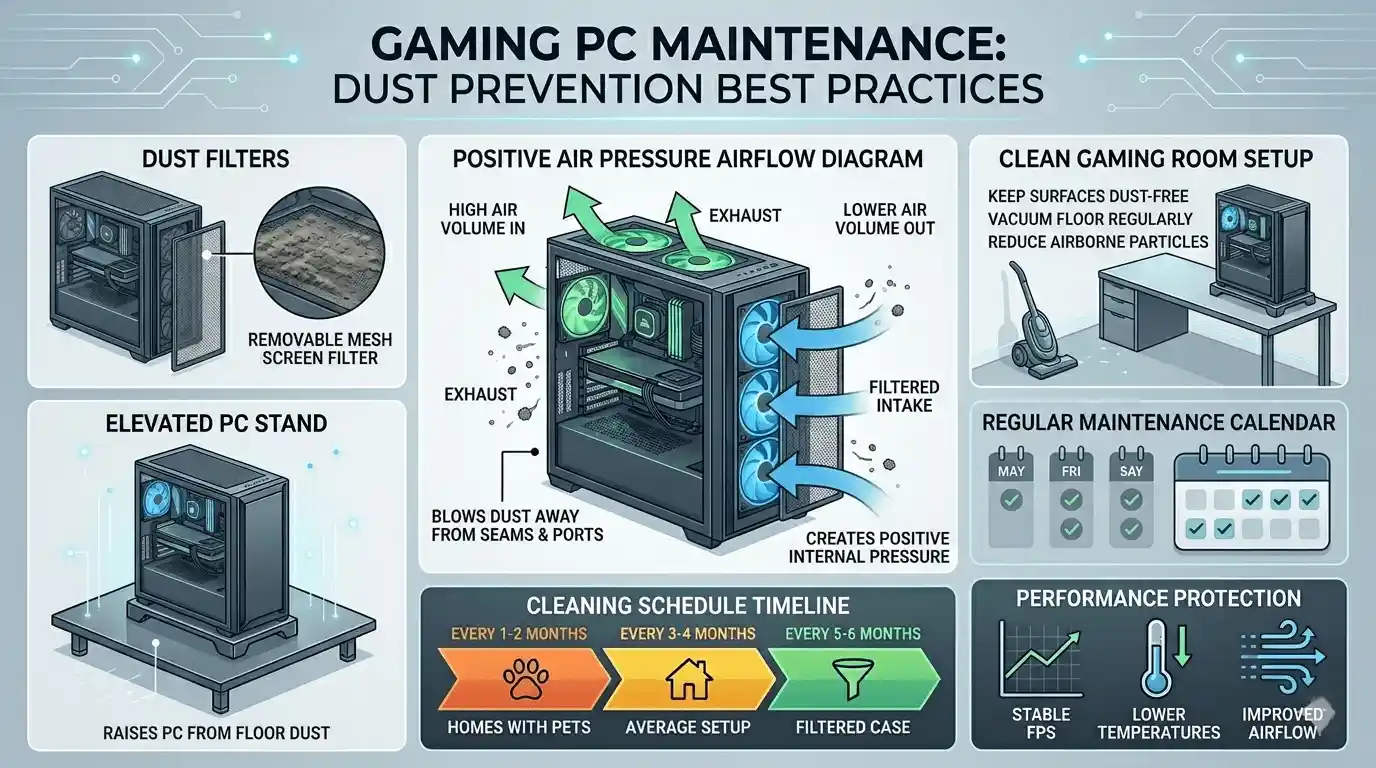
Physical maintenance is only part of the equation. You can also improve gaming performance with our Optimize Windows 11 for Gaming FPS Boost Settings (2025) guide.
Best Practices
To keep your system performing at its best:
- Use dust filters on intake fans
- Maintain positive air pressure
- Elevate the PC off carpeted floors
- Clean surrounding areas regularly
- Cover unused PCIe slots
- Avoid smoking near the PC
Monitoring Tools for Early Detection
Several tools can help detect dust-related performance issues early:
- HWiNFO64
- MSI Afterburner
- GPU-Z
- NVIDIA GeForce Experience
- AMD Radeon Software
- Windows Task Manager
Monitoring temperatures regularly can help identify airflow problems before they impact FPS.
Frequently Asked Questions: Dust and PC Performance
Does dust affect FPS in games?
Yes. Dust increases temperatures and can trigger thermal throttling, reducing CPU and GPU clock speeds and lowering FPS.
Can a dusty GPU cause FPS drops during long gaming sessions?
Yes. FPS may start normally and gradually decline as temperatures increase over time.
Can dust affect performance without causing crashes?
Absolutely. Thermal throttling often occurs silently and may only appear as lower FPS and inconsistent frame times.
Does dust affect high-end GPUs like the RTX 4090?
Yes. High-end GPUs generate significant heat and rely heavily on effective cooling. Dust can reduce performance on premium hardware just as easily as on budget GPUs.
Can dust affect gaming laptop FPS?
Yes. Gaming laptops are especially vulnerable because their cooling systems have less airflow capacity and smaller heatsinks.
How much performance can dust reduce?
Mild dust buildup may reduce performance by 8–15%. Severe thermal throttling can reduce performance by as much as 40–50%.
Calculate Your Exact FPS with FPS Calculator for Low-End PC
The FPS Calculator for Low-End PC helps gamers estimate expected frame rates based on their GPU and CPU specifications. Whether you’re using older hardware, a budget gaming PC, or a mid-range setup, it provides a useful benchmark to compare against real-world gaming performance.
If your actual FPS is significantly lower than the calculator’s estimate, overheating and thermal throttling may be affecting your system. Checking expected FPS before upgrading can save money and help identify whether a simple cleaning session is all that’s needed.
👉 Try the FPS Calculator for Low-End PC here: https://primegamesarena.com/fps-calculator-for-low-end-pc/
Conclusion: Dust Is a Silent FPS Killer
Dust buildup is far more than a cosmetic issue. It can directly reduce gaming performance by increasing temperatures, restricting airflow, and triggering thermal throttling in both GPUs and CPUs.
Fortunately, the solution is often simple and inexpensive. A thorough cleaning can restore lost FPS, lower temperatures, reduce crashes, and improve long-term hardware reliability.
Before spending money on new components, monitor your temperatures, clean your system, and compare your actual performance against expected results using the FPS Calculator. In many cases, the FPS you’re missing is already sitting inside your PC—hidden beneath a layer of dust.