
If you’ve ever asked yourself, “What FPS can I get on my PC?” before buying a new game or upgrading your hardware, you’re not alone. FPS (frames per second) is one of the biggest factors that determines how smooth and responsive a game feels.
Whether you want stable 60 FPS for casual gaming or 144+ FPS for competitive shooters, your GPU, CPU, RAM, resolution, and graphics settings all affect your final performance. In this guide, you’ll learn how to estimate your FPS, compare GPU benchmarks, use a pc fps calculator, and improve frame rates without wasting money on unnecessary upgrades.
What Is FPS and Why Does It Matter for PC Gaming?
What does FPS mean in games?
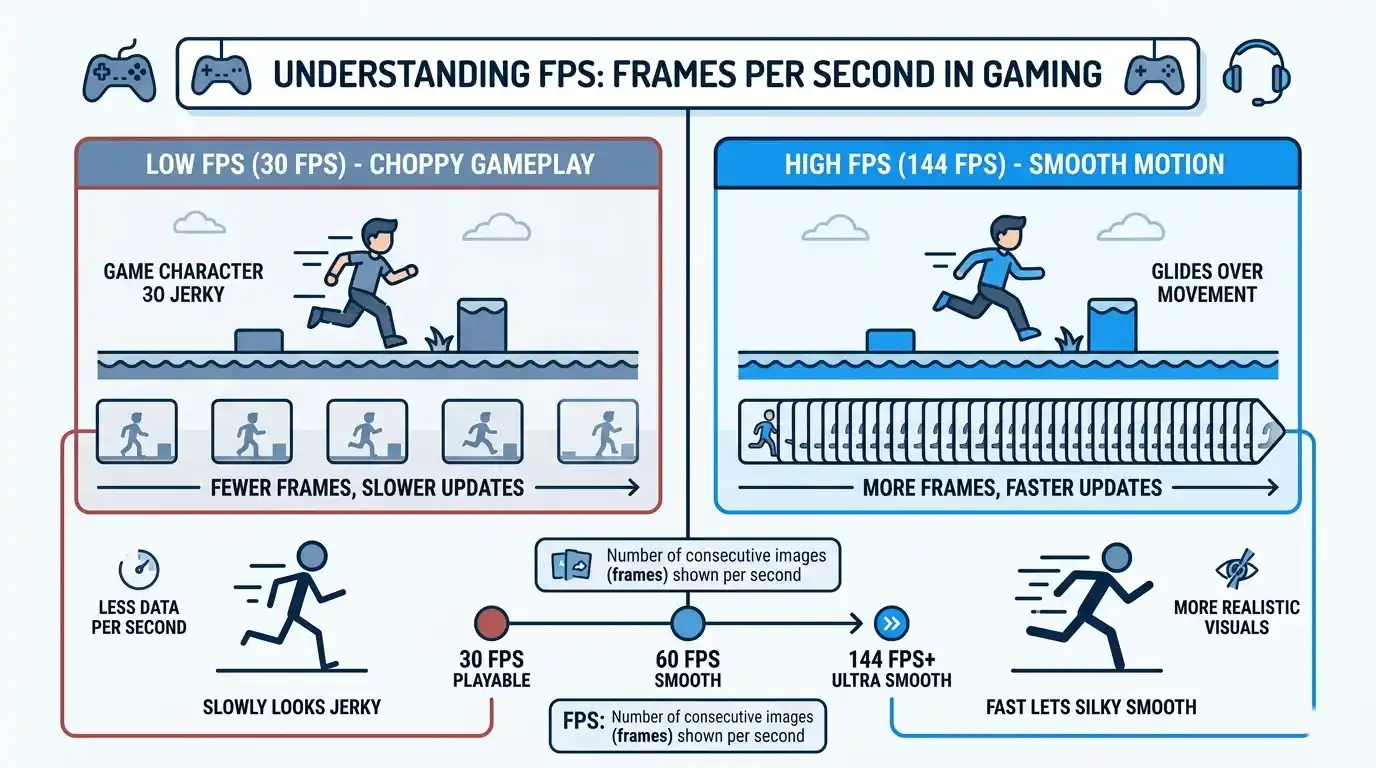
FPS stands for frames per second. It measures how many images your GPU renders every second while gaming.
For example:
- 30 FPS = 30 images displayed every second
- 60 FPS = smoother gameplay and better responsiveness
- 144 FPS+ = ultra-smooth competitive gaming
Higher frame rates reduce input lag and make movement appear smoother, especially in fast-paced games like FPS shooters, racing games, and esports titles.
Common FPS-related terms include:
- Frame rate
- Frame per second
- Game FPS
- FPS counter
- FPS checker
What is a good FPS for PC gaming?
The ideal FPS depends on your monitor refresh rate and the type of games you play.
| FPS Range | Experience Level | Who It’s For |
| Below 30 FPS | Unplayable / stuttery | Needs optimization or upgrade |
| 30–59 FPS | Playable | Casual gamers, low-end PCs |
| 60–99 FPS | Smooth | Standard 60Hz gaming |
| 100–143 FPS | Very smooth | Competitive gamers |
| 144 FPS+ | Competitive-grade | High-refresh-rate esports setups |
For most PC gamers, 60 FPS at 1080p remains the sweet spot between visual quality and performance.
What FPS Can You Expect from Your PC?
GPU: the biggest factor in FPS
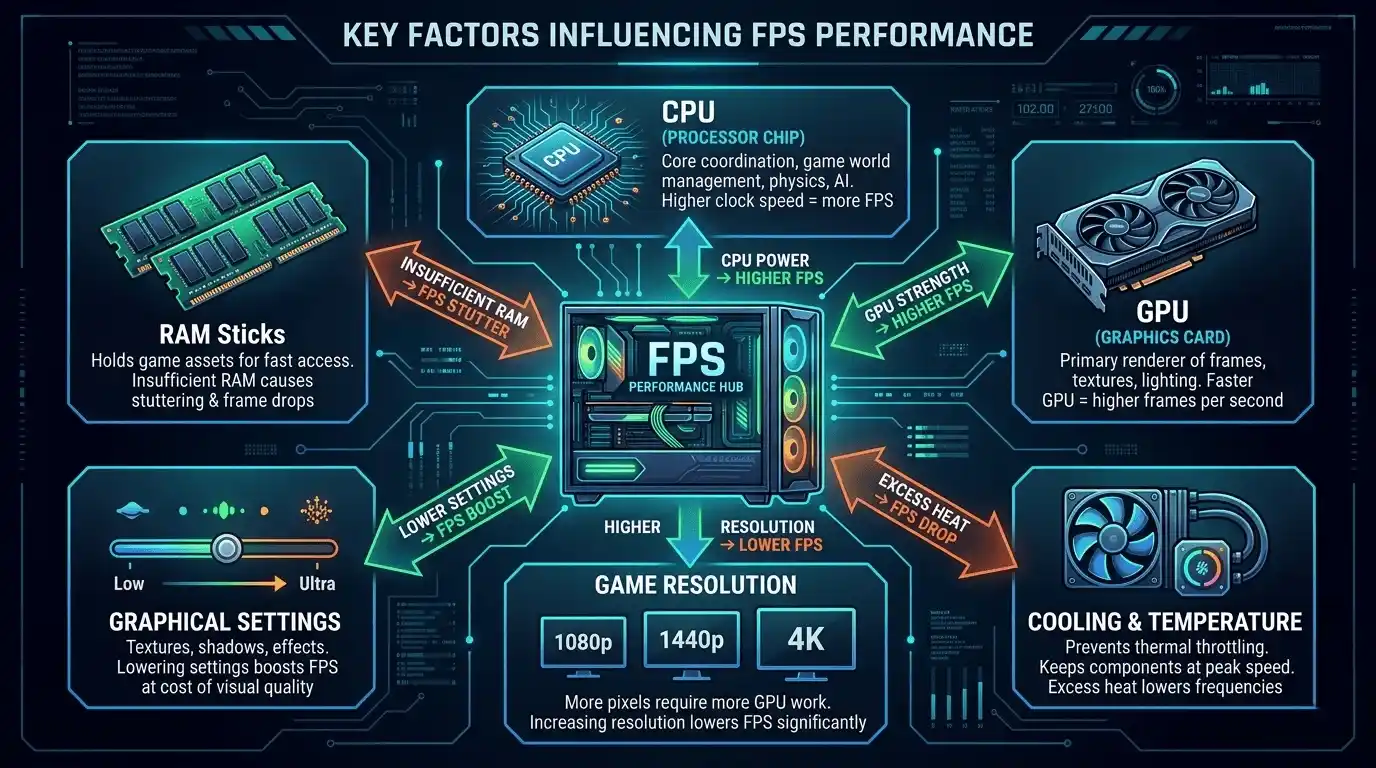
Your GPU (graphics card) is the primary component responsible for rendering frames.
A stronger GPU means:
- Higher FPS
- Better graphics settings
- Better 1440p and 4K performance
Modern GPUs like the RTX 4060, RTX 4070 Ti, RX 7600, and RX 7900 XT deliver significantly higher frame rates compared to older entry-level cards.
VRAM also matters. Games with high-resolution textures often require 8GB+ VRAM for smooth gameplay.
CPU: how it affects your frame rate
The CPU handles:
- Game logic
- Physics
- NPC AI
- Background calculations
At lower FPS targets, the GPU matters more. But once you aim for 144 FPS or higher, the CPU becomes increasingly important.
For example:
- A weak Ryzen 3 or Core i3 may bottleneck an RTX 4060
- Ryzen 5 and Core i5 processors offer balanced gaming performance
- Ryzen 7 and Core i7 CPUs are ideal for high-refresh-rate gaming
RAM, resolution, and game settings
Other major FPS factors include:
- RAM: 16GB dual-channel is the current gaming standard
- Resolution: 1080p gives the highest FPS; 4K is the most demanding
- Graphics settings: Ultra settings can cut FPS dramatically
General resolution impact:
- 1080p → best performance
- 1440p → ~30–40% lower FPS
- 4K → ~50–60% lower FPS
Expected FPS by GPU — Benchmark Table for Popular Graphics Cards
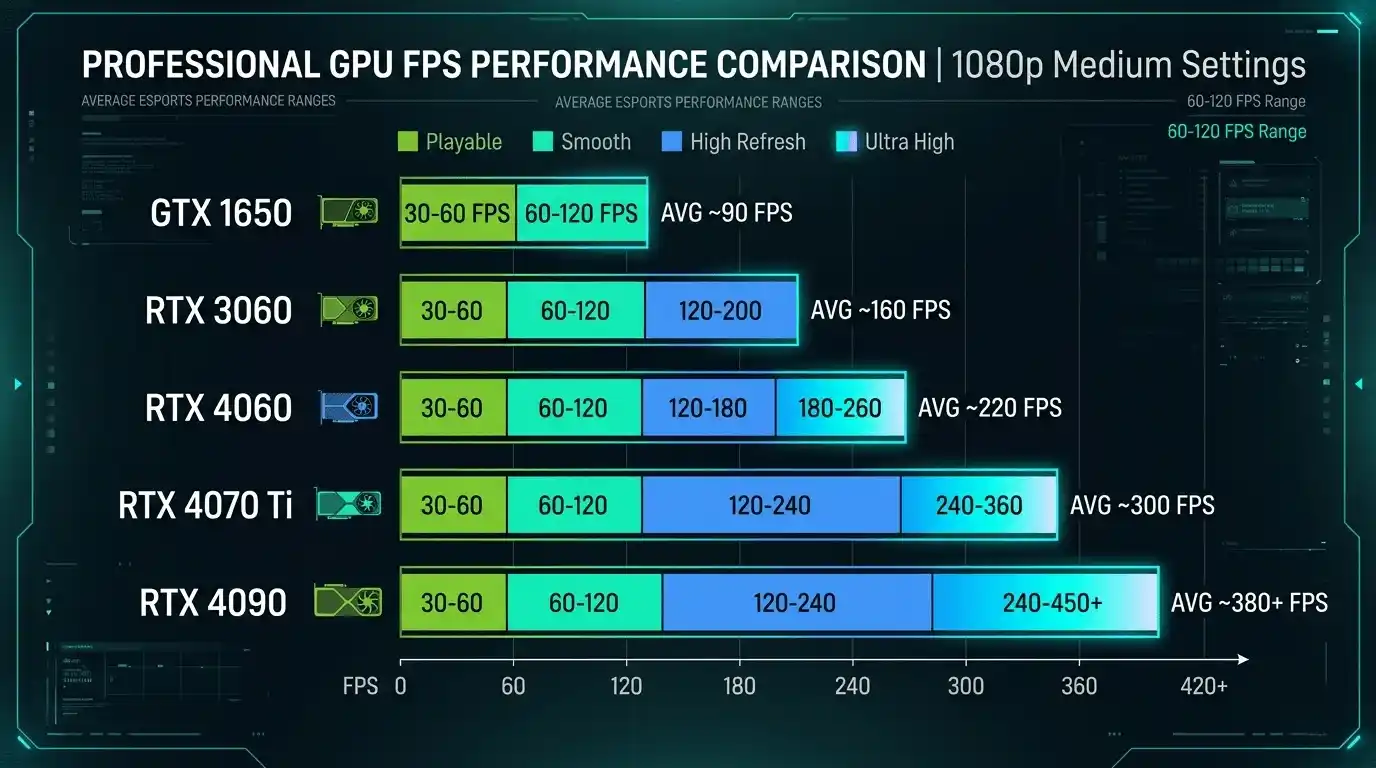
1080p FPS benchmark by GPU tier
| GPU | Tier | Avg FPS @ 1080p (Medium) | Avg FPS @ 1080p (Ultra) |
| GT 1030 / RX 550 | Entry | ~35–45 FPS | ~20–30 FPS |
| GTX 1650 / RX 6500 XT | Budget | ~55–70 FPS | ~35–50 FPS |
| RTX 3060 / RX 6600 | Mid-range | ~90–110 FPS | ~65–80 FPS |
| RTX 4060 / RX 7600 | Mid-high | ~120–140 FPS | ~90–110 FPS |
| RTX 4070 Ti / RX 7900 XT | High-end | ~160–200 FPS | ~130–160 FPS |
| RTX 4090 | Flagship | 200+ FPS | ~160–190 FPS |
These values represent approximate averages across modern AAA games. Actual frame rates vary depending on game optimization, CPU pairing, and settings. If you want to compare how different gaming hardware performs across real titles, you can also check Will GTA 6 Run on RTX 3060? FPS, Settings & Performance Guide, Cyberpunk 2077 Worth It in 2025/2026? (Honest Review & Buying Guide), and the Witcher 3 Next Gen Update: 7 Essential PS5 & PC Upgrades for deeper real-world FPS expectations.
1440p and 4K FPS expectations
| GPU Tier | 1080p Medium | 1440p Medium | 4K Medium |
| Entry-level | 40 FPS | 28 FPS | 18 FPS |
| Budget | 65 FPS | 45 FPS | 28 FPS |
| Mid-range | 100 FPS | 72 FPS | 45 FPS |
| High-end | 180 FPS | 130 FPS | 80 FPS |
| Enthusiast | 220 FPS | 170 FPS | 120 FPS |
If you want smooth 4K gaming, high-end GPUs like the RTX 4080, RTX 4090, or RX 7900 XTX are strongly recommended.
CPU impact on FPS: common pairing benchmarks
| CPU | RTX 4060 (1080p) | RTX 3060 (1080p) | GTX 1650 (1080p) |
| Core i3 / Ryzen 3 | ~90 FPS | ~70 FPS | ~55 FPS |
| Core i5 / Ryzen 5 | ~120 FPS | ~95 FPS | ~60 FPS |
| Core i7 / Ryzen 7 | ~135 FPS | ~105 FPS | ~62 FPS |
| Core i9 / Ryzen 9 | ~140+ FPS | ~108 FPS | ~63 FPS |
You’ll notice diminishing returns with stronger CPUs once the GPU becomes the main bottleneck.
How to Check How Many FPS Your PC Can Get (Without Running a Game)
Use an FPS calculator for instant estimates
Manual benchmarking takes time and requires downloading games or benchmark software. A faster solution is using an fps calculator or fps estimator.
Instead of guessing, you can use the PrimeGamesArena FPS Calculator — a free pc fps calculator that estimates your expected frame rate using your GPU and CPU combination. It works as an fps checker, fps calc, and performance estimator without requiring downloads.
→ Try the FPS Calculator here: PrimeGamesArena FPS Calculator
How to display FPS in-game (live fps counter)
Several tools can show an on-screen FPS counter while gaming:
- Steam Overlay → Settings → In-Game → FPS Counter
- MSI Afterburner + RivaTuner → advanced fps counter and monitoring
- NVIDIA GeForce Experience → built-in FPS display
- AMD Radeon Software → performance overlay
- Xbox Game Bar (Win + G) → simple Windows fps checker
FPS test tools and benchmark software
Useful benchmarking tools include:
- 3DMark → industry-standard GPU benchmark
- UserBenchmark → quick CPU/GPU comparisons
- In-game benchmarks → accurate for specific games
These tools help estimate frame rate performance before adjusting settings or upgrading hardware.
FPS Comparison: Low vs Medium vs Ultra Settings
How much FPS do you lose going from Low to Ultra?
Graphics presets have a huge impact on frame rate.
| Setting Preset | Relative FPS (RTX 3060, 1080p) | Visual Quality |
| Low | ~115–130 FPS | Minimal visuals |
| Medium | ~95–110 FPS | Balanced |
| High | ~75–90 FPS | High-quality visuals |
| Ultra / Max | ~55–70 FPS | Maximum fidelity |
The biggest FPS killers are usually:
- Shadows
- Ray tracing
- Ambient occlusion
- Volumetric effects
Best in-game settings to maximize FPS without sacrificing too much quality
For better performance:
- Reduce Shadow Quality to Medium
- Lower Ambient Occlusion
- Disable heavy Ray Tracing effects
- Use DLSS, FSR, or XeSS upscaling
- Disable Motion Blur
- Cap FPS to your monitor refresh rate
- Use G-Sync or FreeSync instead of V-Sync
Disabling ray tracing alone can sometimes increase FPS by 20–40%.
How to Get More FPS on Your PC — Proven Optimization Tips
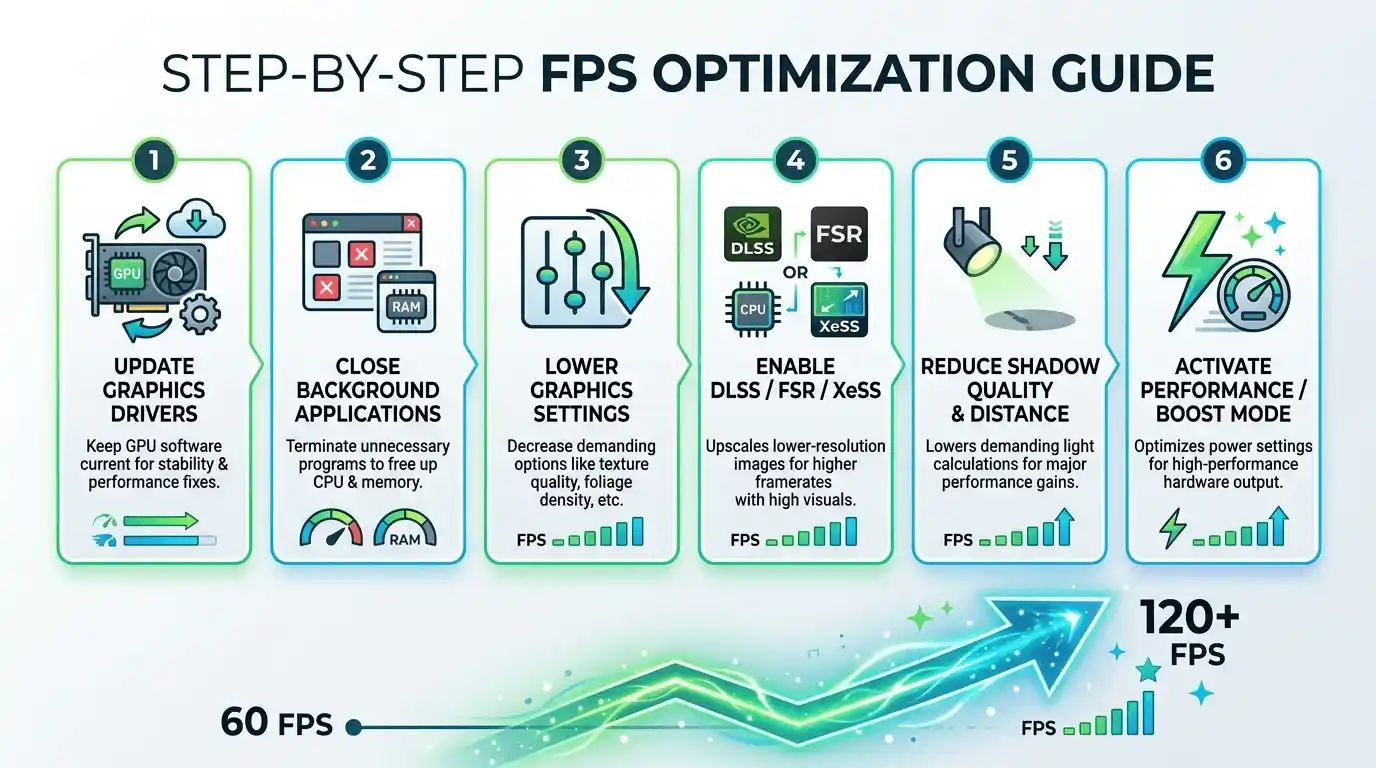
Update your GPU drivers
New GPU drivers often improve game optimization and stability.
For players who want to see how optimization affects real gameplay experience, the Is Hogwarts Legacy Good? (Honest Review, Gameplay & Worth It Guide) explains how settings changes impact performance across different PC tiers.
Use:
- NVIDIA GeForce Experience
- AMD Adrenalin Software
Outdated drivers can cause low FPS and stuttering.
Close background apps and manage Windows settings
Background applications consume CPU and RAM resources.
Before gaming:
- Close Chrome tabs
- Disable Discord overlays
- Turn off unnecessary startup apps
- Use Windows High Performance mode
These changes can improve frame consistency and reduce frame-time spikes.
Optimize in-game settings for your hardware tier
Match your settings to your GPU class.
Examples:
- GTX 1650 → 1080p Low/Medium
- RTX 3060 → 1080p High or 1440p Medium
- RTX 4070 Ti → 1440p Ultra or 4K High
Also:
- Enable DLSS or FSR for major FPS boosts
- Disable ray tracing on older GPUs
- Lower resolution scaling if needed
Check for CPU/GPU bottleneck
Use MSI Afterburner or Task Manager to monitor utilization.
Common signs:
- CPU at 100% + GPU below 80% → CPU bottleneck
- GPU at 99% → expected GPU-bound scenario
Knowing which component limits performance helps you upgrade smarter.
Common FPS Problems and How to Fix Them
Why is my FPS so low even on a decent PC?
Possible causes include:
- Outdated GPU drivers
- Thermal throttling
- Too many background apps
- CPU bottlenecks
- Insufficient RAM
Why does my FPS drop suddenly mid-game?
Sudden FPS drops are often caused by overheating.
Fixes:
- Clean dust from GPU coolers
- Improve case airflow
- Reapply thermal paste if temperatures are excessive
Single-channel RAM can also cause major stuttering in modern games.
FPS counter shows high FPS but game still feels choppy
Average FPS is only part of the story.
Poor 1% lows and inconsistent frame times can still make gameplay feel stuttery.
Solutions include:
- Enable G-Sync or FreeSync
- Limit background tasks
- Use stable frame caps
- Avoid unstable overclocks
How much FPS should I be getting on my PC?
Your expected FPS depends on:
- GPU tier
- CPU performance
- Resolution
- Graphics settings
- Game optimization
Using an fps estimator or pc fps calculator gives the most accurate prediction for your exact setup.
Calculate Your Exact FPS with the PrimeGamesArena FPS Calculator
The PrimeGamesArena FPS Calculator helps gamers estimate expected frame rates using their exact GPU and CPU combination. Whether you’re planning a new PC build, checking laptop gaming performance, or deciding if your system can run a new game, the tool provides quick FPS estimates without needing to install anything.
It works as:
- An fps estimator
- A pc fps calculator
- An fps checker
- A frame rate prediction tool
It’s especially useful for gamers comparing upgrades, testing low-end PCs, or checking how many FPS they can expect at 1080p, 1440p, or 4K.
👉 Try the PrimeGamesArena FPS Calculator here: PrimeGamesArena FPS Calculator
Final Verdict — What FPS Can You Realistically Get on Your PC?
Summary: FPS expectations by hardware tier
| PC Tier | Typical GPU | Expected FPS (1080p, Medium) |
| Low-end / Budget | GTX 1050 Ti / RX 6400 | 40–60 FPS |
| Mid-range | RTX 3060 / RX 6600 | 90–110 FPS |
| High-end | RTX 4070 / RX 7800 XT | 130–160 FPS |
| Enthusiast | RTX 4090 / RX 7900 XTX | 200+ FPS |
Key takeaways
- The GPU is the biggest factor in gaming FPS
- CPUs matter more at very high frame rates
- 1080p remains the best balance between visuals and performance
- DLSS and FSR can dramatically improve frame rates
- FPS counters and benchmark tools help verify real-world performance
If you want the fastest way to estimate your frame rate before buying a game or upgrading hardware, using an fps calculator or fps estimator is the easiest next step.
To understand how FPS affects actual gameplay feel in different genres, you can also explore Assassin’s Creed Origins Review: 7 Essential Truths, where performance and visuals play a major role in experience quality.





6 Responses