If you’ve ever watched professional esports players dominate in games like Counter-Strike 2, Valorant, or Fortnite, you’ve probably wondered: what FPS do pro gamers play at?
The short answer is: most pro players aim for 240 FPS or higher. But that doesn’t mean every gamer needs 300+ FPS to enjoy smooth gameplay. The “best” FPS depends on your monitor, hardware, the games you play, and whether you’re gaming casually or competitively.
In this guide, you’ll learn what FPS actually means, what counts as good FPS for gaming, what pros use, and how to improve your own frame rate without wasting money on unnecessary upgrades. For more performance-focused gaming breakdowns, you can explore The Ultimate Gaming Guide Hub, along with related deep-dive articles like What PC Parts Affect Gaming the Most? (Complete FPS Performance Guide) and Optimize Windows 11 for Gaming FPS Boost Settings (2025).
What Is FPS? (A Quick Breakdown for Gamers)
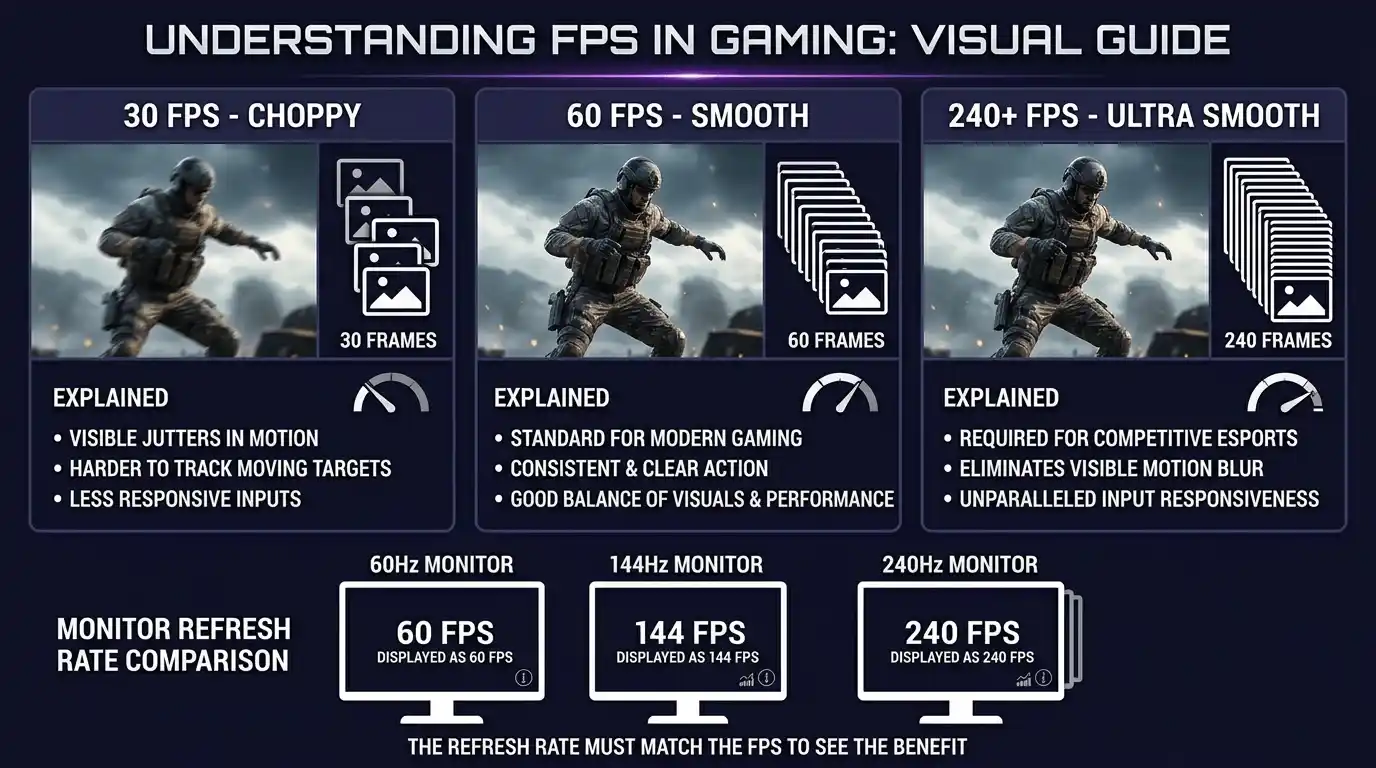
FPS stands for frames per second. It measures how many images your PC or console renders every second while gaming.
For example:
- 30 FPS = 30 images shown every second
- 60 FPS = 60 images every second
- 240 FPS = 240 images every second
Higher FPS generally means:
- Smoother gameplay
- Better responsiveness
- Lower input delay
- Easier aiming and tracking in fast-paced games
Your monitor’s refresh rate also matters. A 60Hz monitor can only display up to 60 frames per second visually, while a 240Hz monitor can display up to 240 FPS.
FPS vs Frame Time
FPS measures how many frames you get per second, while frame time measures how long each frame takes to render.
For example:
- 60 FPS = about 16.7ms per frame
- 120 FPS = about 8.3ms per frame
Lower frame times usually feel more responsive in competitive games.
What Is a Good FPS for Gaming? The Standard Tiers Explained
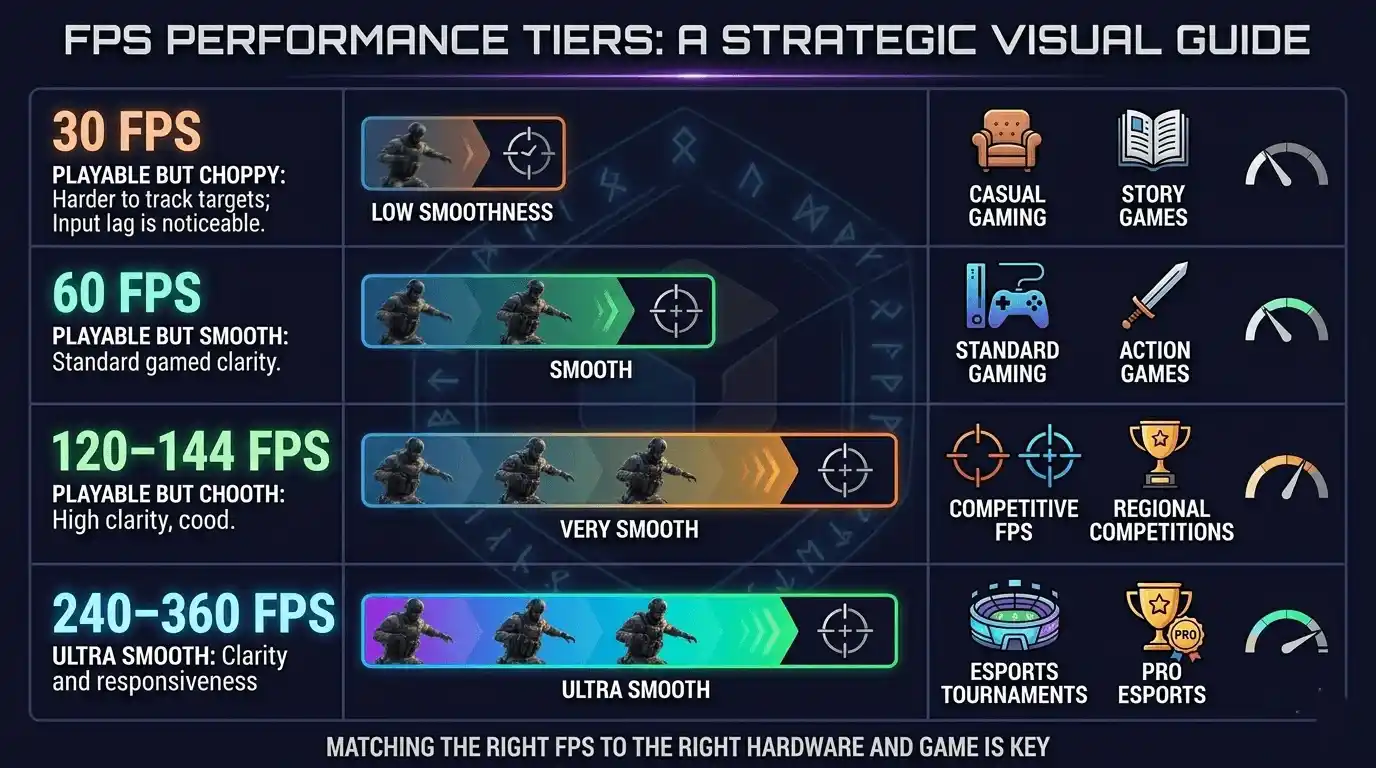
There’s no universal “perfect” FPS. A good frame rate for gaming depends on the type of game you play and your hardware capabilities.
The Four Core FPS Tiers
| FPS Range | Experience Level | Best For |
| 30 FPS | Playable (console standard) | Slow-paced, story-driven games |
| 60 FPS | Good FPS for gaming | Most PC genres; smooth everyday play |
| 120–144 FPS | Excellent / competitive-ready | Shooters, sports, fast-action games |
| 240–360 FPS | Pro / esports level | Competitive FPS, PUBG, CS2, Valorant |
For most gamers, 60 FPS is the minimum sweet spot. Competitive players usually target 144 FPS or more.
What Is a Good Frame Rate for Gaming by Genre?
| Genre | Minimum Good FPS | Recommended FPS |
| First-person shooter (FPS) games | 60 FPS | 144–240 FPS |
| Online FPS games / battle royale | 60 FPS | 144–240 FPS |
| Story/RPG | 30–60 FPS | 60 FPS |
| Casual / mobile gaming | 30 FPS | 60 FPS |
| Competitive esports | 144 FPS | 240–360 FPS |
Games like Cyberpunk 2077 can still feel great at 60 FPS, while games like Call of Duty: Warzone benefit heavily from higher frame rates.
What FPS Do Pro Gamers Actually Play At?
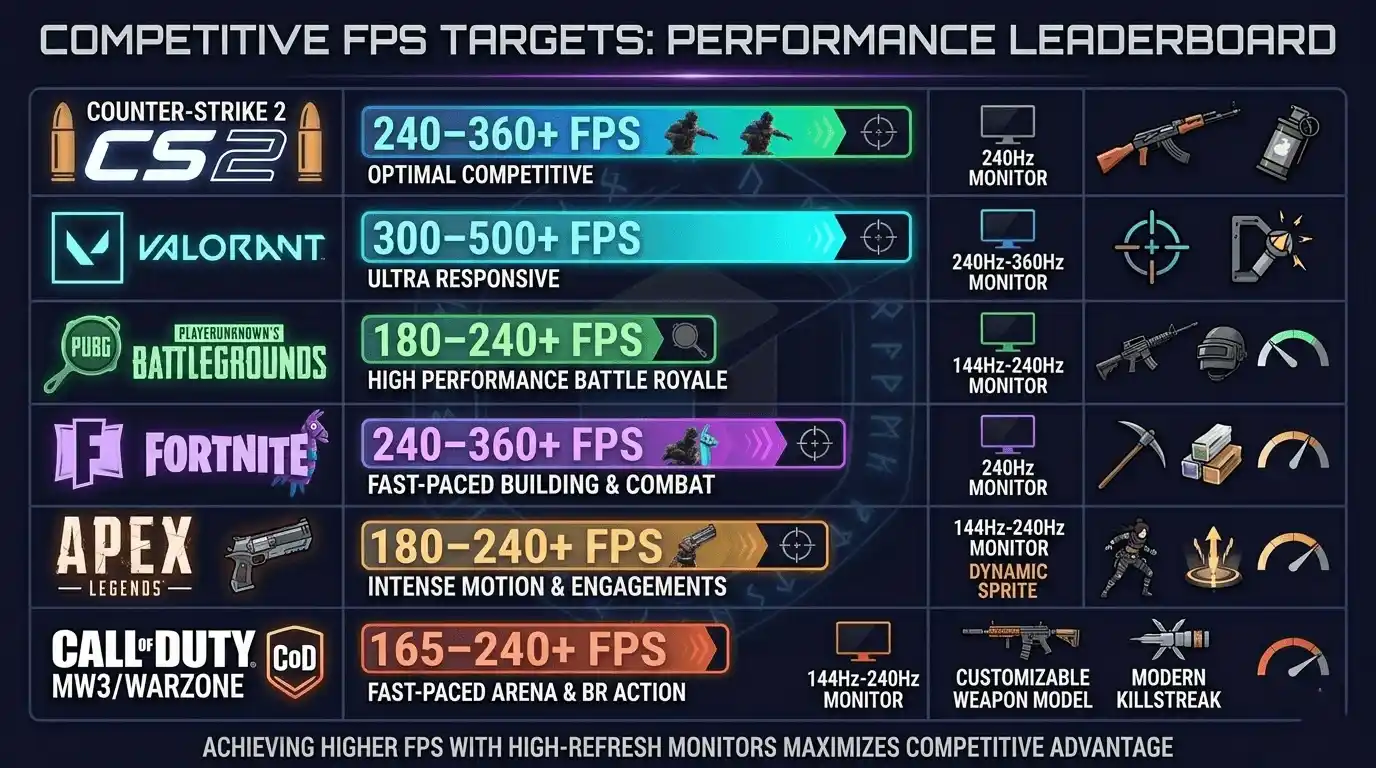
Professional esports players almost always target 240 FPS or higher. In many tournaments, pros use 240Hz or 360Hz monitors paired with powerful gaming PCs.
Why? Because higher FPS reduces:
- Input lag
- Motion blur
- Frame pacing inconsistencies
Even tiny responsiveness advantages matter in competitive play.
Pro FPS Standards by Game
| Game | Pro Player FPS Target | Common Monitor Hz |
| CS2 / CS:GO | 300–500+ FPS | 240Hz–360Hz |
| Valorant | 240–400 FPS | 240Hz |
| PUBG | 144–240 FPS | 144Hz–240Hz |
| Fortnite | 240–360 FPS | 240Hz |
| Apex Legends | 240–360 FPS | 240Hz–360Hz |
| Call of Duty | 240–300 FPS | 240Hz |
Games like PUBG: Battlegrounds and Apex Legends are harder to run consistently at ultra-high FPS because they’re more demanding on both CPU and GPU resources.
Why Do Pros Use 240+ FPS Even on a 240Hz Monitor?
Many players assume there’s no reason to exceed your monitor’s refresh rate, but pros intentionally push FPS higher for stability.
Benefits include:
- Maintaining FPS above refresh rate during intense moments
- Lower frame latency
- More consistent frame delivery
- Reduced dips during explosions or crowded scenes
This is often called “FPS headroom.”
Is 120 FPS Good for Gaming? (60 vs 120 FPS Compared)
Yes — 120 FPS is excellent for gaming and a huge improvement over 60 FPS.
Most gamers notice the difference immediately in fast-paced shooters and online games.
60 FPS vs 120 FPS — Side-by-Side
| Metric | 60 FPS | 120 FPS |
| Frame time | ~16.7ms | ~8.3ms |
| Input lag feel | Noticeable | Smooth |
| Monitor required | 60Hz | 120Hz+ |
| For competitive play | Acceptable | Recommended |
| For casual/story games | Great | Overkill |
Going from 60 to 120 FPS often feels more significant than moving from 120 to 240 FPS.
Is 1000 FPS Good? Is 600 FPS Good?
Technically yes, but there are diminishing returns.
A 1000 FPS game running on a 144Hz monitor won’t visually display all 1000 frames. However, extremely high FPS can still slightly reduce input latency in esports titles.
What Is the Average FPS for a Gaming PC?
Average FPS depends heavily on your GPU, CPU, game optimization, and graphics settings. If you’re comparing performance across different setups or games, you may also find useful comparisons like Will GTA 6 Run on RTX 3060? FPS, Settings & Performance Guide, Metroid Prime 4: Beyond Review and Performance Breakdown, and Ratchet and Clank: Rift Apart Review and Rating Guide.
Average FPS by PC Hardware Tier
| PC Tier | GPU Example | Average FPS (1080p, medium) |
| Budget / Low-end | GTX 1650, RX 6500 XT | 45–75 FPS |
| Mid-range | RTX 3060, RX 6700 | 90–144 FPS |
| High-end | RTX 4070, RX 7800 XT | 144–240 FPS |
| Enthusiast / Pro | RTX 4090, RX 7900 XTX | 240–360+ FPS |
A mid-range gaming PC is usually enough for smooth 1080p competitive gaming today.
Low-end PCs can still achieve good FPS if you optimize settings properly.
How to Check Your FPS and Estimate Performance Before Playing
Most games now include built-in FPS counters, but there are several other tools available too.
Popular FPS checking tools include:
- Steam FPS overlay
- NVIDIA GeForce Experience
- AMD Adrenalin overlay
- MSI Afterburner
- FRAPS
- NVIDIA FrameView
How Many FPS Will My PC Get? Use an FPS Calculator
Instead of manually estimating performance, you can use the Prime Games Arena FPS Calculator for Low-End PC to estimate your expected FPS using your exact CPU and GPU combination.
It works as a frame rate calculator, FPS estimator, and PC FPS checker in one tool — especially useful for budget gamers comparing upgrade options before buying new hardware.
Best In-Game Settings to Reach Good FPS for Gaming
Your graphics settings have a massive impact on frame rate.
Settings That Impact FPS the Most (Ranked)
| Setting | FPS Impact | Recommended Action |
| Resolution | Very High | Drop to 1080p for max FPS |
| Shadow Quality | High | Set to Low or Off |
| Anti-Aliasing | High | Set to Low or FXAA |
| Texture Quality | Medium | Match to VRAM |
| View Distance | Medium | Reduce in open-world games |
| V-Sync | Medium | Disable for competitive play |
| Post-Processing | Low-Medium | Disable all extra effects |
FPS Comparison — Low vs Medium vs Ultra Settings
| Settings Preset | Approximate FPS Gain vs Ultra | Visual Quality Trade-off |
| Ultra | Baseline | Best visuals, lowest FPS |
| High | +15–25% FPS | Minor quality drop |
| Medium | +35–50% FPS | Noticeable but fair |
| Low | +60–90% FPS | Significant; best for competition |
Disabling ray tracing alone can sometimes add 20–40 FPS depending on your GPU.
How to Improve FPS — Tips for Getting More Frames on Any PC
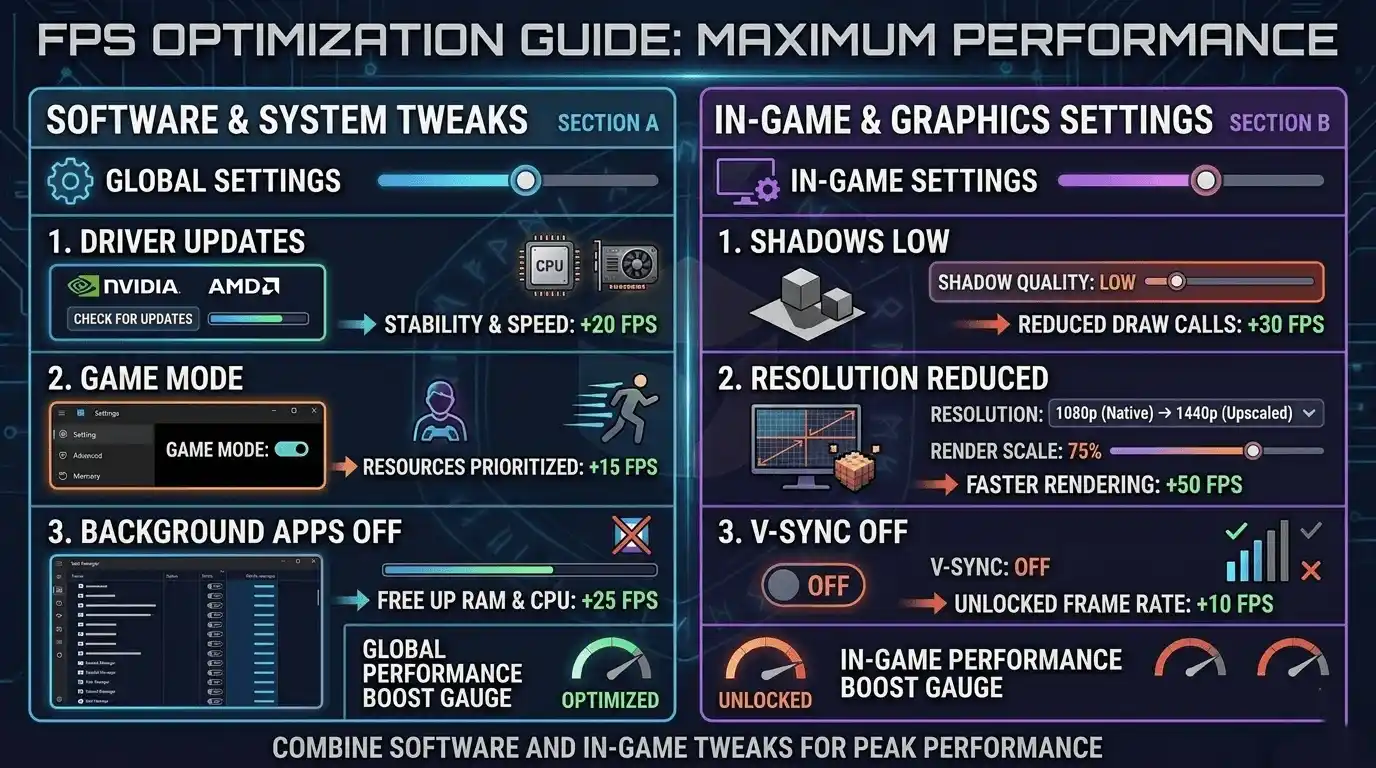
If you want to understand how different hardware affects performance, check out guides like Does RAM Affect FPS in Games?, How to Check If Your GPU Is Performing Well FPS & Health, and Is a Gaming PC Better Than PS5 FPS Comparison 2026.
Software-Side FPS Boosts
Try these first before upgrading hardware:
- Update NVIDIA or AMD GPU drivers
- Enable Windows Game Mode
- Disable unnecessary startup apps
- Turn off Xbox Game Bar
- Enable hardware-accelerated GPU scheduling
If performance suddenly drops after driver updates, a clean reinstall using DDU can help.
In-Game FPS Optimization Tips
- Lower render scale before lowering textures
- Use built-in benchmarks to compare changes
- Turn off motion blur and depth of field
- Disable ray tracing on weaker GPUs
- Prioritize stable FPS over maximum peaks
Stable frame pacing feels smoother than fluctuating FPS.
Hardware Upgrades That Directly Increase FPS
If software tweaks aren’t enough, these upgrades help most:
- GPU upgrade (largest FPS improvement)
- Upgrade to 16GB dual-channel RAM
- Faster CPU for esports titles
- SSD upgrade for smoother loading and reduced stutter
- Higher refresh rate monitor
Common FPS Issues and How to Fix Them
Why Is My FPS Low Even with a Good PC?
Common causes include:
- CPU or GPU overheating
- Background apps consuming resources
- Outdated drivers
- Wrong fullscreen settings
- Power-saving mode enabled
Thermal throttling is especially common in laptops and poorly ventilated desktops.
FPS Drops and Stutters — Causes and Fixes
| Problem | Likely Cause | Fix |
| FPS drops in online FPS games | Network spikes + CPU bottleneck | Prioritize game in task manager |
| Stuttering despite high FPS | RAM running in single-channel | Enable XMP/EXPO in BIOS |
| FPS fine but feels laggy | V-Sync on / high input lag | Disable V-Sync, use NVIDIA Reflex |
| Low FPS in shooting games for PC | Settings too high for GPU | Use FPS calculator + lower settings |
Calculate Your Exact FPS — Find Out If Your PC Can Hit Pro Levels
Use the Prime Games Arena FPS Calculator for Low-End PC
The Prime Games Arena FPS Calculator estimates expected FPS performance based on your exact CPU and GPU setup across popular games.
It’s especially useful for:
- Low-end PC gamers
- Budget upgrade planning
- Comparing GPUs and CPUs
- Checking realistic FPS expectations before changing settings
Instead of guessing how many FPS your PC can achieve, you can quickly estimate performance and identify the best upgrade path.
👉 Try the Prime Games Arena FPS Calculator here: FPS Calculator Tool
Final Verdict — What FPS Should You Actually Aim For?
The ideal FPS depends on your gaming style and goals.
| Player Type | Recommended FPS Target |
| Casual / story gamer | 60 FPS |
| Everyday online gamer | 60–120 FPS |
| Competitive FPS shooter player | 144–240 FPS |
| Aspiring / semi-pro esports | 240+ FPS |
| Professional esports player | 300–500+ FPS |
For most gamers, 60 FPS is still perfectly playable. But if you enjoy competitive shooters, 144 FPS is where gameplay starts feeling significantly smoother and more responsive.
Professional esports players push toward 240–360+ FPS because every millisecond matters at the highest level.
If you’re unsure what your own PC can achieve, using an FPS calculator is the fastest way to benchmark your setup, optimize settings, and plan future upgrades realistically.