
Introduction
Most gamers notice the difference the moment a game loads. One system launches straight into gameplay, while another sits on a loading screen for nearly a minute. But does storage type actually affect FPS, or does it only impact loading times?
The short answer is simple: SSDs are the clear winner for gaming in 2025. They offer dramatically faster load times, smoother asset streaming, improved responsiveness, and better long-term reliability. HDDs still have a place, but primarily as affordable bulk storage for inactive games and files.
In this guide, we’ll compare SSD vs HDD gaming performance, analyze real-world benchmarks, explain PS5 storage compatibility, compare lifespan and durability, and help you choose the best storage solution for your gaming setup.
SSD vs HDD Gaming — Key Differences Explained
What is an SSD and how does it work?
A Solid State Drive (SSD) stores data using NAND flash memory rather than mechanical components. Because there are no moving parts, SSDs can access files almost instantly.
For gaming, there are two main SSD categories:
- SATA SSDs: Typically around 550 MB/s
- NVMe SSDs: Typically between 3,000–7,000 MB/s
Common form factors include:
- 2.5-inch SATA drives
- M.2 PCIe 3.0 SSDs
- M.2 PCIe 4.0 SSDs
Advantages include:
- Silent operation
- Lower heat output
- Better shock resistance
- Faster game loading
What is an HDD and how does it work?
A Hard Disk Drive (HDD) stores data on spinning magnetic platters accessed by a mechanical read/write head.
Typical performance:
- 5,400 RPM: Approximately 100 MB/s
- 7,200 RPM: Approximately 120–160 MB/s
Benefits include:
- Lower cost per terabyte
- Larger storage capacities
- Ideal for archives and backups
However, HDDs are slower, noisier, and more vulnerable to physical damage.
SSD vs HDD — Side-by-Side Spec Comparison
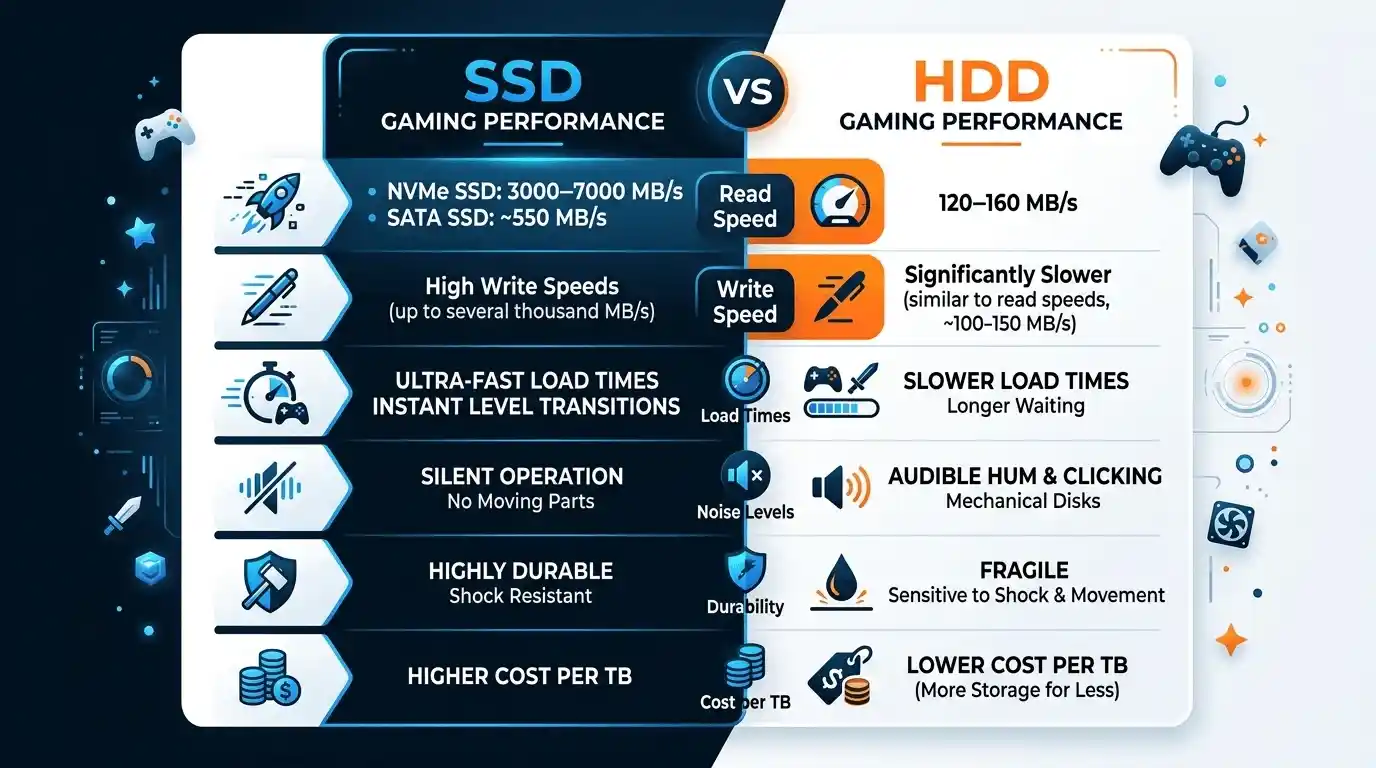
| Feature | SSD (SATA) | SSD (NVMe) | HDD (7200 RPM) |
| Read Speed | ~550 MB/s | 3,000–7,000 MB/s | ~120–160 MB/s |
| Write Speed | ~500 MB/s | 2,500–6,500 MB/s | ~100–140 MB/s |
| Game Load Time | Fast | Very Fast | Slow |
| FPS Impact | Minimal | Minimal | Minimal |
| Noise | Silent | Silent | Audible |
| Shock Resistance | High | High | Low |
| Price per TB | Higher | Highest | Lowest |
For most gamers asking “is SSD better than HDD for gaming?”, the answer is yes—especially for modern AAA titles.
Does SSD vs HDD Actually Affect Gaming Performance?
Does storage type affect FPS?
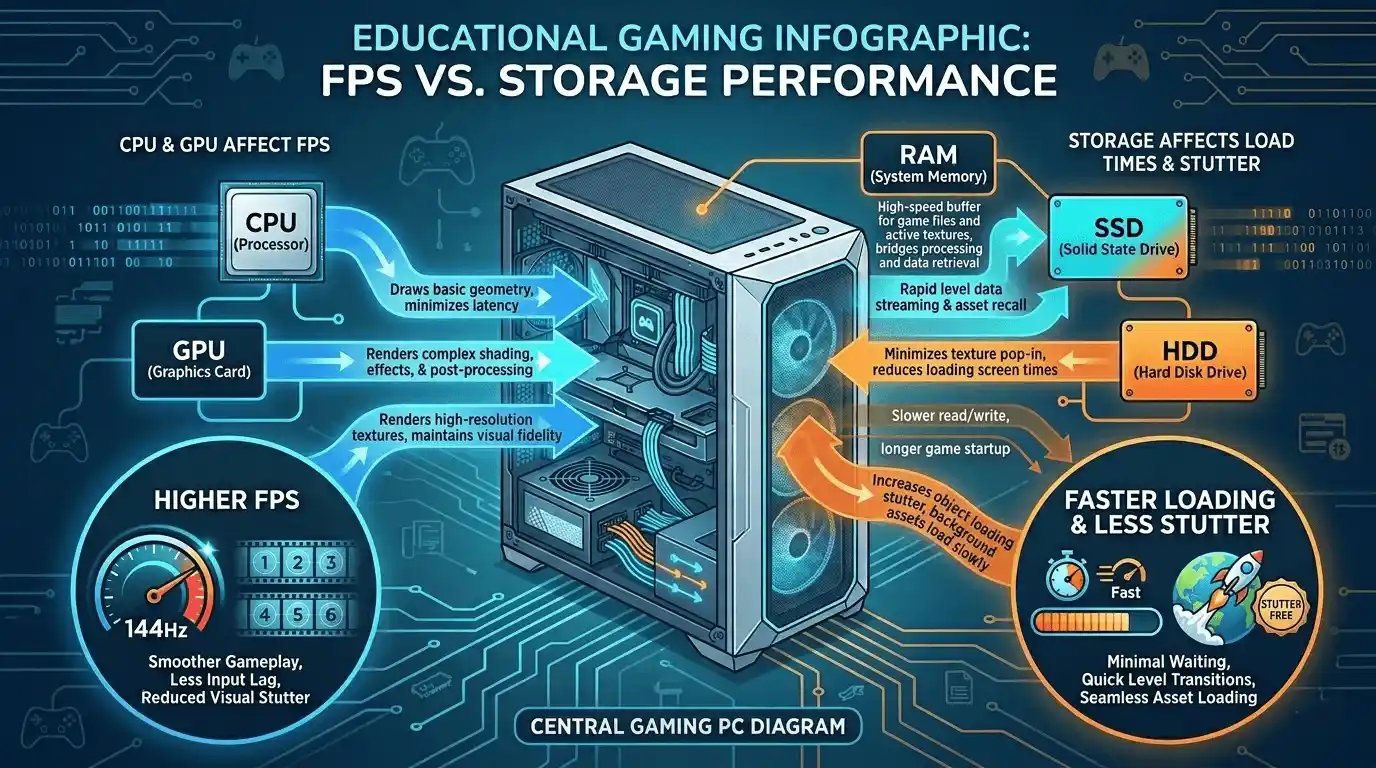
The honest answer is no, at least not directly.
Storage speed is only one piece of the performance puzzle. If you’re trying to improve gaming performance, it’s also worth understanding Does RAM Affect FPS in Games? and What PC Parts Affect Gaming the Most? (Complete FPS Performance Guide) before upgrading your hardware.
Frames per second are primarily determined by:
- GPU performance
- CPU performance
- Available RAM
Storage speed has almost no impact on average FPS in most games.
However, some modern open-world titles continuously stream assets from storage. Games such as:
- GTA V
- Cyberpunk 2077
- Starfield
- Microsoft Flight Simulator
can experience noticeable stuttering when installed on an HDD.
It’s important to understand the difference between:
- Low FPS caused by GPU or CPU limitations
- Stuttering caused by slow storage access
Where SSD makes a measurable real-world difference
An SSD provides significant benefits in areas gamers notice every day:
- Faster game load times
- Faster level transitions
- Reduced texture pop-in
- Improved open-world asset streaming
- Faster Windows startup
- Better DirectStorage performance
While gaming performance SSD vs HDD comparisons rarely show higher average FPS, the overall experience feels much smoother on an SSD.
Game Load Time Benchmark — SSD vs HDD
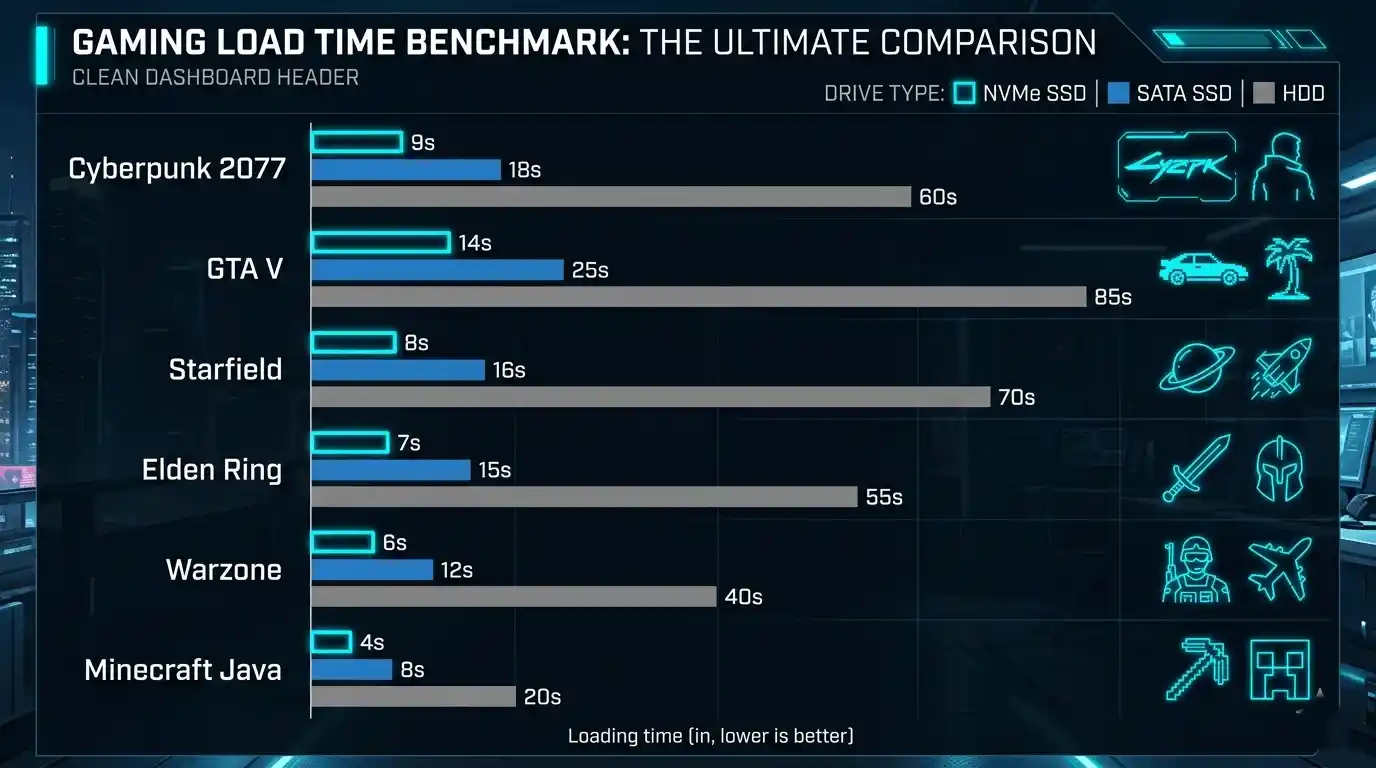
| Game | NVMe SSD | SATA SSD | HDD |
| Cyberpunk 2077 | ~12 sec | ~18 sec | ~45 sec |
| GTA V | ~20 sec | ~30 sec | ~90 sec |
| Call of Duty Warzone | ~15 sec | ~22 sec | ~60 sec |
| Elden Ring | ~8 sec | ~13 sec | ~35 sec |
| Starfield | ~10 sec | ~16 sec | ~50 sec |
| Minecraft Java | ~4 sec | ~6 sec | ~15 sec |
The difference becomes especially noticeable in modern open-world games.
Is Your PC Bottlenecked by Storage — or Something Else?
Low FPS? Your drive is probably not the cause
If your game runs at 30 FPS, replacing an HDD with an NVMe SSD will not magically increase frame rates.
Common GPU bottleneck signs:
- Low FPS regardless of settings
- GPU usage consistently near 100%
Common storage bottleneck signs:
- Stutters while moving through the world
- Delayed texture loading
- Long loading screens
Tools like MSI Afterburner and Windows Task Manager can help identify the actual bottleneck. If you’re unsure where performance issues originate, our guides on How to Check If Your GPU Is Performing Well FPS & Health and How Much FPS Can My PC Handle? can help diagnose potential bottlenecks before purchasing new components.
How to check your actual expected FPS before upgrading ⚙️
Before spending money on a new SSD, verify whether your GPU and CPU are the actual performance bottleneck.
Instead of manually estimating, you can use the FPS Calculator for Low-End PC at PrimeGamesArena—it calculates your expected FPS based on your exact GPU and CPU specs. This saves time and provides a realistic performance estimate before upgrading any hardware.
SSD vs HDD for PS5 — Complete Console Storage Guide
PS5 internal storage — what you need to know
The PlayStation 5 ships with a custom NVMe SSD and is designed entirely around SSD technology.
Key requirements:
- PCIe 4.0 NVMe SSD
- Recommended read speed of 5,500 MB/s or higher
- Compatible M.2 sizes include 2230, 2242, 2260, 2280, and 22110
- Heatsink recommended
A 1TB or 2TB expansion SSD is ideal for most PS5 users.
PS5 external storage — SSD vs HDD explained
External USB drives work differently.
Important limitations:
- PS5 games cannot run directly from external drives
- PS5 games can be stored externally
- PS4 games can be played directly from external drives
External SSDs offer:
- Faster transfers
- Silent operation
- Better durability
PS5 Storage Options Comparison Table
| Storage Type | PS5 Games | PS4 Games | Speed | Verdict |
| Internal NVMe SSD | Yes | Yes | 5,500+ MB/s | Best |
| M.2 Expansion SSD | Yes | Yes | 5,500+ MB/s | Ideal Upgrade |
| External USB SSD | Store Only | Yes | 500–1,000 MB/s | Good |
| External USB HDD | Store Only | Yes | ~120 MB/s | Budget Option |
Best SSD for Gaming — What to Look For
Competitive gamers looking for maximum responsiveness should also understand What Does Low Latency Mode Do in NVIDIA Settings?, since storage speed and rendering latency impact different parts of the gaming experience.
NVMe PCIe 4.0 vs PCIe 3.0 — does it matter for gaming?
PCIe 4.0 drives are faster, but real-world gaming differences are often small.
Choose PCIe 4.0 if:
- Expanding PS5 storage
- Using DirectStorage-enabled games
- Future-proofing a new PC
Choose PCIe 3.0 if:
- Building on a budget
- Upgrading from an HDD
Key specs to check when buying a gaming SSD
Prioritize:
- Read speed
- DRAM cache
- TBW rating
- Form factor compatibility
A TBW rating of 300+ is more than sufficient for most gamers.
Gaming SSD Tier Guide
| Tier | Best For | Interface | Capacity |
| Budget | First SSD Upgrade | PCIe 3.0 / SATA | 500GB–1TB |
| Mid-Range | PC + PS5 | PCIe 4.0 NVMe | 1TB–2TB |
| High-End | DirectStorage Gaming | PCIe 4.0 7000+ MB/s | 2TB+ |
| External | Portable Gaming | USB 3.2 Gen 2 | 1TB–2TB |
External Storage for Gaming — SSD vs HDD
External SSD for PC gaming
External SSDs are excellent for:
- Laptop gaming
- Travel
- LAN events
- Secondary game libraries
Using USB 3.2 Gen 2 can deliver performance surprisingly close to internal SATA SSDs.
External HDD for PC gaming
External HDDs remain useful for:
- Game archives
- Media storage
- Large backup libraries
However, running modern open-world games directly from an HDD often results in long loading times and stuttering.
External SSD vs External HDD for Gaming — Verdict Table
| Criteria | External SSD | External HDD |
| Load Times | Fast | Slow |
| FPS Impact | Minimal | Minimal |
| Stutter Risk | Low | Higher |
| Portability | Excellent | Good |
| Durability | High | Moderate |
| Price per TB | Higher | Lower |
| Best For | Active Gaming | Archive Storage |
SSD vs HDD Lifespan — Which Lasts Longer for Gaming?
How long does an SSD last under gaming use?
Modern SSDs typically last between 5 and 10 years.
A 600 TBW SSD writing 40GB daily could theoretically last decades before reaching its write limit.
Most gaming SSDs use TLC NAND, offering an excellent balance of endurance and performance.
How long does an HDD last under gaming use?
Most HDDs last approximately 3–5 years under regular use.
Common failures include:
- Head crashes
- Motor failures
- Bad sectors
Mechanical components eventually wear out.
SSD vs HDD Lifespan Comparison Table
| Factor | SSD | HDD |
| Average Lifespan | 5–10 Years | 3–5 Years |
| Failure Type | Gradual | Sudden |
| Shock Resistance | High | Low |
| Heat Sensitivity | Moderate | High |
| Data Recovery | Harder | Easier |
| Gaming Verdict | Better | Acceptable |
Is HDD Still Good for Gaming in 2025?
When HDD is acceptable for gaming
An HDD still makes sense if:
- You mainly play older games
- You need cheap bulk storage
- You use it as a secondary drive
When HDD is no longer good enough
Many modern games increasingly expect SSD speeds.
Examples include:
- Starfield
- Alan Wake 2
- Hogwarts Legacy
These games rely heavily on rapid asset streaming.
Honest verdict
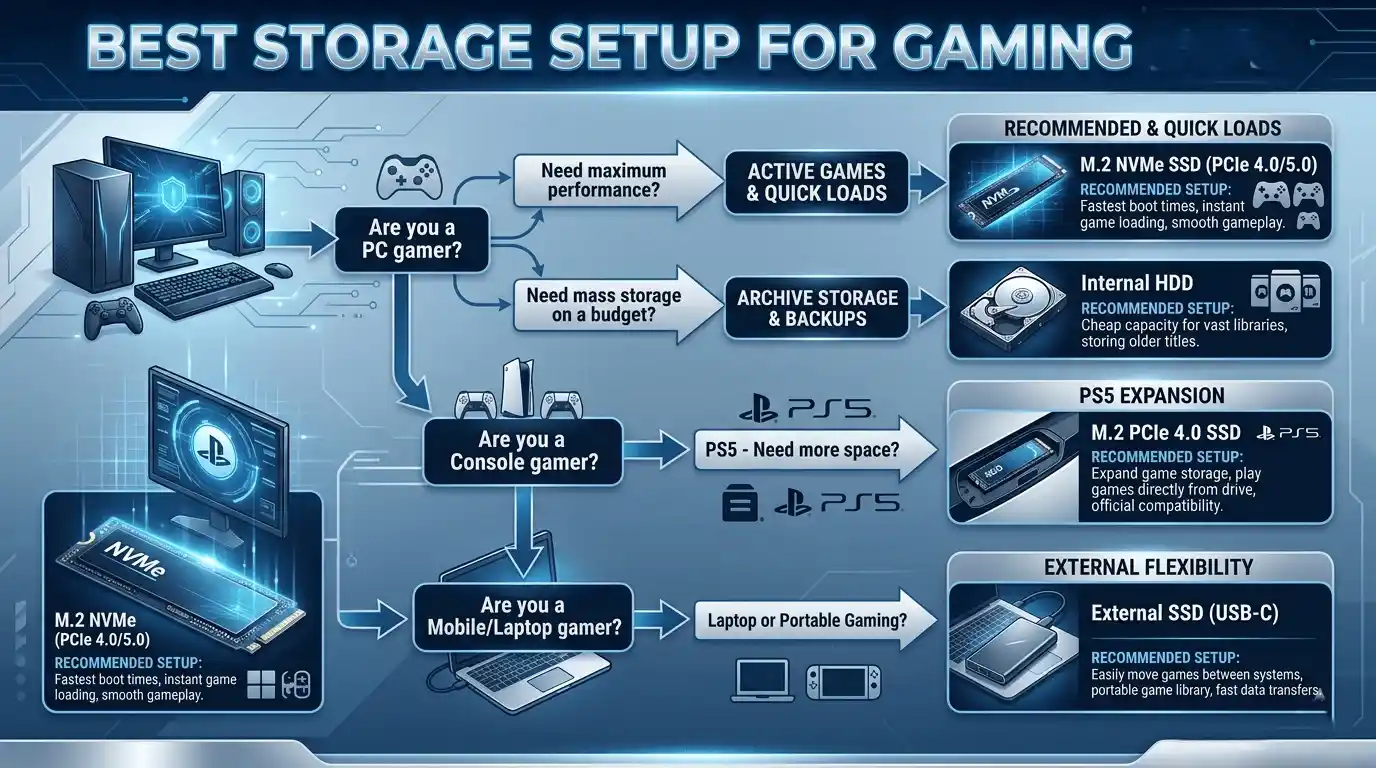
HDDs are no longer ideal as primary gaming drives.
The best setup in 2025 is:
- NVMe SSD for active games
- HDD for archives and backups
That combination delivers the best balance of speed and value.
Calculate Your Exact FPS with FPS Calculator for Low-End PC
Storage upgrades improve loading times, but they won’t solve every performance problem. If your GPU or CPU is the actual bottleneck, installing a faster SSD will not increase your frame rate.
The FPS Calculator for Low-End PC helps gamers estimate expected performance based on their exact hardware configuration. Whether you’re using an older GTX card, a mid-range RTX GPU, or a budget processor, the tool provides realistic FPS expectations before you spend money on upgrades.
It’s especially useful for gamers trying to decide between upgrading storage, RAM, CPU, or GPU.
👉 Try the FPS Calculator here: primegamesarena.com/fps-calculator-for-low-end-pc/
Final Verdict — SSD or HDD for Gaming?
After upgrading your storage, consider applying these Optimize Windows 11 for Gaming FPS Boost Settings (2025) recommendations to ensure your system is fully optimized for gaming performance.
Looking for more hardware optimization tips, FPS guides, and gaming performance tutorials? Visit The Ultimate Gaming Guide Hub: FPS Tips, Game Picks, Walkthroughs & More (2026) for a complete collection of gaming resources.
Decision guide by use case
| Use Case | Best Choice | Reason |
| Primary PC Gaming Drive | NVMe SSD PCIe 4.0 | Fastest Load Times |
| Bulk Storage | HDD | Cheapest Capacity |
| PS5 Expansion | PCIe 4.0 NVMe SSD | Required Compatibility |
| PS5 External Storage | USB SSD | Faster Transfers |
| Budget Upgrade | SATA SSD | Huge Improvement Over HDD |
| Laptop Gaming Storage | External SSD | Portable and Fast |
Key takeaways
- SSD is the clear winner for gaming in 2025.
- HDD still works well for secondary storage and archives.
- Storage upgrades improve responsiveness, not average FPS.
- GPU and CPU remain the primary factors affecting frame rate.
- PS5 users should choose NVMe SSDs for internal expansion.
- Always identify your real hardware bottleneck before upgrading.
If you’re unsure whether storage, CPU, or GPU should be your next upgrade, calculating your expected FPS first is the smartest move. Understanding your system’s true performance ceiling helps you spend money where it will make the biggest difference.





2 Responses