If you play competitive games like Valorant, Call of Duty: Warzone, or Counter-Strike 2, you have probably seen the Low Latency Mode option inside the NVIDIA Control Panel. Many gamers assume it boosts FPS, but that is not actually its main purpose.
For more PC optimization guides, FPS tweaks, and competitive gaming tips, explore The Ultimate Gaming Guide Hub: FPS Tips, Game Picks, Walkthroughs & More (2026).
NVIDIA Low Latency Mode is designed to reduce input lag by controlling how frames are queued between the CPU and GPU. In fast-paced shooters, even a few milliseconds can affect aiming responsiveness and overall gameplay feel.
This guide explains exactly what Low Latency Mode does, how the Off/On/Ultra settings work, whether it affects FPS, and when you should use it instead of NVIDIA Reflex.
What Does Low Latency Mode Do in NVIDIA Settings?
Low Latency Meaning — The Core Concept Explained
Players often confuse input latency with internet ping, but the differences are explained clearly in Does Internet Speed Affect FPS? FPS vs Ping Explained.
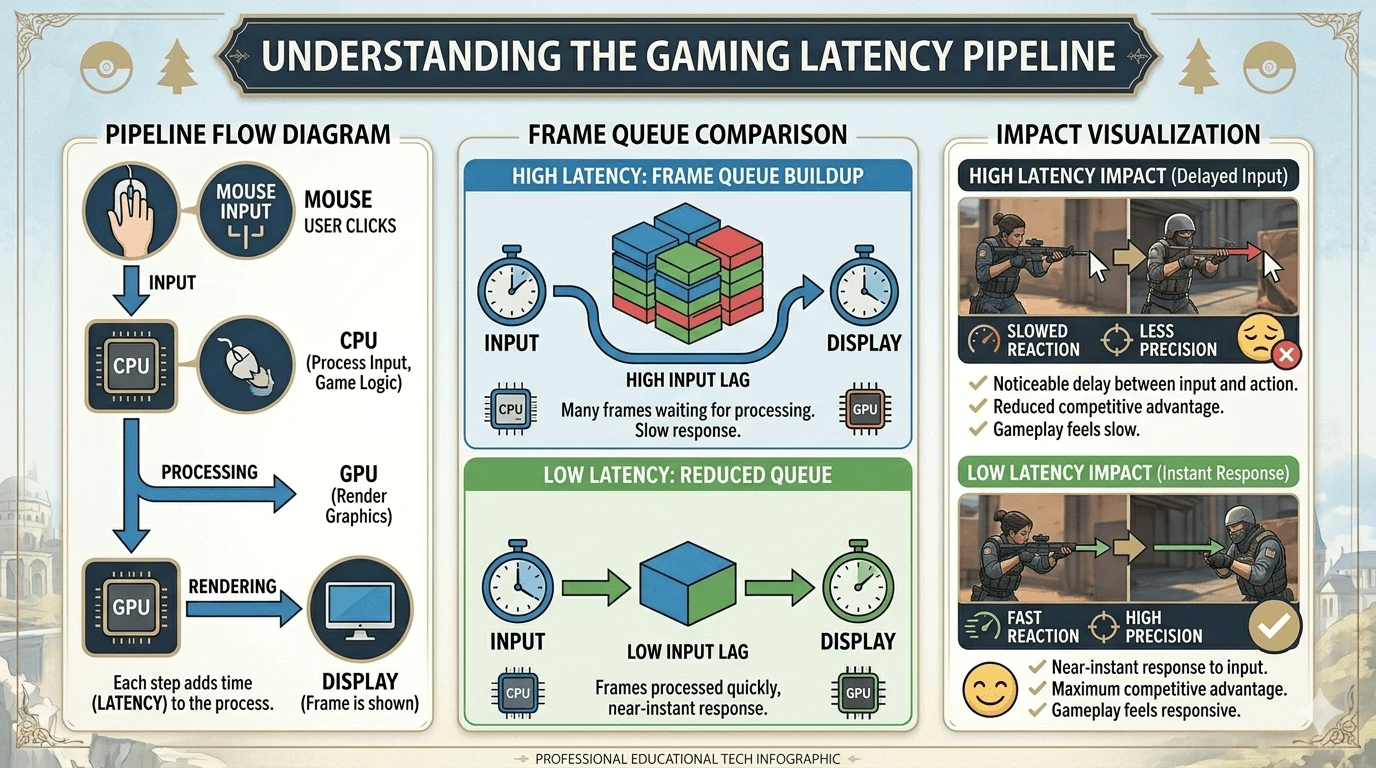
In gaming, latency refers to the delay between your input and the action appearing on screen. When you click your mouse, there is a short processing chain:
- CPU prepares the frame
- GPU renders the frame
- Monitor displays the image
This process creates what is called render latency.
Normally, games allow multiple frames to queue ahead for smoother throughput. This queue helps maximize GPU efficiency and FPS, but it also increases input delay.
NVIDIA Low Latency Mode reduces the number of queued frames, lowering the delay between your mouse movement and what you see on screen.
The relationship works like this:
- More queued frames = higher FPS potential but more input lag
- Fewer queued frames = lower latency but potentially lower GPU efficiency
This is why competitive gamers often prioritize lower latency over maximum FPS.
What Is Low Latency Mode in the NVIDIA Control Panel?
You can find the feature here:
NVIDIA Control Panel → Manage 3D Settings → Low Latency Mode
The setting controls the GPU render queue depth, also known as pre-rendered frames.
By default, the option is set to Off, meaning games manage frame queuing automatically. You can apply Low Latency Mode globally or configure it per game.
Low Latency Mode Options — On, Ultra, and Off Explained
Low Latency Mode Off — What Happens?
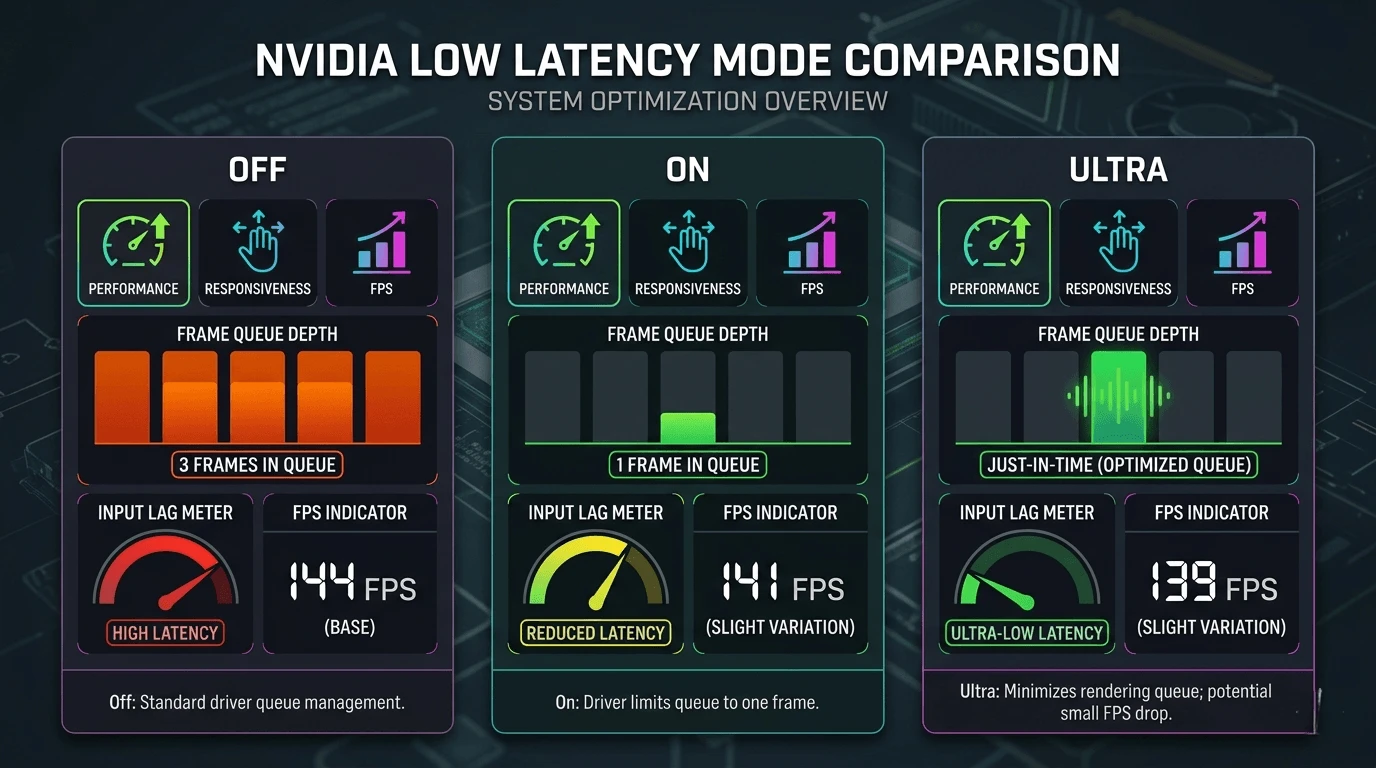
When Low Latency Mode is Off:
- The game controls render queue depth
- Up to 3 frames may be queued
- GPU efficiency remains highest
- FPS can be slightly higher
This setting is often best for:
- CPU-bound systems
- Casual gaming
- Games with built-in latency optimization
If your GPU usage stays below 70%, enabling Ultra usually provides little benefit.
Low Latency Mode On — What Does It Do?
The On setting limits pre-rendered frames to 1.
This reduces input lag while keeping GPU utilization relatively stable.
Best use cases include:
- Competitive shooters
- Mid-range GPUs
- 144Hz gaming
- GPU usage around 80–90%
You may see a tiny FPS reduction in some games, but responsiveness usually improves.
Low Latency Mode Ultra — What Does It Do?
Ultra mode uses just-in-time frame submission.
Instead of queueing frames ahead, the driver sends frames only when the GPU is ready to render them. This achieves the lowest possible driver-level latency.
Benefits:
- Maximum input responsiveness
- Best for high-refresh-rate monitors
- Ideal for GPU-bound systems
Potential downside:
- Slight FPS reduction when GPU usage is already very high
- Less effective on CPU-limited PCs
Low Latency Mode On vs Ultra — Side-by-Side Comparison
| Setting | Pre-Rendered Frames | Input Lag Reduction | FPS Impact | Best Use Case |
| Off | Up to 3 | None | Highest FPS | Casual gaming / CPU-bound systems |
| On | 1 | Moderate | Slight reduction | Competitive gaming |
| Ultra | Just-in-time | Maximum | Minor reduction possible | GPU-bound esports gaming |
Does Low Latency Mode Affect FPS?
If you are unsure how your hardware affects gaming performance, our What FPS Can I Get on My PC? — How to Check, Estimate & Boost Your Frame Rate guide can help you estimate expected frame rates before adjusting latency settings.
Does Low Latency Mode Increase FPS?
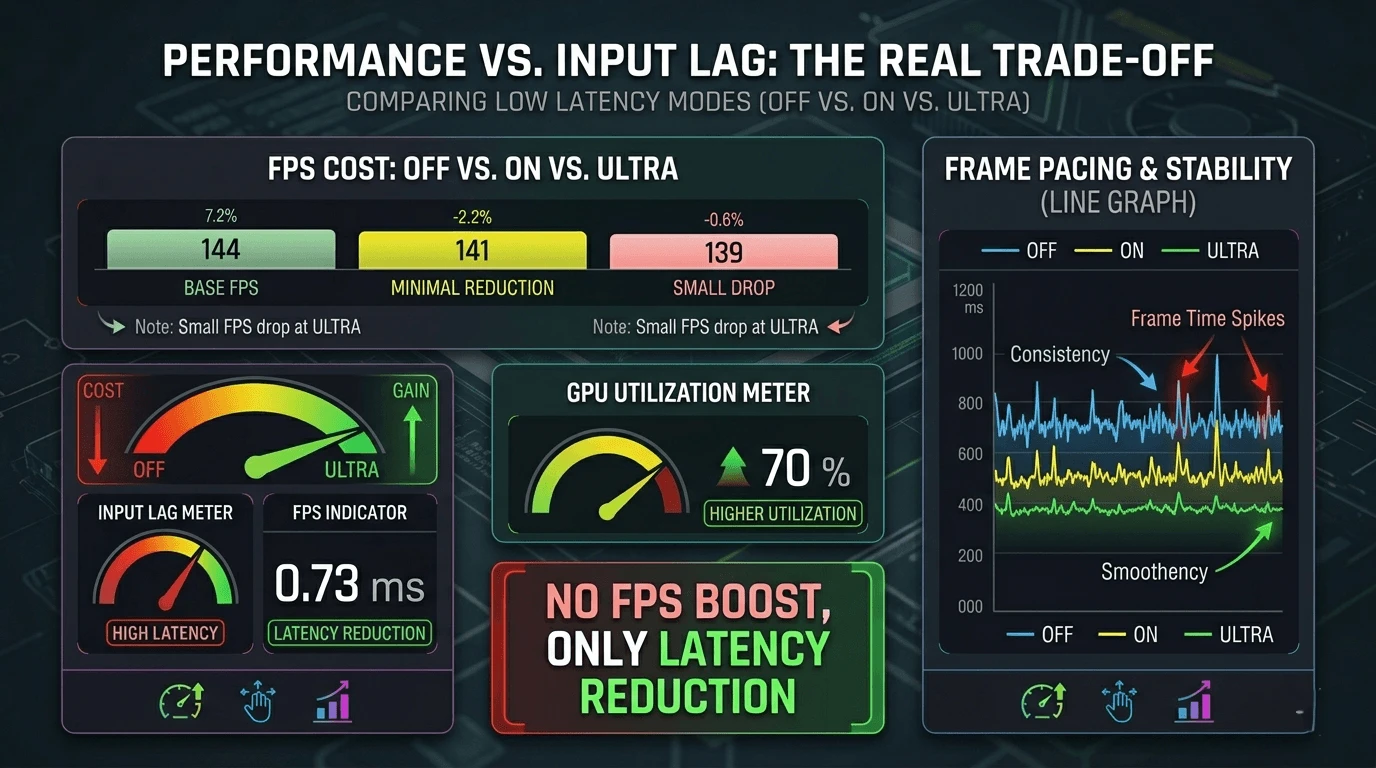
No. Low Latency Mode is not designed to increase FPS.
Its primary goal is reducing input-to-display delay.
In some scenarios:
- GPU-bound systems may lose a few FPS in Ultra mode
- CPU-bound systems often show almost no FPS difference
- Competitive players may prefer lower latency even with slightly lower FPS
Does Low Latency Mode Affect Graphics Quality?
No. It does not change:
- Texture quality
- Resolution
- Shadows
- Ray tracing
- Shader quality
The feature only adjusts frame pacing and render queue timing.
Does Low Latency Mode Affect FPS Stability?
Sometimes.
Reducing queued frames can improve frame pacing consistency, especially when GPU utilization stays near 90–100%.
However, if the GPU becomes overloaded, Ultra mode may introduce small FPS fluctuations.
Is Low Latency Mode Good for Gaming?
When Low Latency Mode Is Worth Using
Low Latency Mode works best for:
- Competitive FPS titles
- 144Hz or 240Hz monitors
- GPU-bound gaming systems
- Fast-response gameplay
Popular examples include:
- Valorant
- Call of Duty: Warzone
- Escape from Tarkov
- Counter-Strike 2
When Low Latency Mode May Not Help
In some systems, performance bottlenecks are caused more by memory limitations than render queue latency, which is explained in Does RAM Affect FPS in Games?
You may not benefit much if:
- Your GPU usage is below 70%
- The game already supports NVIDIA Reflex
- You mainly play single-player games
- Maximum FPS matters more than responsiveness
Should Low Latency Mode Be On or Off? — Recommended Settings by Use Case
| Use Case | Recommended Setting |
| Competitive FPS games | Ultra |
| Tactical shooters | On or Ultra |
| Casual single-player gaming | Off |
| Low-end CPU-bound PC | Off |
| High-refresh-rate monitor | Ultra |
| Game with NVIDIA Reflex | Off (use Reflex instead) |
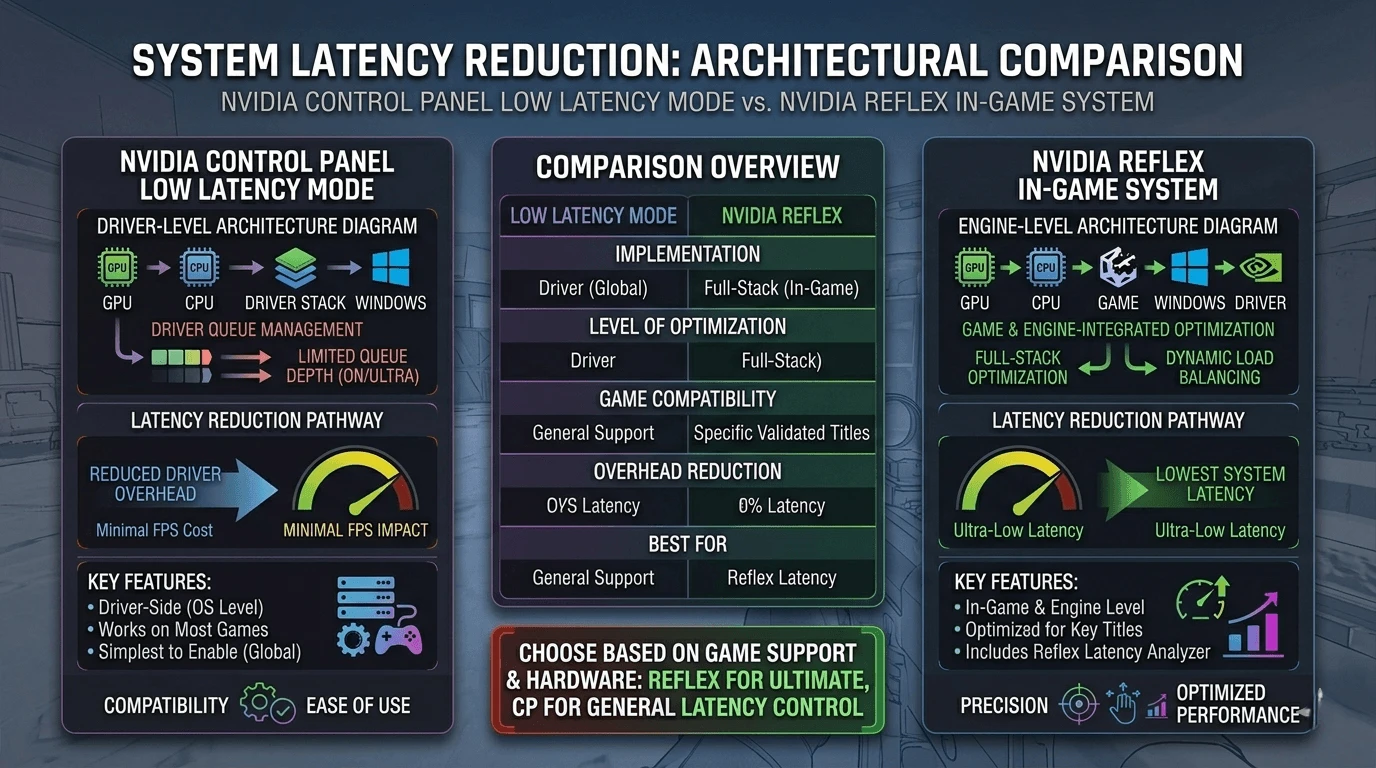
Low Latency Mode vs NVIDIA Reflex — What Is the Difference?
What Is NVIDIA Reflex?
NVIDIA Reflex is an in-game technology that reduces latency at the engine level instead of through the driver. NVIDIA Reflex is an in-game technology that reduces latency at the engine level instead of through the driver.
Because Reflex integrates directly with the game engine, it usually works better than Low Latency Mode.
Supported games include:
- Valorant
- Fortnite
- Apex Legends
- Escape from Tarkov
What Is Render Latency in NVIDIA Reflex?
Render latency is the delay between:
- CPU submitting the frame
- GPU completing the render
Reflex actively minimizes this delay and can display measurements using NVIDIA’s performance overlay.
Low Latency Mode vs NVIDIA Reflex — Comparison Table
| Feature | Low Latency Mode | NVIDIA Reflex |
| Location | NVIDIA Control Panel | In-game settings |
| Works Level | Driver | Game engine |
| Precision | Moderate | High |
| FPS Impact | Minor | Minimal |
| Compatibility | Most NVIDIA-supported games | Reflex-supported titles |
Should You Use Both Low Latency Mode and NVIDIA Reflex Together?
Usually no.
NVIDIA generally recommends:
- If Reflex is available → set Low Latency Mode to Off
- Use Reflex instead for best latency reduction
Running both together can create frame scheduling conflicts.
Game-Specific Low Latency Mode Settings
Valorant — NVIDIA Low Latency Mode and Reflex Settings
For Valorant:
- Enable NVIDIA Reflex in-game
- Set Reflex to On or On + Boost
- Set Low Latency Mode to Off
On + Boost is useful for high-end GPUs with good cooling.
Warzone — NVIDIA Reflex Warzone Settings
For Call of Duty: Warzone:
- Enable Reflex in graphics settings
- Use On or On + Boost
- Disable Low Latency Mode in Control Panel
Tarkov — NVIDIA Reflex On and Boost Settings
For Escape from Tarkov:
- Enable Reflex On + Boost
- Keep Low Latency Mode Off
- Use Ultra only if Reflex fails or is unavailable
Games Without NVIDIA Reflex Support
If a game lacks Reflex support:
- Use Low Latency Mode Ultra
- Confirm GPU usage stays above 80%
- Switch to On if FPS drops too heavily
Check How Your Settings Affect Your Actual FPS
Use an FPS Calculator to Estimate Your Real Gaming Performance
Low Latency Mode and Reflex settings can influence frame delivery responsiveness, but your baseline FPS still depends heavily on your GPU and CPU combination.
Instead of guessing expected performance, you can use the FPS Calculator for Low-End PC to estimate your actual FPS based on your hardware before changing latency settings.
How to Enable Low Latency Mode in NVIDIA Control Panel
For even better responsiveness and smoother frame pacing, combine these NVIDIA settings with the tweaks covered in Optimize windows 11 for gaming fps boost settings (2025).
Step-by-Step — How to Activate Low Latency Mode
- Right-click desktop
- Open NVIDIA Control Panel
- Go to Manage 3D Settings
- Select Global Settings or Program Settings
- Scroll to Low Latency Mode
- Choose Off, On, or Ultra
- Click Apply
How to Enable NVIDIA Reflex In-Game
- Open game settings
- Navigate to Graphics or Video
- Locate NVIDIA Reflex Low Latency
- Set it to On or On + Boost
Boost mode increases GPU clock speed during gameplay to reduce latency further.
NVIDIA Low Latency Mode — Global vs Per-Game Setting
- Global applies to all games
- Program Settings apply only to selected games
Per-game tuning is usually the better option because different titles respond differently to latency settings.
NVIDIA Low Latency Mode — On or Ultra? Final Recommendation
NVIDIA Low Latency Mode On or Ultra — When to Choose Each
| Scenario | Best Choice |
| GPU usage above 85%, no Reflex | Ultra |
| GPU usage below 70% | Off |
| Reflex-supported game | Off (use Reflex) |
| Competitive shooter on mid-range GPU | On |
| High-refresh monitor without Reflex | Ultra |
Is NVIDIA Low Latency Mode Good Overall?
Yes — in the right situation.
It is not a magic FPS booster, but it can noticeably improve responsiveness in competitive gaming.
For the best results:
- Use Reflex whenever available
- Use Ultra for GPU-bound esports titles without Reflex
- Use Off for CPU-bound or casual gaming
Common Questions About Low Latency Mode
What Is Low Latency Mode in Earbuds or Audio Devices?
Audio low latency is unrelated to NVIDIA graphics settings.
Bluetooth low latency reduces sound delay, while NVIDIA Low Latency Mode reduces render latency inside the graphics pipeline.
What Is Low Latency Mode in Games (In-Game Setting)?
Some games include their own latency-reduction settings.
These work similarly to NVIDIA Reflex and operate at the engine level rather than the driver level.
Gaming Mode Low Latency Meaning — Windows Game Mode vs NVIDIA Setting
Windows Game Mode prioritizes system resources for gaming.
NVIDIA Low Latency Mode specifically manages GPU frame queue depth.
Both features can run together without issues.
Calculate Your Exact FPS — Know Your Baseline Before Tuning Latency
FPS Calculator for Low-End and Mid-Range PCs
Before enabling Ultra or Reflex Boost, it helps to know whether your system is actually GPU-bound. The most accurate way to check is by estimating your expected FPS using your exact hardware configuration.
The FPS Calculator for Low-End PC helps gamers estimate frame rates across different GPUs, CPUs, resolutions, and graphics settings. This makes it easier to determine whether latency optimization settings will truly benefit your system.
Gamers using entry-level or mid-range hardware can especially benefit from benchmarking before changing NVIDIA Control Panel settings.
👉 Use the free tool to estimate your FPS before tuning latency settings.
Conclusion — Should You Use NVIDIA Low Latency Mode?
Final Verdict — Low Latency Mode Summarized
NVIDIA Low Latency Mode reduces input lag by limiting the GPU render queue. It does not improve graphics quality or directly increase FPS, but it can make gameplay feel more responsive.
Ultra mode offers the strongest driver-level latency reduction, especially in GPU-bound competitive games. However, NVIDIA Reflex remains the superior solution whenever supported in-game.
If your favorite game lacks Reflex support, Low Latency Mode Ultra is usually the best alternative for competitive play. Before changing settings, it is smart to benchmark your expected FPS first so you can understand whether your system is GPU-bound or CPU-limited.