
Introduction — Why Optimizing Windows 11 for Gaming Matters
If your PC is capable of running modern games but still feels inconsistent, stuttery, or lower in FPS than expected, Windows 11 itself may be part of the problem. Many default Windows 11 settings prioritize visuals, background services, security layers, and battery efficiency instead of raw gaming performance.
For gamers using low-end or mid-range hardware, optimizing Windows 11 for gaming can improve frame rate stability, reduce input latency, and eliminate annoying FPS drops during gameplay. Even systems with powerful GPUs like the RTX 4070 or RX 7800 XT can benefit from proper Windows 11 performance tweaks.
This guide covers:
- Windows 11 gaming settings that actually improve FPS
- Whether Game Mode helps or hurts performance
- Optimizations for windowed games
- Reddit and GitHub verified tweaks
- Low-end PC optimization methods
- FPS troubleshooting after Windows updates
- Best Windows 11 optimizer tools
The FPS Gap Between Default and Optimized Windows 11
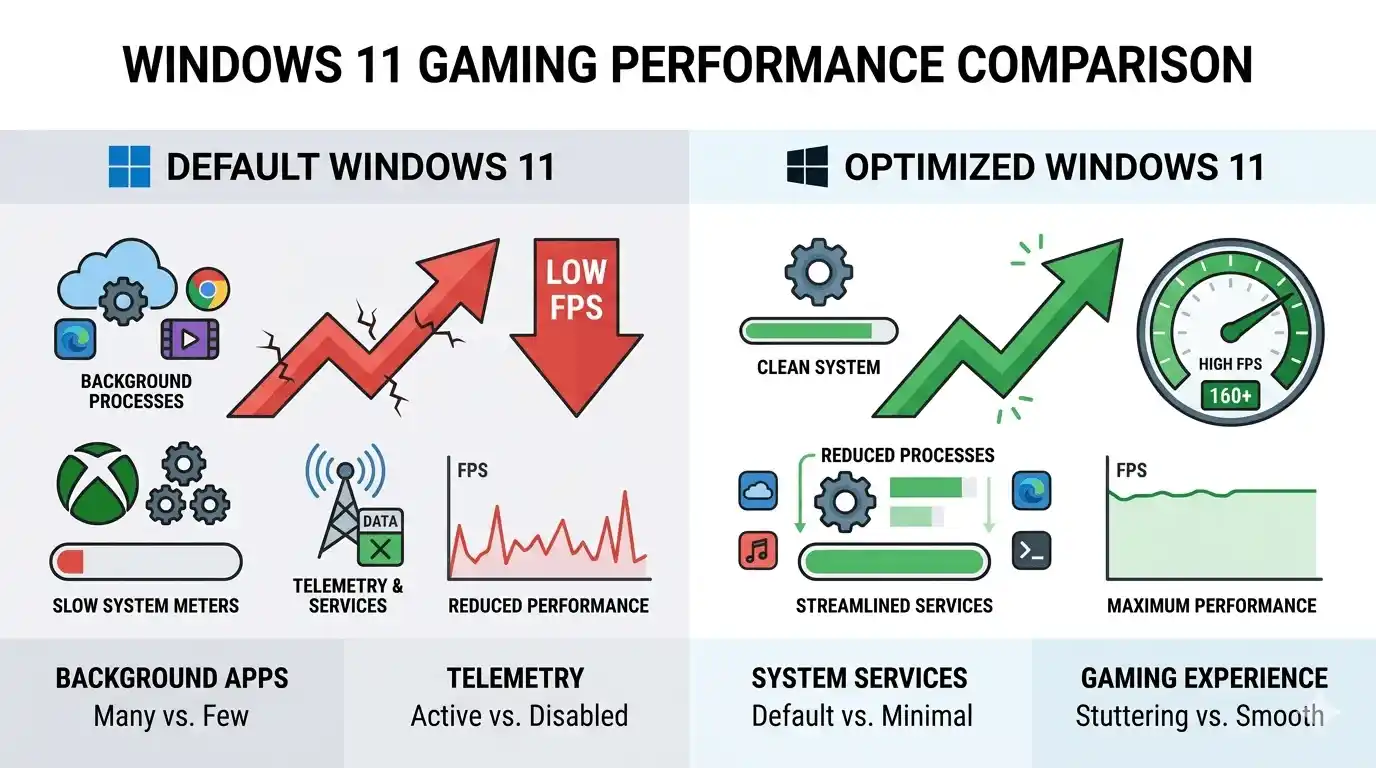
A default Windows 11 installation often runs:
- Xbox background services
- Telemetry processes
- Startup applications
- Visual effects and animations
- Security virtualization features
Together, these can reduce gaming performance by 5–20% depending on hardware.
On lower-end systems like GTX 1650 or Ryzen 5 3600 builds, optimization can mean the difference between unstable 45 FPS and smooth 60 FPS gameplay at 1080p Medium settings.
This performance gap becomes even more noticeable in demanding modern titles such as Cyberpunk 2077 Worth It in 2025/2026?, Is Hogwarts Legacy Good? (Honest Review & Gameplay Guide), and large open-world experiences like Ghost of Tsushima Review & Rating (PS4, PS5, PC) where CPU and GPU optimization directly impact stability.
Understanding Windows 11 Performance Settings for Gaming
Windows 11 Performance Options — What They Actually Do
Windows 11 includes several visual and system-level features that consume CPU and RAM resources in the background. Windows 11 performance optimization is closely tied to how modern operating systems manage system resources, background processes, and graphical scheduling.
The quickest optimization is enabling “Adjust for best performance.”
How to Enable Best Performance Mode
- Open System Properties
- Click Advanced system settings
- Under Performance, click Settings
- Select Adjust for best performance
This disables:
- Transparency effects
- Animations
- Window shadows
- Visual transitions
These effects are lightweight individually, but on integrated GPUs or older CPUs they can reduce FPS consistency.
Background applications are another major issue. Apps like Discord overlays, OneDrive syncing, RGB software, and browser tabs can consume CPU cycles while gaming.
Windows 11 Game Mode — On or Off?
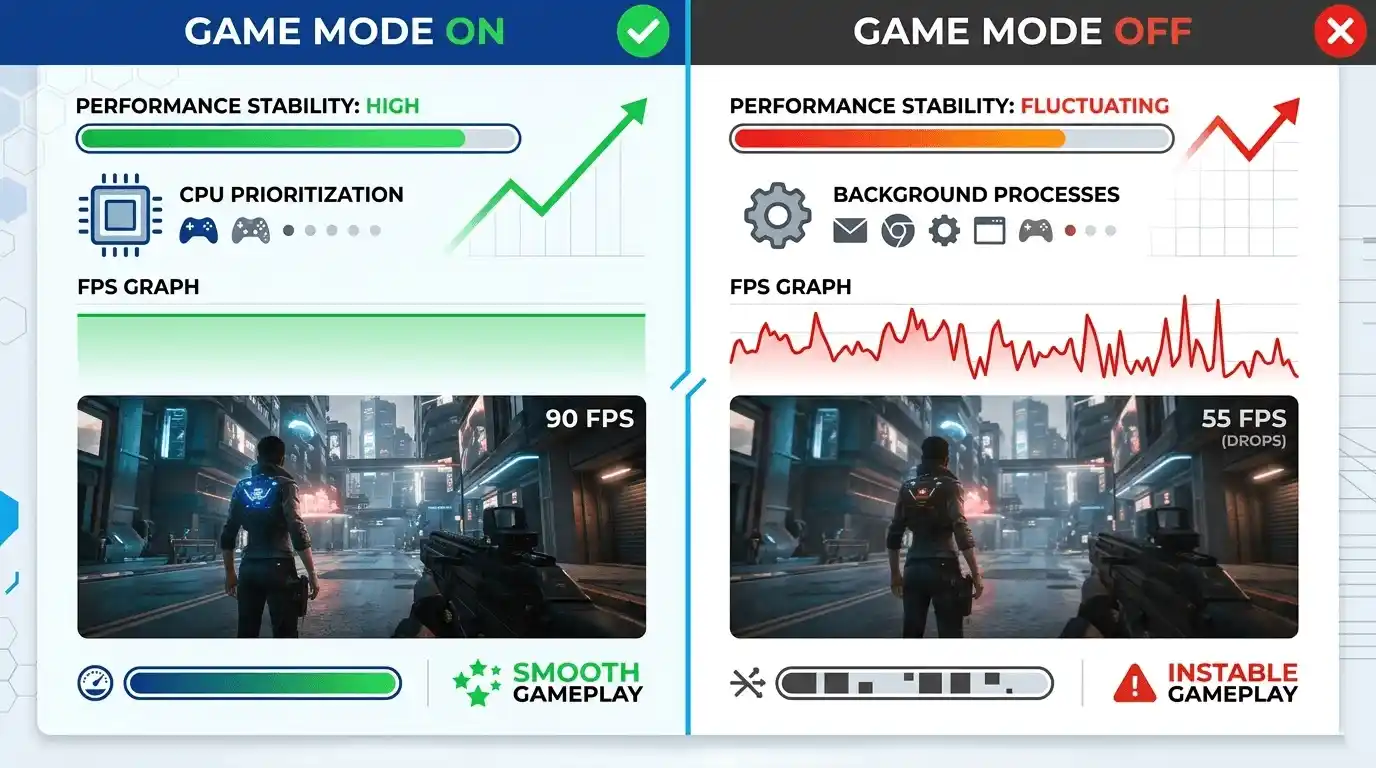
Windows 11 Game Mode attempts to prioritize your game by:
- Reducing background activity
- Allocating more CPU resources
- Improving GPU scheduling priority
For most mid-range gaming PCs, Game Mode ON improves stability and frame pacing.
However, some high-end users on Reddit report occasional issues with:
- CPU scheduling conflicts
- Stutters in older DirectX 11 games
- Inconsistent frametimes
Recommended Rule
- Mid-range or low-end PCs → Keep Game Mode ON
- High-end systems → Benchmark both ON and OFF
Community discussions around “windows 11 game mode on or off reddit” generally favor keeping it enabled unless problems appear in specific games.
Optimizations for Windowed Games — On or Off?
Optimizations for windowed games is a Windows 11 feature designed to improve borderless windowed performance by reducing compositing overhead and lowering latency.
This feature benefits:
- Alt-tab heavy users
- Streamers
- Multi-monitor gamers
However, competitive FPS players often prefer fullscreen exclusive mode for the absolute lowest latency.
Recommended Setting
- Borderless gaming → Keep ON
- Competitive esports → Test OFF with fullscreen exclusive
| Setting | FPS Impact | Recommendation |
| Optimizations for Windowed Games ON | +2–5 FPS (borderless) | Keep ON for most users |
| Optimizations for Windowed Games OFF | Lower latency in fullscreen | OFF for competitive FPS |
| Game Mode ON | +3–8 FPS on mid-range | ON for most setups |
| Game Mode OFF | More stable on high-end | Test per system |
Windows 11 Gaming Settings — Full Optimization Checklist
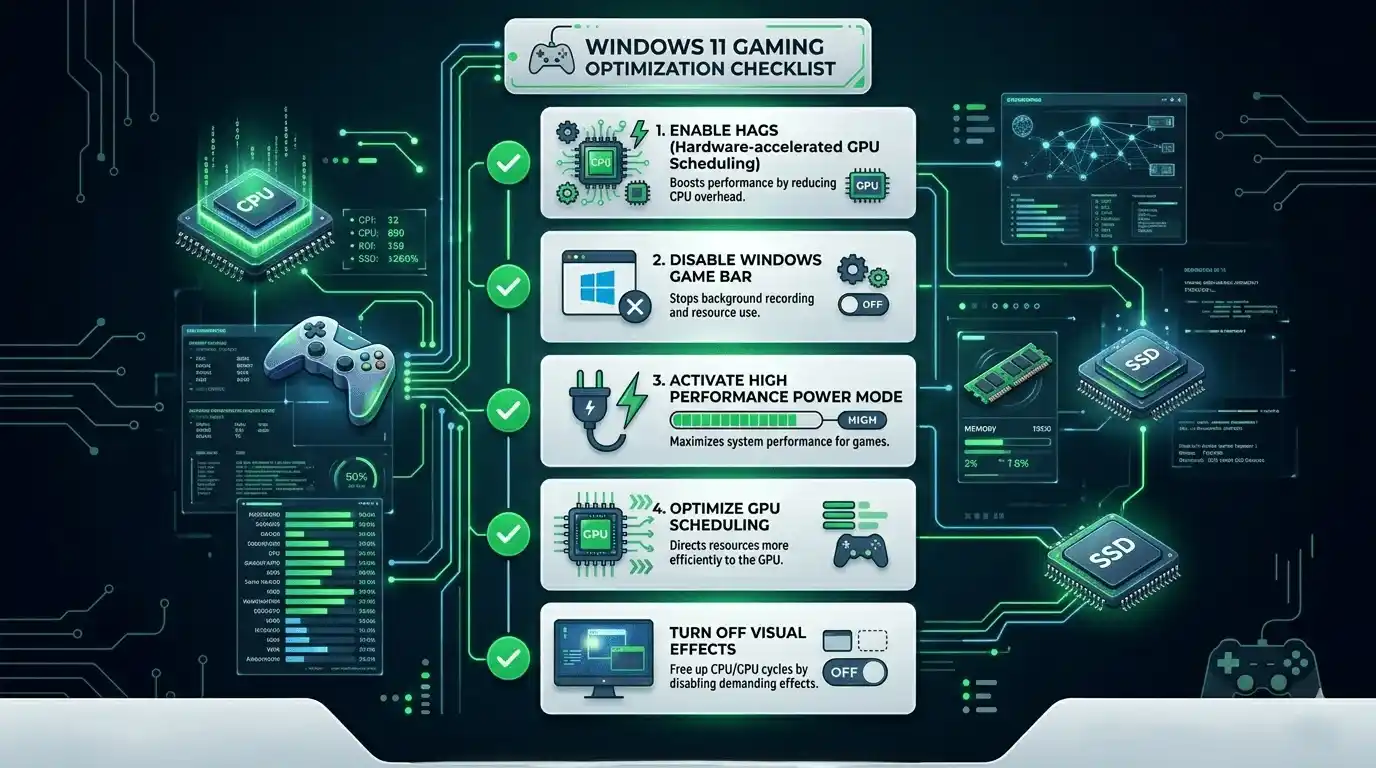
Essential Windows 11 Settings for Gaming
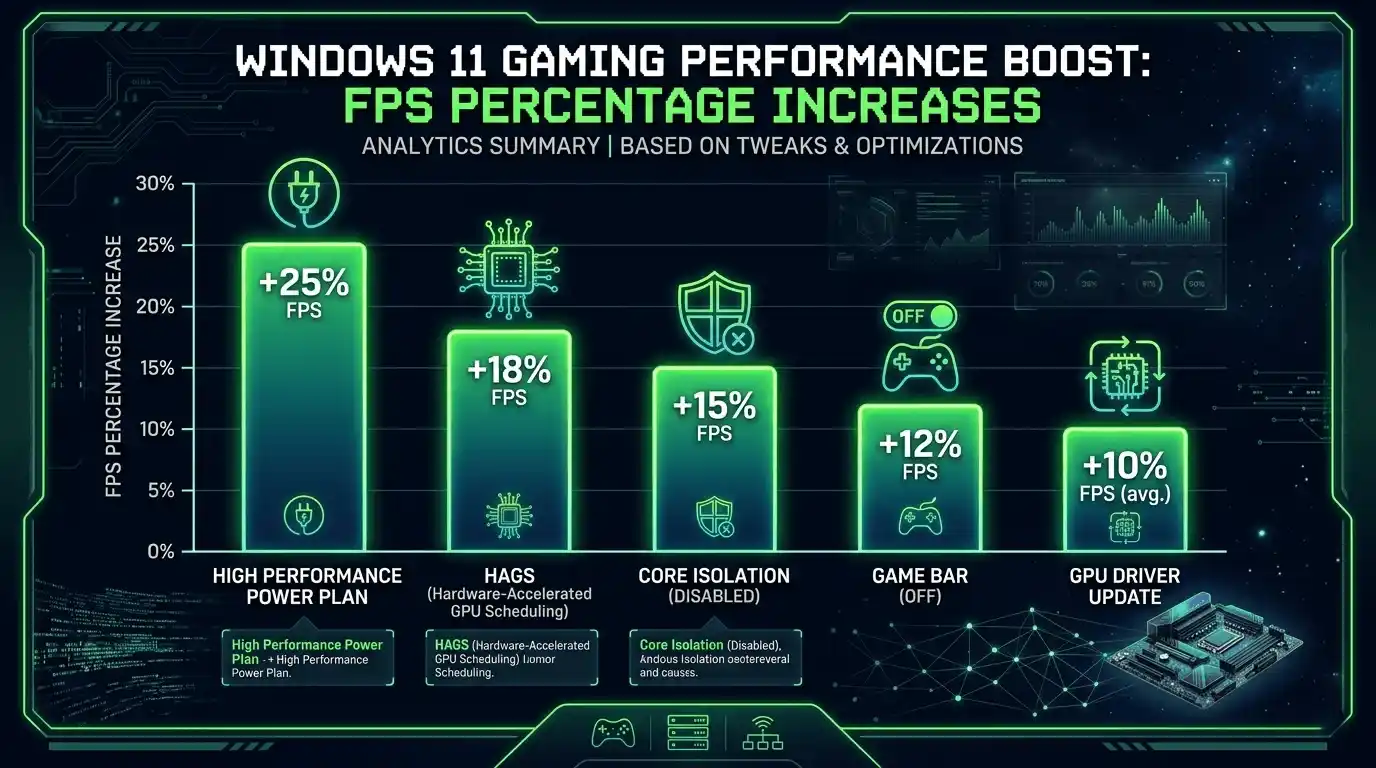
Enable Hardware-Accelerated GPU Scheduling (HAGS)
HAGS reduces CPU overhead by letting the GPU manage its own memory scheduling more efficiently.
How to enable:
- Settings
- System
- Display
- Graphics
- Default graphics settings
- Turn ON HAGS
Expected gains:
- 5–12% FPS improvement in GPU-bound games
- Better frame pacing in DX12 titles
Disable Xbox Game Bar and Background Recording
Xbox Game Bar constantly monitors gameplay in the background.
Disable:
- Xbox Game Bar
- Background recording
- Capture services
This can reduce micro-stutters and improve CPU responsiveness.
Set Power Plan to High Performance
Balanced mode limits CPU boost behavior.
Use:
- High Performance
- Ultimate Performance (desktop PCs)
This is one of the most effective Windows 11 optimization for gaming tweaks.
Disable Nagle’s Algorithm
This registry tweak lowers network packet buffering and may improve responsiveness in competitive multiplayer games.
Most useful for:
- Valorant
- CS2
- Fortnite
- Apex Legends
Turn Off Transparency and Animations
These visual effects consume GPU resources unnecessarily during gaming sessions.
Disable:
- Transparency effects
- Animation effects
Especially useful for laptops and integrated graphics users.
Windows 11 Performance Tweaks
Disable SysMain (Superfetch)
SysMain can cause SSD and HDD usage spikes.
Disabling it often reduces:
- Texture streaming stutters
- Random frametime spikes
Set Processor Scheduling for Programs
Set Windows to prioritize active applications instead of background services.
Path:
- System Properties
- Advanced
- Performance
- Advanced
- Processor Scheduling → Programs
Disable Core Isolation and Memory Integrity
Windows 11 security virtualization features can reduce gaming performance.
Disabling Memory Integrity may improve FPS by 3–10% on some systems.
Note:
Only disable if you understand the security tradeoff.
Enable MSI Mode for GPU Interrupts
MSI Mode reduces interrupt latency and can improve GPU responsiveness.
Advanced users commonly enable this tweak using MSI Utility v3.
Optimize PC for Gaming Windows 11 — Display and GPU Settings
Set Refresh Rate to Maximum
Many users unknowingly remain locked to 60Hz.
Check:
- Settings
- Display
- Advanced display
- Refresh rate
Switch to:
- 120Hz
- 144Hz
- 165Hz
- 240Hz
depending on your monitor.
Enable GPU-Specific Performance Modes
For NVIDIA:
- Prefer Maximum Performance
- Low Latency Mode ON
For AMD:
- Radeon Anti-Lag
- Performance tuning profiles
Disable VSync in Windows
Keep VSync controlled inside games or GPU software instead of globally in Windows.
This reduces:
- Input lag
- Latency inconsistencies
| Tweak | FPS Gain (Est.) | Difficulty |
| High Performance Power Plan | +5–15% | Easy |
| Disable HPET | +2–8% | Medium |
| Disable Core Isolation | +3–10% | Easy |
| Enable HAGS | +5–12% | Easy |
| Disable Xbox Game Bar | +1–3% | Easy |
Windows 11 Optimization Tools and GitHub Resources
Best Windows 11 Optimizer Tools (Free)
Windows optimizer tools automate gaming tweaks, debloating, and service configuration.
Popular choices include:
- Hellzerg Optimizer
- AtlasOS
- Chris Titus Tech WinUtil
- Revision Tool
Windows 11 optimizer tools differ from older Windows 10 tools because they target newer features like:
- VBS
- Core Isolation
- HAGS
- Windowed optimization
Windows Optimizer GitHub — Top Repos for Gaming Performance
Popular GitHub projects include:
- Hellzerg Windows Optimizer
- AtlasOS
- ChrisTitusTech WinUtil
- Revision OS scripts
These tools can:
- Disable telemetry
- Remove bloatware
- Optimize services
- Improve gaming responsiveness
However, be careful with unknown scripts. Poor registry edits can destabilize Windows or break updates.
Always:
- Create restore points
- Read GitHub documentation
- Avoid random Reddit downloads
Windows 11 Optimization Tool vs. Manual Tweaks — Which Is Better?
Automated Tools
Pros:
- Faster setup
- One-click optimization
- Useful for beginners
Cons:
- Less transparency
- Risk of over-aggressive changes
Manual Tweaks
Pros:
- Safer
- More customizable
- Easier troubleshooting
Cons:
- Time consuming
Most Reddit communities recommend manual optimization first, then lightweight optimizer tools afterward.
How to Improve Performance on Windows 11 for Low-End PCs
These optimizations are especially important for performance-heavy titles such as DOOM PS4 Review: Is It Still Worth Playing in 2025?, Outlast 2 Reviews: Is It Worth Playing in 2025?, and open-world benchmarking cases like Far Cry Primal Reviews: Is It Worth Playing in 2025?, where low-end PCs often struggle with stable FPS.
Optimize Windows 11 for Performance on Older Hardware
Low-end PCs benefit the most from aggressive optimization.
Key improvements include:
- Disable startup apps
- Reduce visual effects
- Limit background services
- Use lightweight browsers
For 4GB–8GB RAM systems:
- Close unnecessary overlays
- Disable auto-launch software
- Use Medium or Low textures in games
Windows 11 Performance Tweaks for Low FPS Games
Additional gaming optimizations:
- Lower render scale to 85–90%
- Prioritize game process in Task Manager
- Clear shader cache regularly
- Delete temporary files monthly
Games like Warzone, Fortnite, and Hogwarts Legacy benefit significantly from shader cache cleanup.
Not Sure What FPS to Expect After Optimizing? Check It Before You Start
How to Benchmark Your FPS — Before and After Windows Tweaks
If you want deeper understanding of how FPS behaves under different system loads, check What FPS Can I Get on My PC? — How to Check, Estimate & Boost Your Frame Rate, and for network-related performance issues, see Does Internet Speed Affect FPS? FPS vs Ping Explained.
Before changing anything, record your baseline FPS.
Use:
- Steam FPS overlay
- RTSS
- FRAPS
- NVIDIA FrameView
Benchmark:
- Average FPS
- 1% lows
- Frametime stability
Apply tweaks one at a time and retest.
Calculate Your Expected FPS with a Free Online Tool
Instead of guessing, use the FPS Calculator for Low-End PC at PrimeGamesArena FPS Calculator to estimate your GPU and CPU performance output before and after optimizing Windows 11.
Enter your GPU, CPU, and target game to see estimated FPS across Low, Medium, High, and Ultra settings without manually testing every configuration.
Windows 11 Gaming Optimization — Advanced Tweaks (Reddit and GitHub Verified)
Windows 11 Performance Tweaks Reddit Community Favorites
Understanding why these tweaks work is easier when you also know how different components affect gaming performance, as explained in What PC Parts Affect Gaming the Most? (Complete FPS Performance Guide), Does RAM Affect FPS in Games?, and How Much FPS Can My PC Handle?
Popular Reddit tweaks include:
- Disabling VBS
- Turning off startup telemetry
- Using MSI mode
- Disabling HPET on some systems
Debunked myths:
- Registry “FPS boost packs”
- RAM cleaners
- Fake gaming optimizers
Many provide no measurable performance gains.
Streamline Windows 11 — Remove Bloatware for More FPS
Removing unnecessary apps can free:
- 1–3GB RAM
- Background CPU usage
- Storage bandwidth
Safe removals include:
- Cortana
- Xbox services
- Preinstalled apps you never use
PowerShell debloating is commonly used by advanced users.
Windows 11 Tweaks for Gaming — Network and CPU Optimizations
Additional performance tweaks:
- Use Cloudflare DNS (1.1.1.1)
- Disable automatic Windows restart scheduling
- Enable XMP or EXPO in BIOS
- Update chipset drivers
RAM running at proper XMP speed can noticeably improve CPU-bound games.
Common FPS Issues After Windows 11 Update — Fixes
FPS Drops After Windows 11 Update — Why It Happens
Major Windows updates may silently re-enable:
- VBS
- Memory Integrity
- Telemetry
- Driver conflicts
Always recheck gaming settings after feature updates.
How to Fix FPS Stuttering on Windows 11
Disable Variable Refresh Rate
Some systems experience micro-stutters with VRR enabled.
Test:
- VRR ON
- VRR OFF
and compare frametime consistency.
Fix DPC Latency Issues
Use LatencyMon to detect:
- Audio driver issues
- Network driver conflicts
- Interrupt latency spikes
Clean GPU Driver Reinstall with DDU
DDU removes corrupted drivers completely.
Recommended when:
- FPS suddenly drops
- Stutters appear after updates
- GPU usage becomes inconsistent
| Issue | Likely Cause | Fix |
| FPS drops after update | VBS re-enabled | Disable VBS in BIOS |
| Micro-stutters | DPC latency / bad driver | LatencyMon + DDU reinstall |
| FPS lower than Windows 10 | HAGS / Game Mode conflict | Toggle HAGS, test Game Mode |
| Windowed game lag | Compositor overhead | Toggle windowed optimization |
Calculate Your Exact FPS After Optimizing — FPS Calculator for Low-End PC
The FPS Calculator for Low-End PC helps estimate real-world gaming performance based on your exact GPU and CPU combination after applying Windows 11 optimizations.
It’s especially useful for:
- Low-end gaming PCs
- Mid-range laptops
- Older GTX and RX graphics cards
- Gamers targeting stable 60 FPS gameplay
Instead of relying on random YouTube benchmarks, you can quickly compare expected FPS across different graphics settings and resolutions.
👉 Try the FPS Calculator here: FPS Calculator for Low-End PC
Final Verdict — Is Optimizing Windows 11 for Gaming Worth It?
How Much FPS Can You Realistically Gain?
Realistically, Windows 11 gaming optimization can improve performance by:
| PC Tier | Expected FPS Gain |
| Low-End PCs | 10–25% |
| Mid-Range PCs | 5–15% |
| High-End PCs | 2–10% |
The biggest gains usually come from:
- Disabling unnecessary background services
- Enabling HAGS
- Using High Performance power mode
- Removing bloatware
- Updating GPU drivers correctly
Optimize Windows 11 for Gaming — Quick Reference Summary
Recommended order:
- Enable High Performance mode
- Turn ON HAGS
- Disable Xbox Game Bar
- Reduce visual effects
- Optimize GPU control panel
- Remove startup bloat
- Benchmark FPS changes
- Test Game Mode ON vs OFF
- Recheck settings after Windows updates
For most gamers, optimizing Windows 11 for gaming is absolutely worth the effort. Even small improvements in frame pacing, input latency, and FPS stability can make games feel dramatically smoother and more responsive.







One Response