
Introduction
What This Article Covers
If you’ve ever asked, “How much FPS can my PC handle?” you’re not alone. Every gamer wants to know whether their system can run modern games smoothly at 60 FPS, 144 FPS, or even higher. The answer depends on your GPU, CPU, RAM, monitor resolution, and graphics settings.
In this guide, you’ll learn:
- What determines FPS on PC
- How many FPS you should expect from different hardware tiers
- GPU and CPU benchmark comparisons
- Best settings for higher FPS
- How to check your FPS in games
- Common FPS problems and fixes
- How to estimate your FPS before launching a game
Whether you use a low-end laptop, a mid-range gaming PC, or a high-end build, this article will help you understand what FPS your PC can realistically achieve.
What Determines Your FPS on PC
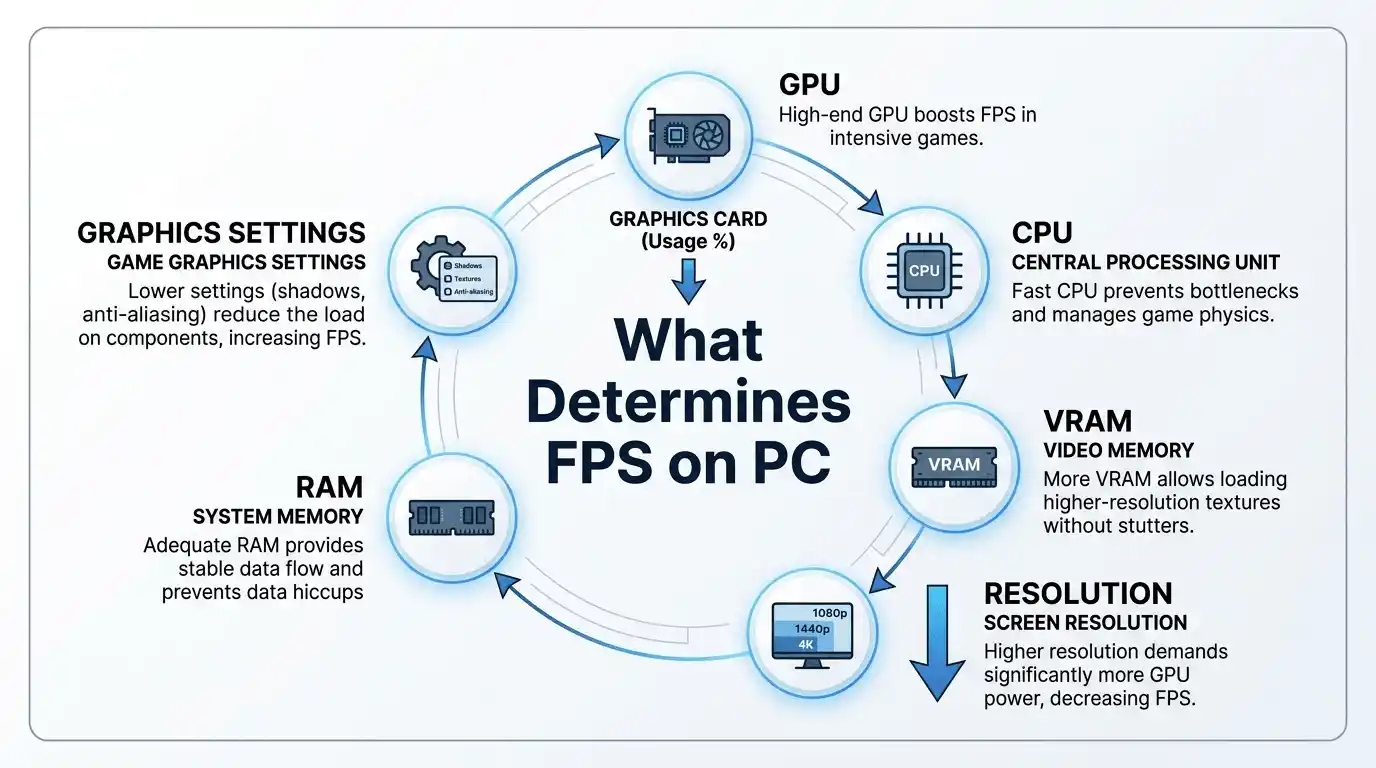
Several hardware and software factors affect frame rate performance:
- GPU (Graphics Card): The biggest factor in gaming FPS
- CPU: Important for competitive games and open-world titles
- RAM: 16GB dual-channel RAM is ideal for modern games
- VRAM: Higher texture settings need more video memory
- Resolution: 1440p and 4K require much more GPU power than 1080p
- Graphics Settings: Shadows, anti-aliasing, and ray tracing heavily impact FPS
A strong GPU with weak CPU performance can still bottleneck your frame rate, especially in CPU-heavy games like strategy titles or competitive shooters.
What FPS Should You Expect from Your PC?
To understand how performance varies in real gameplay scenarios, you can compare FPS demands across different AAA and strategy titles like Civilization 6 Leaders Guide (Tier List, Best Civs & Strategies), Cyberpunk 2077 Worth It in 2025/2026? (Honest Review & Buying Guide), and Is Hogwarts Legacy Good? (Honest Review, Gameplay & Worth It Guide).
FPS Targets Explained — 30 / 60 / 120 / 144 / 240 FPS
Different FPS targets suit different gaming styles.
- 30 FPS: Playable for story games and cinematic titles
- 60 FPS: The standard for smooth gameplay
- 120–144 FPS: Ideal for competitive gaming
- 240 FPS+: Best for esports players with high-refresh-rate monitors
For games like PUBG, Warzone, Valorant, and Fortnite, 120 FPS or higher gives smoother motion and lower input latency.
FPS Benchmark Overview by PC Tier
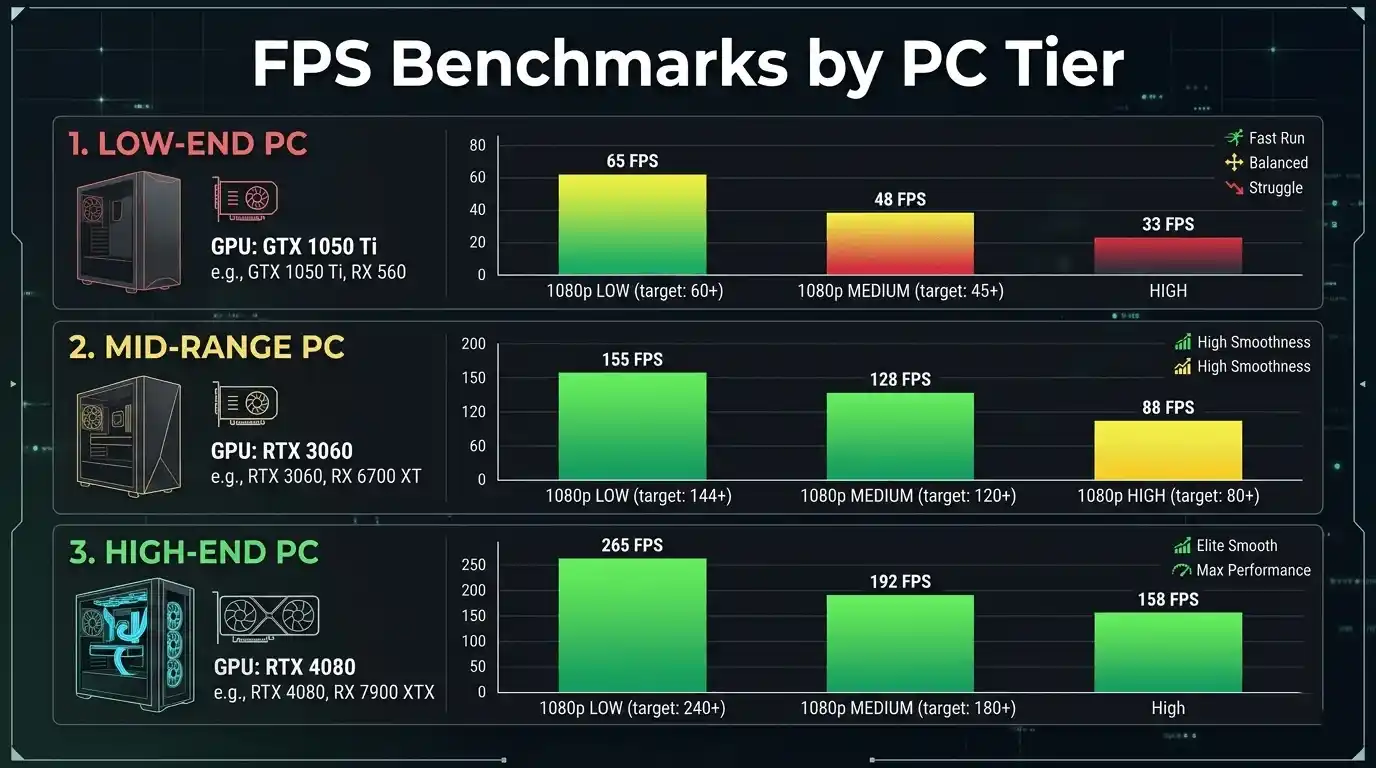
| PC Tier | GPU Example | 1080p Low | 1080p Medium | 1080p High | 1440p Ultra |
| Low-end | GTX 1050 Ti | 55–70 FPS | 35–50 FPS | 20–30 FPS | <15 FPS |
| Mid-range | RTX 3060 | 120–144 FPS | 90–110 FPS | 60–80 FPS | 50–70 FPS |
| High-end | RTX 4080 | 200+ FPS | 160–200 FPS | 120–160 FPS | 90–130 FPS |
These FPS estimates vary depending on game optimization and CPU performance.
GPU & CPU Performance Breakdown
Modern AAA optimization also plays a huge role in FPS stability, especially in demanding games such as Will GTA 6 Run on RTX 3060? FPS, Settings & Performance Guide, Witcher 3 Next Gen Update: 7 Essential PS5 & PC Upgrades, and Ratchet and Clank PS4 Review: 8 Smart Reasons to Play.
How Your GPU Determines FPS Output
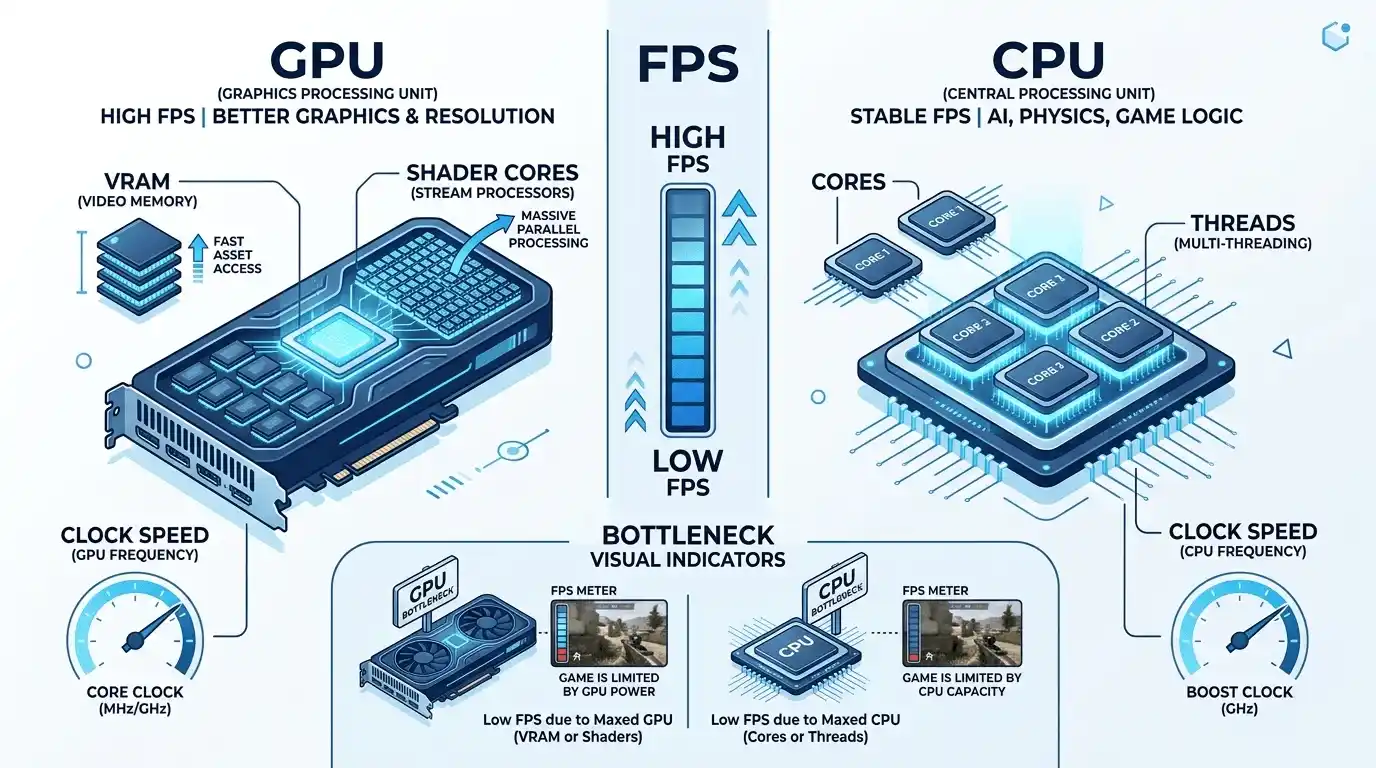
Your graphics card has the biggest impact on FPS. Key GPU factors include:
- VRAM capacity
- Shader core count
- Clock speed
- Memory bandwidth
Modern GPUs like the RTX 4070 Ti or RX 7800 XT can handle high refresh rates at 1440p, while older GPUs may struggle at Ultra settings.
A GPU bottleneck happens when your graphics card reaches maximum usage before the CPU does. This is common at higher resolutions like 1440p and 4K.
How Your CPU Affects Frame Rate
Your CPU matters more in:
- Competitive shooters
- Simulation games
- Open-world games with heavy AI
Clock speed often matters more than core count for gaming. However, modern AAA titles benefit from 6-core and 8-core processors.
A CPU bottleneck usually appears when:
- GPU usage stays below 90%
- FPS drops occur in crowded areas
- 1% low FPS becomes unstable
GPU FPS Comparison Table at 1080p
| GPU | 1080p Medium | 1080p High | 1440p High | 4K Medium |
| GTX 1650 | 60–80 FPS | 40–55 FPS | 25–35 FPS | <20 FPS |
| RX 6600 | 100–120 FPS | 75–95 FPS | 55–70 FPS | 35–45 FPS |
| RTX 3070 | 140–160 FPS | 110–130 FPS | 80–100 FPS | 55–70 FPS |
| RTX 4070 Ti | 180–220 FPS | 150–180 FPS | 120–150 FPS | 80–100 FPS |
How to Check How Much FPS Your PC Can Handle
Built-In Methods to Check Your FPS
There are several easy ways to monitor FPS on PC:
- Steam FPS Overlay
- Enable through Steam Settings → In-Game
- NVIDIA GeForce Experience
- Use Alt + R for the performance overlay
- MSI Afterburner + RivaTuner
- Best for detailed real-time FPS monitoring
These tools help you track frame rate, GPU usage, CPU temperatures, and VRAM usage.
How to Run an FPS Test on Your PC
To test FPS accurately:
- Launch a game benchmark mode
- Use identical graphics settings for consistency
- Monitor average FPS and 1% lows
- Compare results across settings presets
Popular FPS test tools include:
- MSI Afterburner
- CapFrameX
- FRAPS
- Built-in benchmarks from games like Cyberpunk 2077 and Forza Horizon 5
👉 [MID-ARTICLE TOOL PLACEMENT] Use the FPS Calculator to Estimate Your Expected FPS
Instead of manually estimating, you can use the FPS Calculator for PC to calculate your expected FPS based on your GPU and CPU combination. It’s especially useful for low-end PCs, gaming laptops, and planned PC builds.
👉 Try it here: FPS Calculator for Low-End PC
Best In-Game Settings for Higher FPS
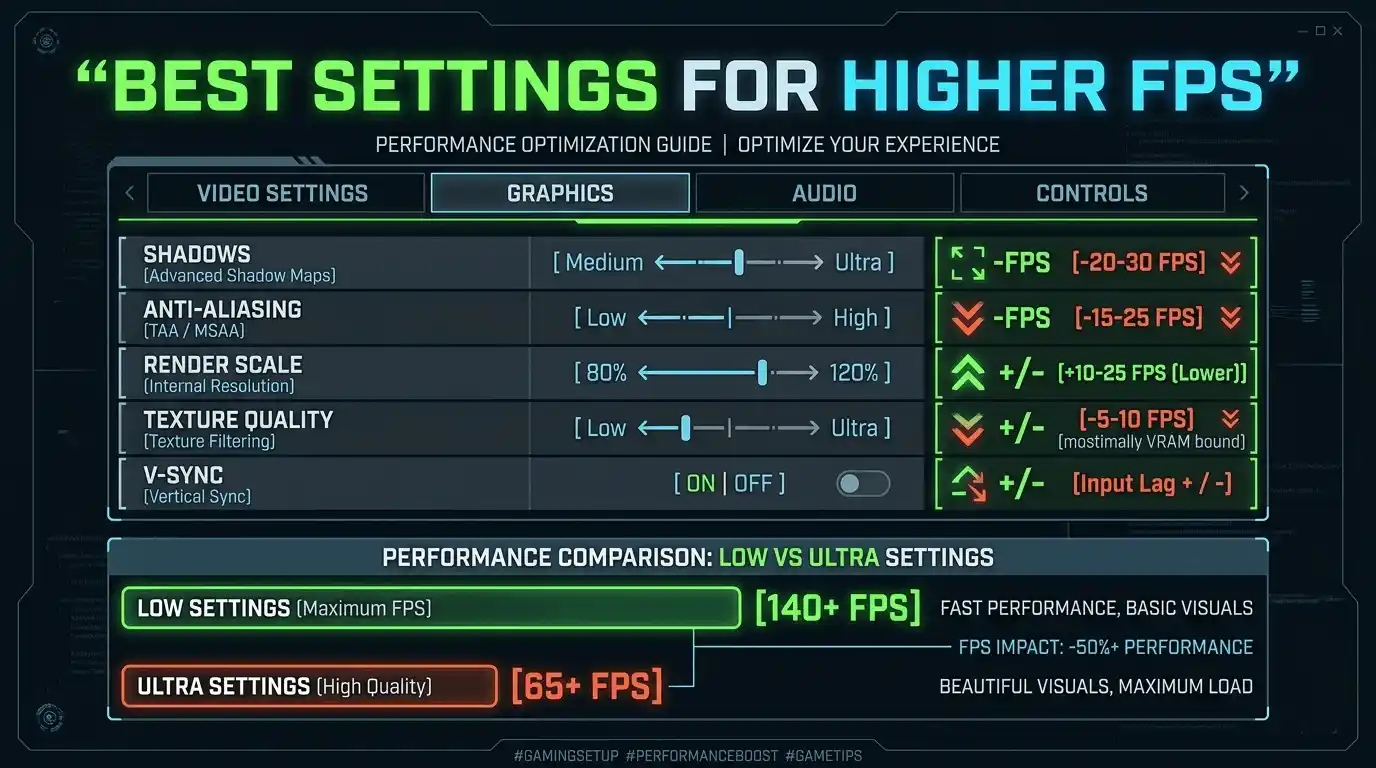
Settings That Impact FPS the Most
Some graphics settings affect FPS far more than others.
- Shadow Quality: One of the biggest FPS killers
- Anti-Aliasing: Can reduce FPS by 10–30%
- Render Scale: Lowering this can dramatically improve FPS
- Ray Tracing: Very demanding on GPUs
- Texture Quality: Moderate impact unless VRAM is limited
Disabling ray tracing alone can improve performance by 20–40 FPS in many AAA games.
FPS Impact Table by Graphics Setting
| Setting | Low → High FPS Loss | Recommended for Low-End PC | Recommended for Mid-Range |
| Shadows | 15–40% | Low / Off | Medium |
| Anti-Aliasing | 10–30% | Off / FXAA | TAA or DLSS |
| Render Scale | 20–50% | 75–80% | 90–100% |
| Texture Quality | 5–15% | Medium | High |
| V-Sync | Adds input lag | Off | Off |
Best Settings for 60 FPS on a Low-End PC
If you want stable 60 FPS on weaker hardware:
- Use 1080p Low or Medium
- Turn shadows to Low
- Disable motion blur
- Use FSR or DLSS if available
- Lower render scale slightly
- Close background apps before gaming
Games like Fortnite, Valorant, CS2, and GTA V can run smoothly on older GPUs with optimized settings.
System Requirements vs Actual FPS Performance
Why Minimum Specs Don’t Guarantee Playable FPS
Many gamers misunderstand minimum system requirements.
Minimum specs often target:
- 720p or 1080p Low
- 30 FPS
- Older hardware configurations
Recommended specs usually aim for:
- 1080p Medium/High
- Stable 60 FPS
Optimal performance often requires hardware above the recommended level.
How Much FPS Can Your Monitor Handle?
Your monitor refresh rate also matters.
- 60Hz monitor: Displays up to 60 FPS
- 144Hz monitor: Displays up to 144 FPS
- 240Hz monitor: Best for esports gaming
FPS above your refresh rate can still reduce input latency, even if you can’t visually see every extra frame.
FPS Comparison — Low vs Medium vs Ultra Settings
FPS Drop from Low to Ultra — What to Expect
Ultra settings often provide small visual improvements but massive FPS losses.
Competitive players usually prefer:
- Low settings
- Higher FPS
- Lower latency
Story-focused gamers may prefer higher visual quality.
Settings Preset FPS Comparison Table (1080p, Mid-Range GPU)
| Preset | Avg FPS | 1% Low FPS | Visual Quality | Recommended For |
| Low | 140–160 | 110+ | Minimal | Competitive / Low-end PC |
| Medium | 90–110 | 70–85 | Balanced | Most users |
| High | 60–80 | 45–60 | Good | Mid-high builds |
| Ultra | 35–50 | 25–35 | Max detail | High-end only |
Tips to Improve FPS on Any PC
For deeper performance analysis and real-world benchmarking examples, you can also explore What FPS Can I Get on My PC? — How to Check, Estimate & Boost Your Frame Rate and How Much FPS Can Your PC Handle?, which break down FPS estimation strategies in detail.
How to Get Better FPS in Games on Windows 10 / 11
Here are practical FPS optimization tips:
- Enable Windows Game Mode
- Update GPU drivers regularly
- Disable startup apps
- Set Windows power plan to High Performance
- Lower background CPU usage
- Use DLSS, FSR, or XeSS when available
Even simple optimizations can improve average FPS and reduce stuttering.
Hardware Upgrades That Boost FPS the Most
If your FPS is still low, upgrades help significantly.
Best FPS upgrades:
- GPU upgrade
- SSD upgrade (for loading times)
- RAM upgrade to 16GB or 32GB
- CPU upgrade for CPU-heavy games
For most gamers, the graphics card delivers the largest FPS improvement.
Common FPS Issues & Fixes
Why Is My FPS Lower Than Expected?
Low FPS usually happens because of:
- Thermal throttling
- Outdated GPU drivers
- Background software usage
- High graphics settings
- CPU bottlenecks
Monitoring temperatures with MSI Afterburner can help identify overheating issues.
FPS Drops and Stuttering — Causes and Solutions
Common causes of FPS drops include:
- Single-channel RAM
- Shader compilation stutter
- V-Sync conflicts
- Insufficient VRAM
- CPU overheating
Fixes include:
- Enabling dual-channel RAM
- Updating drivers
- Locking FPS to stable targets
- Reducing texture quality
🎯 Calculate Your Exact FPS — FPS Calculator for PC
What the FPS Calculator Tool Does
The FPS Calculator estimates your expected gaming FPS based on your GPU and CPU combination. It supports low-end PCs, gaming laptops, and high-end gaming builds without requiring downloads or benchmark tests.
Who Should Use the FPS Calculator
This tool is useful for:
- Gamers upgrading their PC
- Laptop users checking gaming performance
- PC builders comparing hardware
- Players targeting 60 FPS or 144 FPS gameplay
🎯 Try the FPS Calculator Now
Instead of guessing how many FPS your PC can handle, use the calculator to get a fast estimate tailored to your hardware setup.
👉 Use the tool here: FPS Calculator for PC
Conclusion — Know Your FPS Before You Play
Key Takeaways
Your FPS depends on multiple factors, including GPU power, CPU performance, RAM configuration, graphics settings, and monitor resolution.
For most gamers:
- 60 FPS remains the smooth gaming baseline
- 144 FPS is ideal for competitive gaming
- Low and Medium settings often provide the best FPS-to-visual-quality balance
Using an FPS calculator is one of the easiest ways to estimate performance before buying hardware or launching a game.
Final Recommendation by PC Tier
- Low-end PC: Target 60 FPS at 1080p Low settings
- Mid-range PC: Target 60–144 FPS at 1080p Medium/High
- High-end PC: Target 144 FPS+ at 1440p or 4K
Understanding how much FPS your PC can handle helps you optimize settings, choose upgrades wisely, and enjoy smoother gameplay across every genre.





One Response